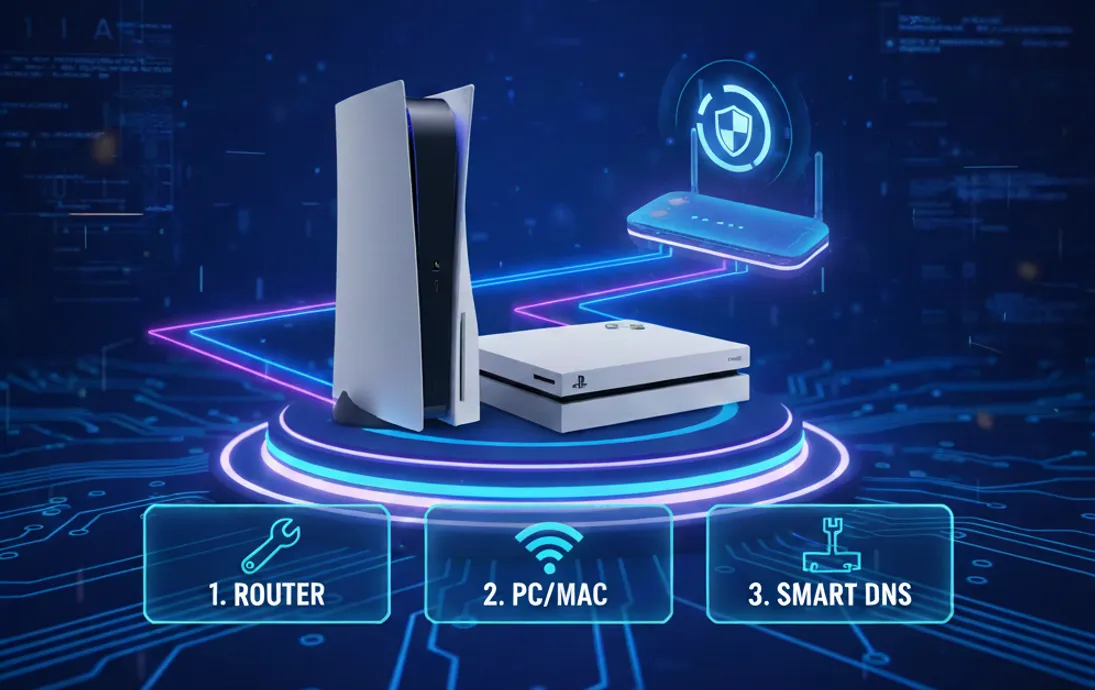
With the release of GTA VI Online and the shift toward 4K cloud gaming in 2026, network performance is no longer just a luxury—it’s a competitive edge. Whether you're looking for the best VPN for GTA VI Online, trying to fix PS5 lag, or looking to watch US Netflix on PS5 without a router, this guide covers everything you need to know.
Since PlayStation consoles don't support native VPN apps (even in 2026), you’ll need a workaround. Here are the three most reliable ways to get the job done.
Preparation: 2026 Hardware & Software Checklist
Before you start, ensure you have the following:
-
Premium VPN Service: Look for WireGuard 2.0 support (e.g., ExpressVPN) for ultra-low latency.
-
Hardware:
-
A PS5 or PS4 console.
-
Cat 7+ Ethernet Cable: Don't let your cable be the bottleneck in the 10Gbps era.
-
Wi-Fi 7 Router: Recommended for those who prefer gaming without wires.
-
Why Do PlayStation Gamers Need a VPN?
|
Feature |
Why It Matters |
|
DDoS Protection |
Hide your real IP to stay safe from sore losers and network attacks. |
|
Bypass Throttling |
Stop your ISP from slowing down your speeds during peak gaming hours. |
|
Lower Ping |
Optimized routing can often find a faster path to game servers than your standard ISP. |
|
Global Access |
Access region-locked DLCs, early game releases, and international streaming content. |
Pro Tip: What is ISP Throttling?
This happens when your provider intentionally slows down your connection during high-bandwidth activities (like 4K gaming). A VPN bypasses these restrictions by hiding your activity from the ISP.
How to Set Up a VPN on PlayStation?
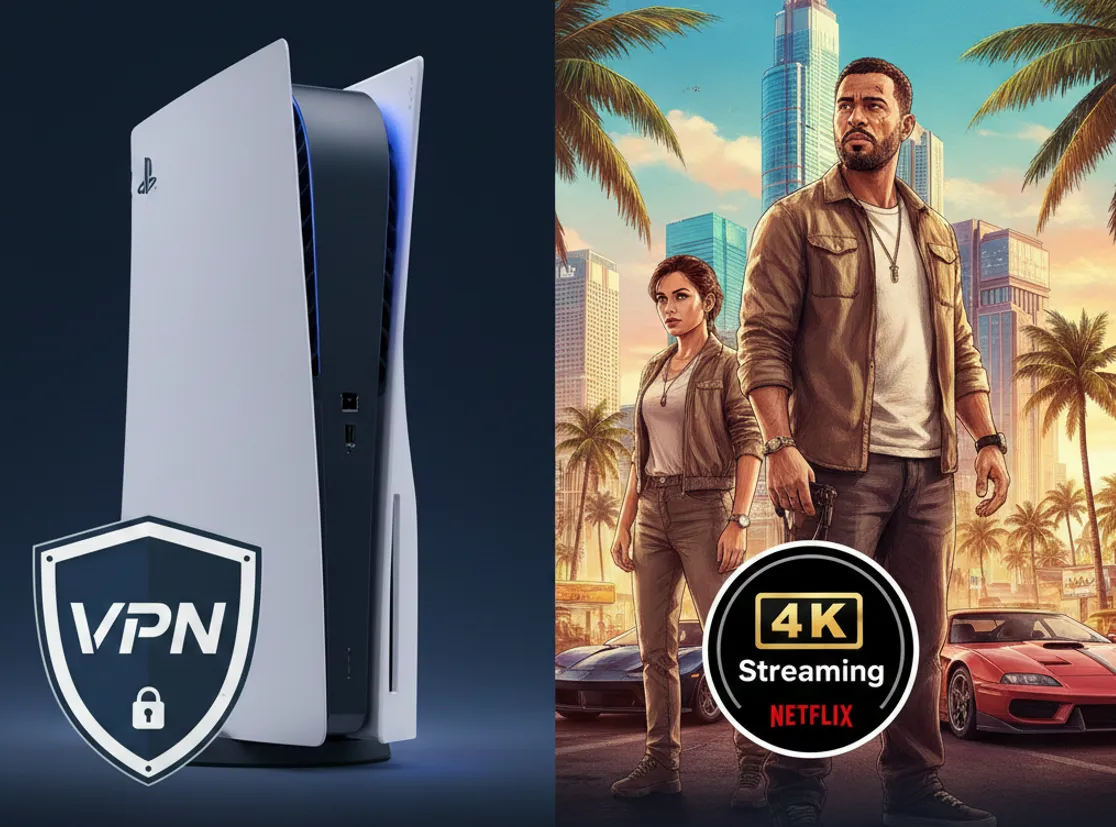
Since PlayStation consoles still don’t support native VPN apps, here are the three most effective ways to optimize your connection in 2026. Choose the one that best fits your technical comfort and gaming needs.
Method 1: Router Setup (Best for Long-Term Stability)
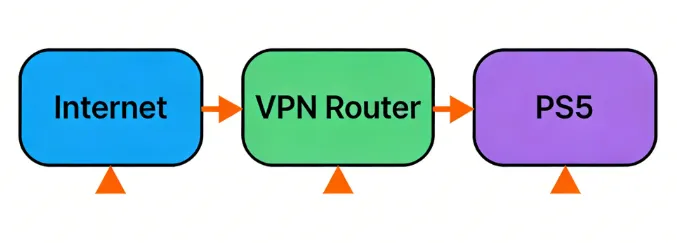
This is the "set it and forget it" solution. By installing the VPN directly on your router, every device in your house—including your PS5—is automatically protected and optimized.
Best for: Hardcore gamers who want a permanent, high-performance connection.
How to Set Up:
-
Log in to Your Router: Open your browser and head to your router’s admin page (typically 192.168.1.1).
-
Configure the VPN Client:
-
Native Support: Many modern gaming routers have a dedicated VPN tab. Just enter your account details.
-
Manual Config: Download the WireGuard (.conf) or OpenVPN (.ovpn) profile from your VPN provider and upload it.
-
PlayStation Network Settings: On your console, go to Settings > Network > Set Up Internet Connection.
-
Finalize: Connect to your Wi-Fi or LAN. If prompted, select "Do Not Use" for the Proxy Server.
-
VPN Fusion (Optional): If you have a gaming router (like ASUS ROG), use "VPN Fusion" to assign the VPN tunnel only to your PS5 while letting other devices use the local connection.
Pros:
-
Whole-Home Protection: Every device is covered.
-
Always On: No need to toggle settings every time you play.
-
Zero Performance Loss: The router handles encryption, not the PS5 hardware.
Cons:
-
Complex Swapping: Changing locations requires logging into the router.
-
Hardware Dependent: Budget routers may not support VPN clients.
-
Setup Time: Takes a bit longer to configure initially.
VPN Router Tutorial: Best VPN Router of 2026 and Essential Setup Guide
💻Lightway vs. WireGuard 2.0: Which Protocol Wins for PS5?
Speed is the lifeblood of gaming in 2026. If you are using a VPN on your PS5 via a router or PC hotspot, your choice of protocol will dictate your ping and stability. Here is how the two giants stack up:
-
Handshake Speed (The Instant Connection): ExpressVPN’s Lightway remains the champion of connection speed. Because it has an incredibly lightweight codebase, it establishes a secure tunnel almost instantly. This is crucial for router setups where you don't want to wait 10 seconds for the network to "wake up" every time you turn on your console.
-
Sustained Throughput (The Cloud Gaming King): For heavy tasks like 4K Cloud Gaming or downloading massive 200GB patches for GTA VI, WireGuard 2.0 (utilized by NordVPN and Surfshark) is the king. Its ability to utilize multiple CPU cores efficiently means it can maintain massive speeds without causing your router to overheat or throttle your bandwidth.
The Verdict: > * Use Lightway if you play competitive shooters like Apex Legends or Warzone where connection stability and instant "plug-and-play" are priorities.
Switch to WireGuard 2.0 if you are streaming high-fidelity games through the cloud or watching 4K UHD content on your console.
Method 2: PC/Mac Hotspot (Best for Flexibility)
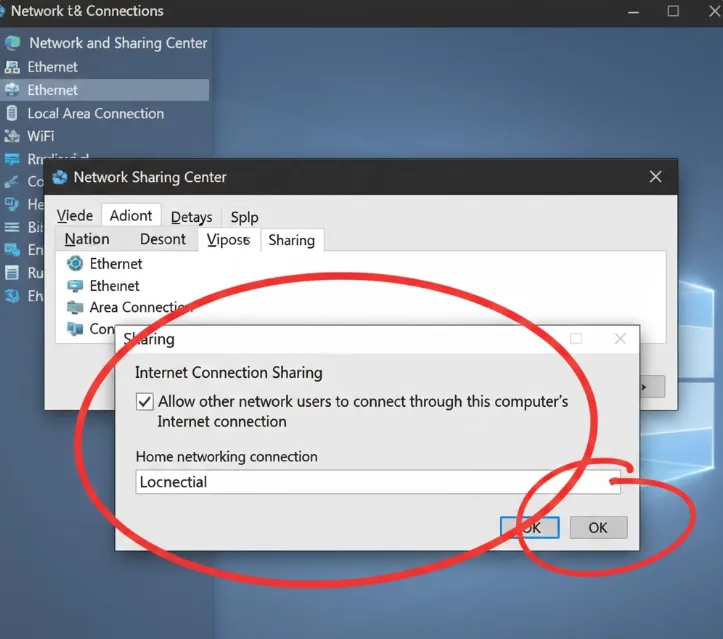
If you don't want to mess with router settings, this "Virtual Router" method is the best alternative. Your computer acts as a middleman, sharing its encrypted connection with the PlayStation.
Best for: Temporary gaming sessions and users who switch server locations frequently.
Windows Steps:
-
Connect VPN: Launch your VPN app on your PC and connect to your desired location.
-
Enable Mobile Hotspot: Toggle "Mobile Hotspot" to On in Windows Settings.
-
Share Connection:
-
Go to Network and Sharing Center > Change adapter settings.
-
Right-click your VPN’s virtual adapter > Properties > Sharing.
-
Check "Allow other network users to connect..." and select your Hotspot adapter.
-
PS5 Connection: Search for your PC's Wi-Fi on your PS5 and connect using "Easy" setup.
Mac Steps:
-
Connect VPN: Launch your VPN on your Mac.
-
Enable Sharing: Go to System Settings > General > Sharing > Internet Sharing.
-
Configure Ports: Choose your VPN connection as the source and share it via Wi-Fi or Ethernet to your console.
-
PS5 Connection: Select the signal on your PS5 and choose "Do Not Use" for Proxy Server.
Pros:
-
Ultra Simple: Use the standard VPN app to switch servers in seconds.
-
Server Variety: Perfect for hopping between Japan, US, and UK regions.
-
Zero Extra Cost: No need to buy a high-end router.
Cons:
-
PC Must Stay On: Your computer cannot sleep while you are gaming.
-
Wi-Fi Lag: Wireless sharing can introduce minor latency compared to wired.
-
Permission Issues: Requires correct OS-level sharing permissions.
Method 3: Smart DNS (Best for Speed & 4K Streaming)
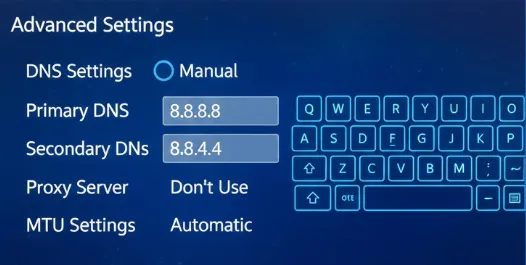
If you only care about watching Netflix US or downloading games faster, Smart DNS is your best friend. It doesn't encrypt your data, which means zero speed loss.
Best for: 4K Streaming (Netflix/Disney+), fast downloads, and casual online play.
How to Set Up:
-
Activate IP: Log into your VPN’s website and register your home IP address in the Smart DNS section.
-
Get DNS Addresses: Note the Primary and Secondary DNS addresses provided.
-
Edit PS5 Connection:
-
Go to Settings > Network > Set Up Internet Connection.
-
Select your network > Advanced Settings.
-
Change DNS Settings to Manual and enter the two addresses.
-
Restart: Restart your console for changes to take effect.
Pros:
-
Full Bandwidth: No encryption means no speed drops.
-
Dead Simple: Takes 2 minutes to set up.
Cons:
-
No Privacy: Your IP isn't hidden, and data isn't encrypted.
-
Hit or Miss: Doesn't always work for bypassing strict game region locks.
🆚Why is there no VPN App on my PS5? (The Apple TV Comparison)
If you own an Apple TV, you know how easy it is: go to the App Store, download NordVPN or ExpressVPN, and click "Connect." Many players ask, "It’s 2026, why can't I just do the same on my PS5?"
The Sony Lockdown: Unlike Apple's tvOS, which opened its network layer to developers back in late 2023, Sony's PlayStation firmware remains a "closed garden." Sony has not yet permitted third-party VPN developers to access the core network stack for security, stability, and licensing reasons. This means a native app that routes your console's internal traffic simply cannot exist.
The Workaround Reality: Because a native solution isn't available, the 3 methods listed in this guide (Router, PC Hotspot, and Smart DNS) are not just "options"—they are the essential workarounds for every PlayStation owner.
The "Gold Standard" Experience: If you want to replicate the seamless "one-click" experience of an Apple TV on your console, your best bet is a Gaming Router. By setting up the VPN at the hardware level, your PS5 automatically inherits the protection and location-spoofing, effectively turning your console into a "native" VPN-ready machine.
💡Fixed: PSN Sign-in Errors and Flagged VPN IPs
Are you seeing Error NP-34957-8 or getting stuck on the PSN sign-in screen? This usually isn't a problem with your console; it’s a "reputation" issue with your VPN server.
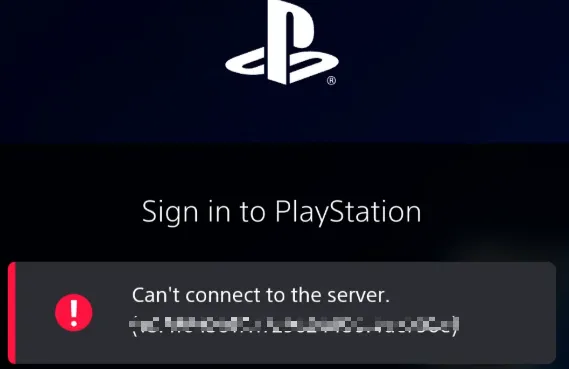
The "Shared IP" Problem: Most standard VPN servers use "Shared IPs," meaning hundreds of users are using the same address simultaneously. If just one person on that server violates Sony's Terms of Service or triggers a security flag, Sony may black-list the entire IP address. This results in you being blocked from signing into PSN, even if your connection is otherwise perfect.
The Ultimate Fix: Dedicated IP: If you encounter persistent sign-in failures, the "Pro" solution is to switch to a Dedicated IP (offered by premium providers like NordVPN or PIA)
-
Why it works: A Dedicated IP is assigned exclusively to you. Since no one else is using it, the IP remains "clean" and is far less likely to be flagged by Sony’s anti-fraud systems.
-
Consistency: It effectively bypasses the "NP-34957-8" error and ensures that your PS5 is recognized as a legitimate, consistent device every time you log in, making it the most reliable setup for 2026 competitive play.
Pro Tips: Fix NAT Type & Optimize PS Portal
For enthusiasts using the latest hardware or facing persistent connectivity issues, these advanced adjustments are essential for a professional-grade setup.
1. Optimizing VPN for PlayStation Portal and Wi-Fi 7 Routers
In 2026, the PlayStation Portal will become a staple for handheld play. However, streaming 4K content requires a jitter-free connection. To prevent frame drops and input lag:
-
Enable MLO: On your Wi-Fi 7 router, ensure Multi-Link Operation is active. This allows the Portal to connect across multiple bands simultaneously, minimizing the interference that VPN encryption might otherwise cause.
-
Prioritize Traffic: Use your router's QoS (Quality of Service) settings to prioritize the VPN tunnel assigned to your PlayStation. This ensures that even if other family members are streaming 8K video, your remote play session remains buttery smooth.
2. How to Change PS5 NAT Type from 3 to 2 with a VPN
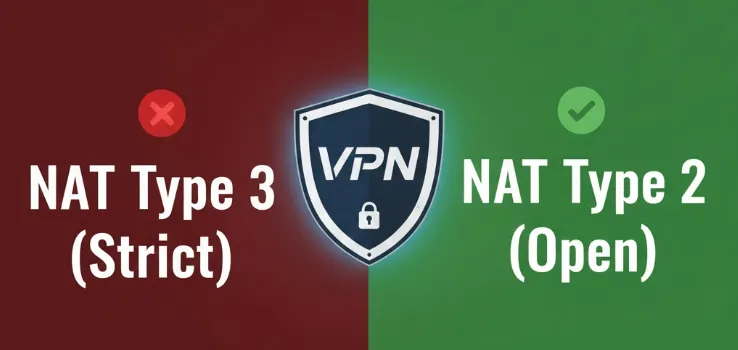
A common issue for PlayStation gamers is NAT Type 3 (Strict), which causes matchmaking lag and chat issues.
To get NAT Type 2 (Open/Moderate) using a VPN:
-
Choose a VPN with Port Forwarding support (like PIA).
-
In your router or VPN settings, enable the specific ports required by PSN (TCP: 1935, 3478-3480; UDP: 3074, 3478-3479).
-
Ensure UPnP is enabled on your VPN-configured router.
Top 5 VPN Recommendations for PlayStation (2026)
Based on our extensive testing in 2026, here are the top performers for speed, stability, and console compatibility.
|
VPN Service |
Server Countries |
Smart DNS |
Key Streaming Platforms Supported |
Simultaneous Connections |
Money-Back Guarantee |
Best Pricing |
|
1. ExpressVPN |
105 + |
✔ |
Netflix, Disney+, Amazon Prime Video, Hulu, BBC iPlayer, HBO Max, etc. |
8 |
30 Days |
$3.49/mo (73% off) |
|
2. CyberGhost |
100 + |
✔ |
Amazon Prime Video, BBC iPlayer, Hulu, HBO Max, etc. |
7 |
45 Days |
$2.19/mo (83% off) |
|
91 + |
✔ |
Showtime, HBO Go, Netflix, etc. |
Unlimited |
30 Days |
$2.03/mo (83% off) |
|
|
4. PrivateVPN |
63 + |
✘ |
Netflix, Sky TV, BBC iPlayer, Disney+, Hulu, etc. |
10 |
30 Days |
$2.00/mo (85% off) |
|
5. IPVanish |
145 + |
✘ |
Netflix, Disney+, Amazon Prime Video, Hulu, BBC iPlayer, etc. |
Unlimited |
30 Days |
$3.33/mo (74% off) |
1. ExpressVPN

ExpressVPN blends lightning-fast speeds with ultra-low latency, ensuring your online gaming and 4K streaming remain buttery smooth.
|
Feature |
Details |
|
Server Network |
3,000+ servers in 105+ countries (including HK, Taiwan, Singapore) |
|
Simultaneous Connections |
Up to 14 devices (PS5, PS4, Xbox, Switch, PC, Mobile, etc.) |
|
Core Security |
256-bit encryption, audited zero-logs policy, DDoS protection |
|
Customer Support |
24/7 Live Chat and Email support |
|
Refund Policy |
30-day risk-free money-back guarantee |
Their proprietary Lightway protocol provides blazing speeds while minimizing ping. In our tests with Call of Duty: Modern Warfare II and Rocket League, the latency on local servers was virtually unnoticeable, making it the ideal choice for competitive gaming.
ExpressVPN Review 2026: Is It Still the Industry Leader? (Verified Test)
2. CyberGhost
If you want a connection specifically tuned for gaming, CyberGhost is a reliable veteran with an industry-leading refund policy.
|
Feature |
Details |
|
Server Network |
11,700+ servers in 100+ countries |
|
Simultaneous Connections |
Up to 7 devices (PS5, PS4, Routers, PC, Mobile, etc.) |
|
Core Security |
256-bit encryption, audited zero-logs, NoSpy servers |
|
Customer Support |
24/7 Live Chat and Email support |
|
Refund Policy |
45-day money-back guarantee (Industry longest) |
With over 11,700 servers, CyberGhost has one of the largest networks on the market. This scale ensures low server loads, allowing you to bypass congestion and find the fastest, lowest-latency nodes. During testing, latency consistently stayed below 50ms, delivering exceptionally smooth performance in Call of Duty.
3. Private Internet Access (PIA)
With the largest server fleet and unlimited device connections, PIA is the best value choice for households with multiple gamers.
|
Feature |
Details |
|
Server Network |
~35,000 servers in 91+ countries |
|
Simultaneous Connections |
Unlimited |
|
Core Security |
256-bit encryption, MACE Ad-blocker, audited no-logs |
|
Customer Support |
24/7 Live Chat and Email support |
|
Refund Policy |
30-day money-back guarantee |
PIA boasts nearly 35,000 servers worldwide, the largest on this list. No matter where you connect, the likelihood of server congestion is extremely low, ensuring a stable and high-speed connection. In our testing, PIA delivered a consistent sub-40ms latency on local nodes, providing plenty of headroom for fast-twitch shooters like Apex Legends.
Private Internet Access (PIA) Review 2026: Still the Best Value VPN?
4. PrivateVPN
A surprising "small but mighty" choice for players on a budget who don't want to compromise on speed.
|
Feature |
Details |
|
Server Network |
200+ servers in 63+ countries |
|
Simultaneous Connections |
Up to 10 devices |
|
Core Security |
256-bit encryption, zero-logs, Kill Switch |
|
Customer Support |
24/7 Live Chat and Email support |
|
Refund Policy |
30-day money-back guarantee |
PrivateVPN proves that a smaller server count doesn't mean lower quality. By meticulously managing their network, they offer some of the most stable speeds in the budget category. We observed a modest 30% speed drop on average, which still easily exceeds the 20 Mbps threshold required for high-stakes gaming in titles like Rocket League.
PrivateVPN Review 2026: Speed, Security, and Streaming Unlock Capability
5. IPVanish
IPVanish stands out for its generous connection limits and complete control over its server infrastructure.
|
Feature |
Details |
|
Server Network |
3,100+ servers in 145+ locations |
|
Simultaneous Connections |
Unlimited |
|
Core Security |
256-bit encryption, self-operated network, Kill Switch |
|
Customer Support |
24/7 Live Chat and Email support |
|
Refund Policy |
30-day money-back guarantee |
IPVanish consistently ranks among the fastest VPNs. During our Warzone benchmarks, we hit 350 Mbps with minimal jitter, providing a "local-feel" gaming experience.IPVanish Review 2026: Unlimited Devices & Top P2P Speed?
2026 Tech Spotlight: Wi-Fi 7, PS Portal, and Cloud Gaming
In 2026, network technology has evolved. Here is how to optimize your setup:
-
Wi-Fi 7 Multi-Link Operation (MLO): If you use a Wi-Fi 7 router (like the ASUS ROG 2026 series), MLO allows data transmission over multiple bands. This significantly reduces jitter, offsetting the slight overhead of VPN encryption.
-
PlayStation Portal Optimization: For remote play, deploy ExpressVPN on your home router. This ensures the path between your home PS5 and your Portal is encrypted and optimized, reducing input lag.
-
4K Cloud Gaming: With PS Plus Premium supporting 4K/60fps, throughput is massive. Stick to Lightway (ExpressVPN) or NordLynx (NordVPN) protocols, as they are optimized for large data packets and prevent ISP throttling.
-
NAT Type Fix: If your NAT becomes "Type 3 (Strict)" after connecting, enable UPnP on your router or switch your VPN protocol to WireGuard to return to NAT Type 2.
Conclusion: Which PS5 VPN is Right for You?
Choosing the best VPN depends on your specific gaming habits. Refer to the table below to find your perfect match for 2026:
|
Player Type |
Recommended VPN |
Primary Reason |
Setup Method |
|
Ultimate Pro Gamers |
Dedicated Router App with Lightway protocol; the gold standard for cloud gaming and low latency. |
Method 1: Router Setup |
|
|
Students / Renters |
Intuitive "Gaming-Optimized Servers" labels and very affordable monthly costs for beginners. |
Method 2: PC/Mac Sharing |
|
|
NAT-Type Restricted |
Exclusive Port Forwarding feature to fix NAT Type 3 issues, chat party failures, and matchmaking errors. |
Method 2: PC Sharing |
|
|
Strict Network Environments |
Unique Stealth VPN (Obfuscation Mode) effectively bypasses strict firewalls in schools or dormitories. |
Method 2: PC Sharing |
|
|
Multi-Device Households |
Supports Unlimited simultaneous connections with a robust self-owned backbone for full-house gaming. |
Method 1 or Method 3 |
Advice: Regardless of your choice, always prioritize providers with a strictly audited No-Logs Policy to protect your digital footprint. If you are still undecided, we recommend starting with CyberGhost—their 45-day money-back guarantee offers a zero-risk way to test nodes against your specific home ISP.
Note: Always use VPNs responsibly. Review the PlayStation Network Terms of Service and specific game developer policies to ensure compliance before connecting.
Frequently Asked Questions (FAQ)
Q1: Can using a VPN lead to a ban?
A: Generally, no. Sony primarily targets illegal transactions or cheating. However, avoid switching between geographically extreme server locations (e.g., London to Tokyo) in a very short window to prevent triggering automated security flags.
Q2: Can I use a VPN to watch Netflix on PlayStation?
A: Absolutely. There are two main ways to unlock global libraries:
-
Smart DNS (The Fast Track): Many premium VPNs (like ExpressVPN’s MediaStreamer) offer this. You simply enter the DNS address into your PlayStation’s Network settings to change your virtual location—ideal for streaming.
-
Router Setup (Full Protection): For complete security (DDoS protection) alongside streaming, configure the VPN on your router. This covers your console and every other device on your network permanently.
Q3: How do I set up a VPN if I don’t have a PC?
A: It's quite simple! You can use a smartphone or tablet to access your VPN account's configuration details. The most efficient method is a Router-level setup. Once configured, your PlayStation connects via Wi-Fi or Ethernet as normal and automatically inherits the VPN protection.
Q4: What are the tangible benefits of a VPN for PlayStation gaming?
A: A high-quality VPN upgrades your session in several ways:
-
Mitigate Network Attacks: Masks your IP to prevent disruptive DDoS attacks.
-
Bypass ISP Throttling: Stops your internet provider from limiting your bandwidth during peak gaming or streaming hours.
-
Access Global Matchmaking: Easily change regions to play with friends abroad or access region-specific content.
-
Optimized Routing: In some scenarios, a VPN can find a more direct path to game servers than your ISP, potentially lowering your ping.