Introduction: Sent the Invite, But They Can't Join?
Are you facing this frustrating dilemma? To enjoy the ultimate viewing experience at the best price, you successfully subscribed to YouTube Premium Family in a low-cost region (such as Turkey, India, or Argentina) and sent invitations to your eager family or friends. However, after they click the link, the system coldly rejects them: "You can't join this family group. You seem to be in a different country than the family manager."
This "Region Lock" error is the most common obstacle for global cross-region subscribers. It acts like a technical wall separating you from your invited members. The problem isn't your invitation method, nor is it just an IP address issue. This 2026 latest guide will dive into Google’s verification logic, reveal the root cause of cross-region failure, and provide a safe, efficient, and field-tested 3-step solution to reunite your family group economically.
Why Choose "Cross-Region" for YouTube Premium Family?
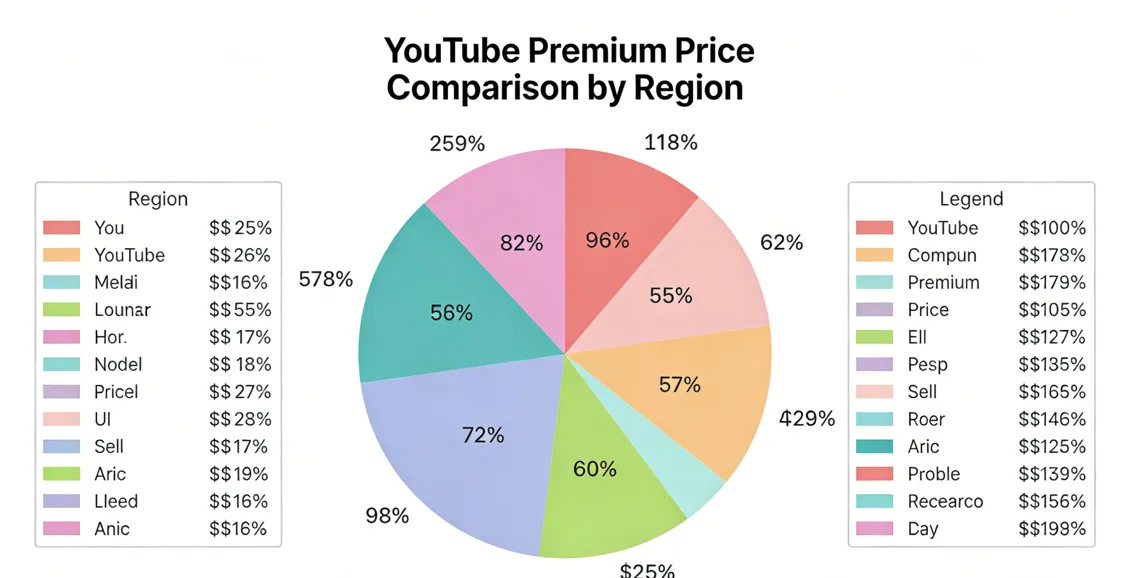
Choosing a cross-region subscription is undoubtedly the optimal solution for budget-conscious users. The core attraction lies in the massive price disparity:
-
Huge Price Gap: YouTube sets prices based on regional economic levels and Purchasing Power Parity (PPP). For example, by late 2025, a Family Plan in high-cost regions (like the US or parts of Europe) might cost up to $22.99 USD, while in low-cost regions (like Turkey or Argentina), it may convert to only $2-3 USD. This difference can exceed 10 times.
-
Identical Benefits: Regardless of where you subscribe, core Premium benefits—ad-free playback, background play, downloads, and YouTube Music Premium—are exactly the same globally.
-
Family Sharing: The family plan supports up to 6 members (Manager + 5 members). This splits the cost so effectively that the per-person monthly fee might be lower than a cup of coffee.
Root Cause: Analysis of Google Play's "Digital Proof of Residency"
To join a family group, Google’s sole requirement is: The manager and all members must be judged as being in the "same country/region."
Google checks three levels of information, weighted differently:
-
IP Address (Low Weight): Your network location. Easily masked by VPN, but insufficient on its own.
-
Device Location/History (Medium Weight): Recent GPS records and browser geographical data.
-
Google Play Country Profile (High Weight/Decisive): This is the country bound to your "Payment Profile" in Google Pay or the Play Store. Google treats this as your official "Digital Proof of Residency."
The Conflict: * Manager: Their Play Store country is fixed to the subscription region (e.g., Turkey).
-
Invitee: If their Play Store profile remains in their actual country (e.g., Germany, Japan), the system rejects them. Temporary IP masking is ineffective because the Play Store profile is the final authority.
Conclusion: The error is a mismatch of Play Store region settings, not just a network IP issue. You must change the invitee's Play Store region.
Step-by-Step Guide: Solving "Different Country" Error (Web)
Since the issue is the Google Play Profile, the strategy is to have the invitee "digitally move" to the manager's country before accepting the invite.
Step 1: Preparation & Self-Check
-
Stable VPN: Ensure a reliable connection to the manager's country (e.g., Turkey). Use reputable paid services for "clean" IPs.
-
Overseas Payment Method (Core): Prepare a virtual or physical card (e.g., Wise, NobePay, Revolut). This card triggers the profile change.
-
Clear Browser Cache: Use "Incognito Mode" to avoid interference from old cookies or location data.
-
Account Check: Ensure the invitee's account hasn't changed regions in the last 12 months.
Step 2: Core Operation — Changing Google Play Region
This must be done by the invitee while connected to the target country's VPN:
-
Connect VPN: Connect to the manager's subscription country.
-
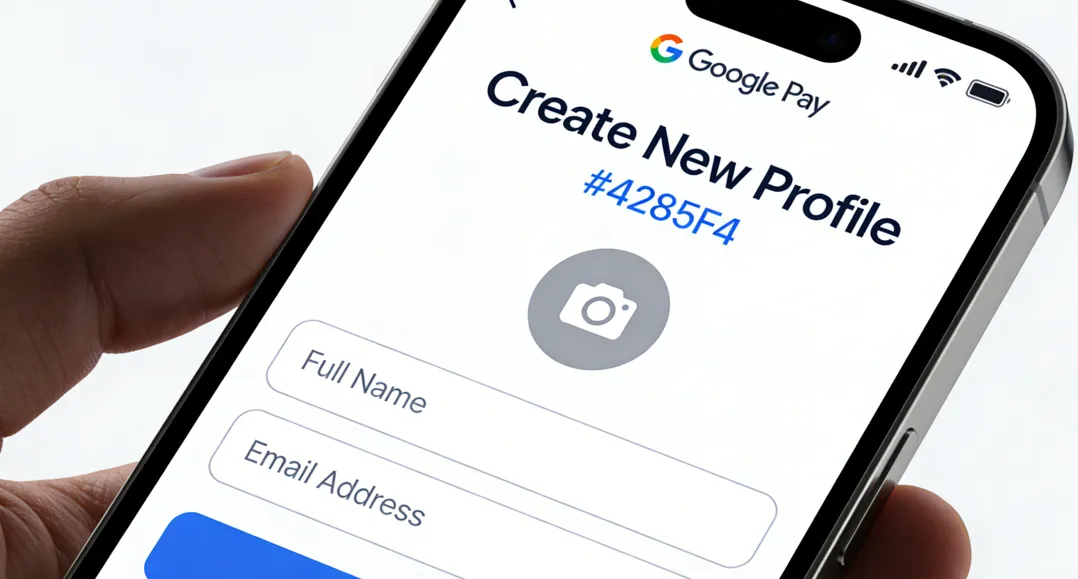
Visit Google Pay: Go to pay.google.com (Web version, not the App).
-
Create New Payment Profile: In settings, select "Create New Payment Profile" and choose the manager's country. Do not just edit the old one; creating a new one is cleaner.
-
Add Payment Card: Add the overseas card prepared in Step 1. Use a real or simulated address from that country. Once successful, Google Pay locks your Play Store profile to that region.
Reminder: You can only change your Google Play region once every 12 months.
Step 3: Final Step — Accepting the Invitation
-
Stay Connected: Keep the VPN active on the target country.
-
Click Invite Link: Click the link in the email again (preferably in Incognito mode).
-
Success: Since the IP and Digital Residency now match the manager, you will see "You have successfully joined the family group."
Pro-Tip: Troubleshooting "Error OR-CCSEH-05"
The Google error OR-CCSEH-05 means your payment method has a verification issue, often a bank decline for unspecified reasons, requiring you to check card details, ensure sufficient funds, match billing addresses exactly, use different browsers/devices, clear cache/cookies, try a new card, or contact your bank/Google support for deeper issues like account restrictions or country mismatches.
How to Fix It
-
Verify Payment Info: Double-check card number, expiry, CVV, and ensure it's not expired.
-
Check Funds & Bank: Confirm funds and call your bank to authorize online/international transactions.
-
Match Addresses: Make sure your billing address in Google Pay/Play matches your card's.
-
Browser/App Troubleshooting: Clear cache/cookies, use a different browser/device (phone app vs. computer).
-
Try New Methods: Add a different card or use a Google Play gift card.
-
Restart: Sign out/in, restart your device.
-
Contact Support: If issues persist, reach out to Google Pay/Play support or your bank for specific reasons.
Troubleshooting Guide: YouTube Premium "Not in the Same Country" Error (Mobile)
If you encounter errors like "We couldn't verify your country" or "Not in the same country" when subscribing to YouTube Premium or joining a Family Plan on Android or iOS, follow these steps to resolve the issue.
Step 1: Check Your Network and IP Address (Crucial)
YouTube relies heavily on your current IP address to verify your physical location.
-
Completely Turn Off VPN/Proxy:
-
Disable any VPN, accelerator, or proxy software before attempting to subscribe or join a group.
-
Note: The system must detect your true local network environment.
-
Switch Network Connection:
-
If the error persists after turning off the proxy, try switching from Wi-Fi to Mobile Data (or vice versa) to obtain a fresh IP address from your carrier.
-
Cooldown Period:
-
If you have frequently changed IPs recently (e.g., switching between servers in different countries), your account location might be temporarily "soft-locked." Wait 30 to 60 minutes on a stable local network before trying again.
Step 2: Align Google/Apple Account Payment Profiles
Your account's region settings must match the region of the Premium service you are trying to join (e.g., Turkey, India, US, etc.).
For Android Users (via Google Play)
-
Check Google Play Country:
-
-
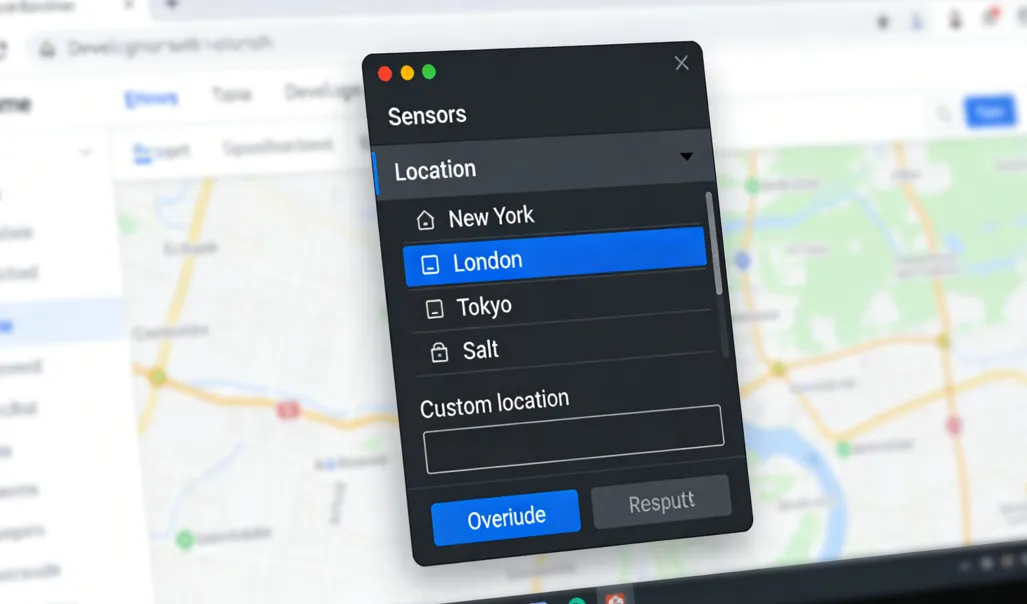
Go to Google Play Store > Profile Icon > Settings > General > Account and device preferences.
-
Verify the "Country and profiles" section. Note: You can only change this once per year.
-
-
Check Google Pay (Payment Profile):
-
Visit pay.google.com.
-
Check your Payment Profile under "Settings." If the country is incorrect, you may need to close the old profile and create a new one that matches your target region.
-
For iOS Users (via App Store)
-
Check Apple ID Region:
-
Go to Settings > Apple ID > Media & Purchases > View Account > Country/Region.
-
Renew via Subscription Management:
-
If you get an error in the app, go to Settings > Apple ID > Subscriptions > YouTube. Managing the renewal directly here can sometimes bypass in-app verification.
Step 3: Clear App Data and Retry
Cached location data can often interfere with the verification process.
-
Force Close the App: Ensure YouTube is completely closed from the background switcher.
-
Clear Cache & Data (Android Only):
-
Go to Settings > Apps > YouTube > Storage > Tap "Clear Data" and "Clear Cache."
-
Repeat this for Google Play Services and Google Play Store.
-
Relogin: Reopen the app and sign in. This triggers a fresh location check.
Step 4: Special Verification for Family Plans
If you are a member invited to join a Family Plan:
-
Address Consistency:
-
The billing address in Google Pay for both the Family Manager and all members must be in the same country.
-
GPS Location Verification:
-
YouTube may occasionally prompt members to visit youtube.com/locate to share GPS coordinates.
-
Ensure all members are within the same authorized geographic area during this verification.
Step 5: Contact Official Support
If none of the above steps work, your account might be flagged for "unusual activity."
-
Visit the YouTube Help Center.
-
Provide a screenshot of the error and describe your issue clearly: "I am unable to join the family plan due to a 'different country' error, despite being in the same location as the manager."
Important Reminders
-
Avoid Frequent Attempts: Multiple failed attempts in a short period can trigger a security lock. Wait a while between major setting changes.
-
Try Browser Mode: If the app fails, try using a mobile browser in Incognito/Private mode to log in at youtube.com/premium and complete the setup.
Recommended Tools
1. High-Quality VPN Services
|
VPN Name |
Core Advantage |
Best For |
|
Industry-leading speed and security. |
High success rate for Play Store changes. |
|
|
Largest server network with extra privacy features. |
Avoiding IP blacklists and data protection. |
|
|
Unlimited simultaneous connections. |
Families and multi-device users. |
In-Depth Analysis of High-Quality VPN Services
Following the basic comparison table, here is a detailed introduction to the three most acclaimed VPN service providers on the market today: ExpressVPN, NordVPN, and Surfshark.
1. ExpressVPN: The Gold Standard for Premium Experience
ExpressVPN has long been recognized as the "Gold Standard" of the VPN industry. It is renowned for its extreme connection speeds, unparalleled ease of use, and rigorous privacy standards.
Core Strengths
-
Lightway Protocol: A proprietary lightweight protocol developed by ExpressVPN. It is exceptionally fast and stable, offering a seamless experience even when switching networks on mobile devices (e.g., from Wi-Fi to 4G/5G).
-
TrustedServer Technology: All servers run on RAM (memory) rather than hard drives. This ensures that all data is completely wiped every time a server reboots, physically guaranteeing a "zero-logs" policy.
-
Cross-Platform Compatibility: Beyond common operating systems, it offers excellent dedicated router firmware and the Aircove hardware router, making it easy to protect every connected device in a home.
-
Privacy Jurisdiction: Headquartered in the British Virgin Islands (BVI), it sits outside the jurisdiction of the "5/9/14 Eyes" intelligence alliances.
Target Audience
-
Beginners: The interface is extremely simple, allowing for a connection with just one click.
-
High-End Users: Those who prioritize maximum stability, aren't price-sensitive, and need to protect gaming consoles or smart TVs.
2. NordVPN: The All-Around Security Specialist
NordVPN is currently one of the largest VPN providers globally by user base. It is more than just a VPN; it acts as a comprehensive suite integrating various cybersecurity tools.
Core Strengths
-
NordLynx Protocol: Built on the foundations of WireGuard, it maintains industry-leading data transfer speeds even over long-distance connections (e.g., connecting to the other side of the globe).
-
Threat Protection Pro: Capable of filtering malicious websites, blocking ads, and scanning downloaded files for viruses. This feature can function independently even when the VPN is not connected.
-
Specialized Servers:
-
Double VPN: Encrypts data twice by routing it through two servers.
-
Onion Over VPN: Combines the VPN with the Tor network for triple encryption.
-
Obfuscated Servers: Specifically designed to bypass strict network censorship and deep packet inspection.
-
Dark Web Monitor: Actively scans the dark web and immediately alerts the user if their associated email information is found to be leaked.
Target Audience
-
Security Enthusiasts: Users with high privacy requirements who want a one-stop solution for VPN, antivirus, and ad-blocking needs.
-
Speed Seekers: Users who need to download large files quickly or stream 4K/8K ultra-high-definition content.
3. Surfshark: The Best Value for Family Sharing
As a rising star, Surfshark has quickly joined the ranks of top-tier VPNs thanks to its high cost-effectiveness and forward-thinking features.
Core Strengths
-
Unlimited Device Connections: This is Surfshark's most competitive edge. A single account can be used on an unlimited number of devices simultaneously, making it perfect for large households or tech enthusiasts with many gadgets.
-
Dynamic MultiHop: Allows users to customize their double VPN paths (choosing specific entry and exit servers), providing a more flexible privacy solution.
-
CleanWeb 2.0: Not only blocks web ads but also automatically skips "Cookie Consent" pop-ups on most websites, significantly improving the browsing experience.
-
Alternative ID: Generates a virtual name and email address to prevent the disclosure of real information when registering on untrusted websites.
-
GPS Spoofer: Available on Android. It can modify the phone's GPS location, not just the IP address.
Target Audience
-
Budget-Conscious Users: Those seeking high performance but wanting a more affordable price (especially with 2-year plans).
-
Families: Groups that need to protect phones, tablets, and computers for all family members at once.
Summary Comparison & Recommendations
|
Dimension |
|||
|
Primary Label |
Simple, Stable, Premium |
Feature-rich, Ultra-fast |
High Value, Unlimited Connections |
|
Server Count |
3000+ (105 countries) |
6000+ (110+ countries) |
3200+ (100 countries) |
|
Simultaneous Devices |
8 Devices |
10 Devices |
Unlimited |
|
Key Selling Points |
Lightway Protocol, Router Support |
Threat Protection, Double Encryption |
Affordable, Alternative ID |
Buying Advice:
-
If you prefer ultimate peace of mind and are not price-sensitive, choose ExpressVPN.
-
If you seek the fastest speeds and the most robust security features, choose NordVPN.
-
If you have many devices or want the best value for money, choose Surfshark.
2. Virtual Credit Cards (VCC): Your Digital Keys to Global Access
Virtual Credit Cards (VCCs) are the unsung heroes of the cross-region subscription world. They act as "Digital Address Proof," allowing you to bypass strict geographic billing restrictions that reject standard local bank cards.
Why a VCC is Mandatory for Cross-Region Success:
-
BIN Identification: Every card has a Bank Identification Number (BIN). Google uses this to identify the issuing country. A VCC from a multi-currency provider often carries a BIN that Google recognizes as "Global" or "Region-Neutral," allowing it to be added to foreign payment profiles (like Turkey or Ukraine) where your domestic card would fail.
-
Privacy & Security: You can set spending limits or use "Single-Use" virtual cards to prevent overcharging or data leaks on international platforms.
Top 3 Recommended VCC Providers Deep-Dive:
Wise :
-
Best For: Long-term, stable subscriptions in regions like Turkey, India, and the UK.
-
Features: Offers real multi-currency accounts. You can hold balances in TRY (Turkish Lira) or ARS (Argentine Peso).
-
Pro-Tip: Highly trusted by Google's billing system.
Revolut :
-
Best For: European low-cost regions (e.g., Ukraine, Romania).
-
Features: Exceptional app interface with instant virtual card generation.
Play/App Store Gift Cards :
-
Best For: Users who cannot obtain a VCC or whose credit cards are repeatedly rejected by Google/Apple.
-
How it works: You purchase a digital gift card specifically for the target region (e.g., a Turkish Google Play Gift Card from a reputable reseller like SEAGM or Eneba).
-
The Strategy: By redeeming the gift card, your account balance becomes denominated in the local currency. This often "forces" the store to recognize your account as belonging to that region, even without a linked credit card.
-
Risk Warning: Both Google and Apple have significantly tightened their gift card policies. You must be on a high-quality residential VPN of the target country when redeeming, or the code may be locked ("Could not complete your transaction. Gift cards can only be used in the country where they were purchased").
Comparison: Wise vs. Revolut vs. Gift Cards for Regional Subscriptions
|
Feature |
App Store / Play Store Gift Cards |
||
|
Pros for Regional Subscriptions |
Real mid-market exchange rates; multi-currency "local" account details; high transparency. |
Excellent virtual card features (including disposable cards); supports many regional currencies; easy to manage. |
Highest privacy; no bank account link required; bypasses most regional card bin checks; works for non-card systems. |
|
Main Fees / Annual Fees |
No annual fee; one-time fee for physical card (~$9); small conversion fee per transaction (~0.4% - 0.6%). |
Tiered Model: Free (Standard) to ~$16/mo (Metal); free plan has currency exchange limits ($1,000/mo). |
Face Value: Usually no extra fees if bought at MSRP. However, third-party sellers may add a markup (5%-15%). |
|
Subscription Success Rate |
Moderate: Many services (like Netflix Turkey) have started blocking Wise BINs as they are recognized as "prepaid/fintech." |
High: Virtual cards often bypass basic checks, though some strict regions (e.g., India, Turkey) are increasing blocks. |
Highest: If you have a local Apple/Google ID, the credit is almost always accepted as a native payment method. |
|
Hidden Costs |
Card shipping fee; small fees for "adding money" via certain methods (like credit cards). |
Weekend exchange surcharge (1%); "Fair Usage" fees if exceeding free exchange limits on the Standard plan. |
Region-lock risk (cards must match account region); leftover balance is hard to withdraw; potential markup from resellers. |
|
Target Audience |
Digital nomads and users who need "real" bank account details (IBAN, Routing No.) for verification. |
Tech-savvy users who frequently switch subscriptions or need disposable cards for security. |
Users prioritizing privacy or those whose cards are blocked by strict regional filters (e.g., US/Japan/Turkey stores). |
|
Best Scenario |
Paying for services in regions that accept international debit cards with low FX fees. |
Testing new subscriptions with virtual cards or managing multiple small recurring payments. |
Subscribing to YouTube Premium, iCloud, or Google One in regions where your physical cards are rejected. |
Subscription Management Guide
Quick Management Links
|
Task |
Steps |
|
Upgrade Plan |
Visit youtube.com/paid_memberships > Manage > Change Plan. |
|
Pause Membership |
Manage > Deactivate > Pause (Up to 6 months). |
|
Manage Family |
Manage > Family Sharing Settings > Edit. |
|
Cancel |
youtube.com/paid_memberships > Manage > Deactivate > Cancel. |
Step-by-Step Purchase & Management by Device
|
Device / Platform |
Action: Subscription & Purchase Steps |
|
PC / Web Browser |
1. Log in to your YouTube account. 2. Click your profile picture > Purchases and memberships. 3. Select Learn more under the Premium section. 4. Choose your plan (Monthly/Annual/Family/Student) and click Try it free or Get Premium. 5. Enter payment details (VCC recommended) and confirm. |
|
Android Phone / Tablet |
1. Open the YouTube app. 2. Tap your profile picture. 3. Tap Get YouTube Premium. 4. Select your desired plan. 5. Tap the price button and complete the purchase via Google Play Billing. |
|
iPhone / iPad (iOS) |
1. Open the YouTube app. 2. Tap your profile picture. 3. Tap Get YouTube Premium. 4. Select the plan and confirm via App Store (Apple ID). (Tip: Web-based subscription is often cheaper as it avoids the 30% "Apple Tax".) |
Managing Your Membership Plan (Upgrade, Pause, Resume)
Accessing the Management Page (Recommended via PC/Browser)
-
Go to youtube.com/paid_memberships.
-
Locate your active Premium membership.
-
Click Manage membership to expand the options.
Upgrading or Changing Your Plan (e.g., Personal to Family)
-
On the management page, click Edit next to your current plan.
-
Choose the Family Plan (or Student Plan if eligible).
-
Confirm the new billing rate.
Pausing or Resuming Membership (Excluding Annual Plans)
-
Click Deactivate under the Manage membership section.
-
Select Pause instead when prompted.
-
Choose the duration (1 to 6 months).
-
To Resume: Simply return to the same page and click Resume.
Managing Family Groups (Family Plan Managers Only)
-
Click Family sharing settings > Edit.
-
To Invite: Click Invite family members and enter their email addresses.
-
To Remove: Tap the member's name and select Remove member.
Canceling Your YouTube Premium Subscription
If you wish to stop your subscription entirely:
-
Click Deactivate.
-
Select Continue to cancel.
-
Follow the prompts to confirm. Your Premium benefits will remain active until the end of the current billing period.
Conclusion: Don't Let "Region Lock" Stop Your Family
Cross-region subscription is a legitimate way to enjoy premium services economically. The "Different Country" error is simply a Play Store profile mismatch. By following the Preparation → Change Region → Accept Invite workflow, you can bypass technical barriers and enjoy a borderless YouTube experience.
Frequently Asked Questions (FAQ)
Q: Will changing my Play Store region affect my account’s other services?
A: Yes. The content and apps in the Play Store will switch to those of the new region. You won’t be able to see or purchase exclusive apps from your original region. Existing subscriptions for other apps might also be affected.
Q: Are there alternative ways to change the Play Store region if I don’t have an overseas payment card?
A: Using a regional gift card is an alternative, though riskier due to strict anti-fraud checks by Google/Apple. Another option is a virtual credit card (VCC) like Wise or Revolut, which is much more reliable.
Q: Will my account be banned if Step 2 fails?
A: No. Google limits the frequency of changes (once per year), but account bans for simply attempting to change regions are extremely rare.
Q: What if I forget to turn on the VPN when accepting the invitation?
A: The system will immediately show the “Not in the same country” error. Simply enable the VPN, ensure your location is correctly masked, and try the link again in an Incognito window.
Q: Can I still see my local YouTube recommendations if I subscribe through another country?
A: Yes. YouTube recommendations are primarily based on your viewing history and current IP address, not your billing region. You will still see your local creators.
Q: Why is my payment being rejected even with a VCC?
A: This is usually due to "IP Leakage" or a flagged VPN server. Try switching to a different server within the target country, clearing your browser cache, or waiting 24 hours before trying again.
Q: Do I need to keep the VPN on every time I use YouTube?
A: No. The VPN is only required during the initial subscription setup and when family members join the group. Once the "Region Lock" is bypassed, you can use YouTube Premium normally without a VPN.
Q: How do I handle the "Gift card can only be used in the country where it was purchased" error?
A: This indicates Google has detected your real location. To fix this, you need a high-quality residential VPN or a proxy that mimics a local home network rather than a data center.
Q: Is it possible to join a family group if I have an active individual Premium subscription?
A: No. You must first cancel your existing individual subscription and wait for it to expire before you can join a family group managed by someone else.
Q: Can I share my Premium account with people who don't live in my house?
A: While YouTube's Terms of Service state that family members must reside in the same household, the system currently enforces this mainly through the "Digital Residency" (Play Store country) check. Using this guide ensures all members pass that check.