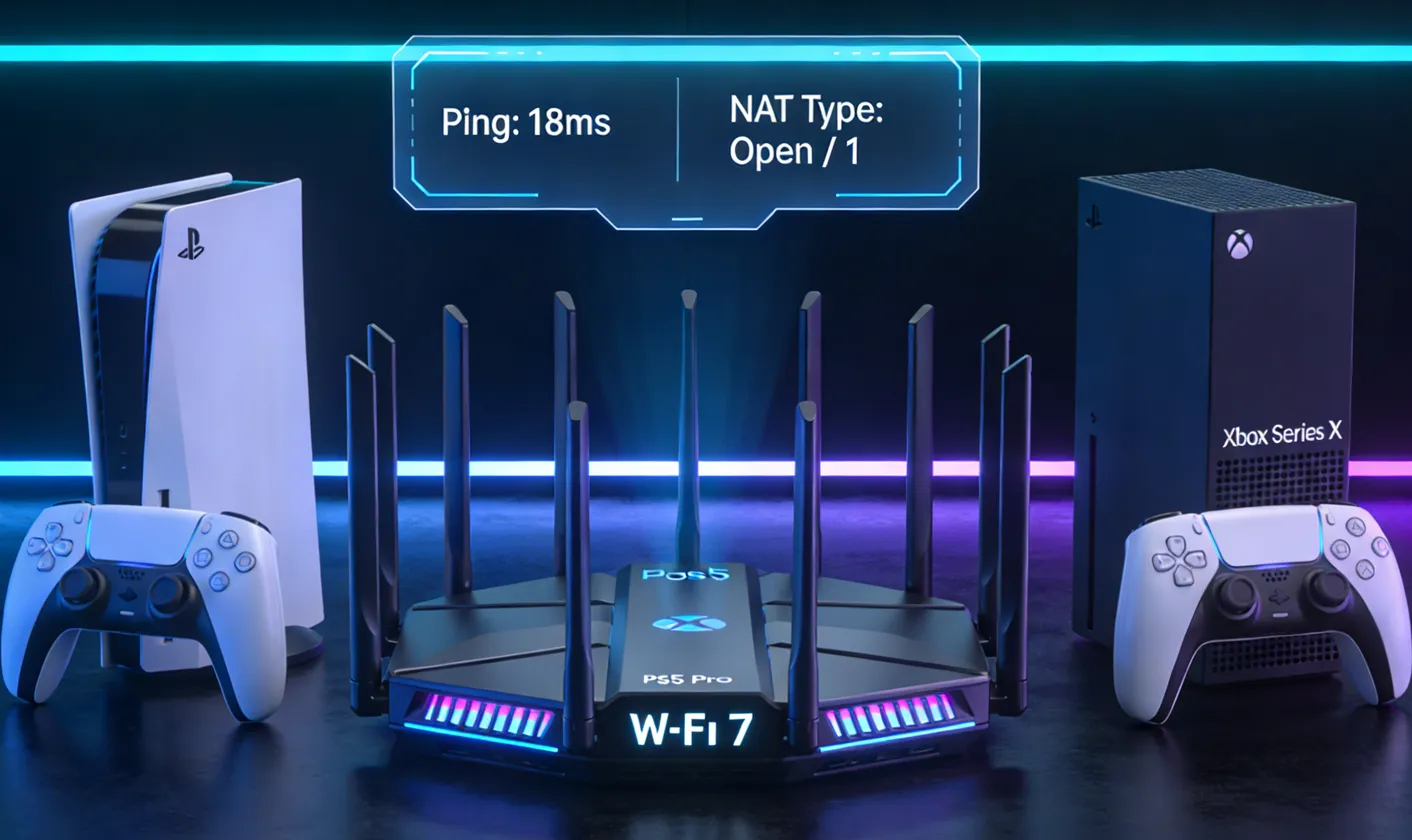
"Why is my 10Gbps fiber still lagging and disconnecting in ranked matches?"
In 2026, Wi-Fi 7 is everywhere and 10-Gigabit fiber is the standard. Yet, console gamers still face the same old nightmares: "Connection Interrupted" in the final minute of a match, choppy party chat, and the dreaded "NAT Type: Strict."
The problem isn't the "width of your road" (bandwidth); it's the "speed of your car" and the "validity of your pass" (Latency and NAT). This guide will help you optimize your router and VPN to build a professional-grade gaming connection for your PS5, Xbox, or Switch.
Quick Summary: Pro-Grade VPN & NAT Optimization Cheat Sheet
|
Dimension |
Key Metrics / Diagnosis |
Recommended Optimization |
Target Status |
|
Network Metrics |
Latency < 50ms / 0% Loss |
WireGuard VPN Protocol + Gaming Ethernet (Cat 6A) |
Smooth input, no rubberbanding |
|
NAT Fix |
Type 3 (Strict) Warning |
Bridge Mode + UPnP/DMZ + Request Public IP |
NAT Type 1 / 2 |
|
Hardware |
Wi-Fi 7 / MLO Enabled |
ASUS/Xiaomi Router + Built-in VPN Plugin |
Stable cross-border matches |
|
Special Scenarios |
Campus/Apartment UDP Block |
Enable VPN Obfuscation to disguise as TCP traffic |
Bypass limits, join any lobby |
Why You Still Lag? (Bandwidth vs. Latency)
A common myth is that multi-gigabit fiber guarantees a lag-free experience. In reality, gaming performance isn't about bandwidth (how much data you can move); it’s about latency (how fast that data travels).
1. Download Speed vs. Game Latency
If your PS5 downloads at lightning speed but lags in Call of Duty, here’s why:
-
Downloads use CDNs (Content Delivery Networks). These servers are located in your local city, allowing you to max out your speed.
-
Gaming connects to Logic Servers in international hubs like Hong Kong, Singapore, or Tokyo. If your ISP uses an inefficient route to these servers, your bandwidth won't save you from high lag.
2. 3 Pillars of Network Health
Understanding these three metrics is key to diagnosing your connection:
|
Metric |
Definition |
2026 Standard |
The "Feel" |
|
Latency (Ping) |
Round-trip time to the server. |
< 50ms |
Input Lag: Your actions feel "heavy" or delayed. |
|
Jitter |
Fluctuations in your Ping. |
< 5ms |
Rubberbanding: Characters teleport or snap back. |
|
Packet Loss |
Data that never arrives. |
0.0% |
Crashes: Audio cuts out or you get kicked from the game. |
3. Common Lag Culprits
-
Physical Distance: Physical distance to servers (e.g., US to Asia) creates a "speed of light" latency floor.
-
ISP Routing: To save money, your ISP may take a "scenic route." Your data might fly across the globe and back just to reach a nearby country, doubling your ping.
-
Packet Loss: Usually caused by local Wi-Fi interference or a router that can't handle high-speed traffic.
-
NAT Restrictions: A restrictive NAT (Strict) prevents you from hosting matches or connecting to other players in P2P lobbies.
Solving the "Phantom Lag": Smart Queue Management (SQM)
Even on a 10Gbps fiber line, your gaming packets can get stuck behind a massive Netflix stream. This is Bufferbloat. In 2026, the only way to ensure 0ms jitter and a perfectly responsive "NAT Type 1" experience is by enabling SQM on your router.
1. The Logic of SQM: Smart Queue Management replaces the standard "First-In, First-Out" (FIFO) logic with an intelligent scheduler. Instead of letting one device hog the entire "pipe" with a heavy download, SQM breaks down the data into smaller pieces and prioritizes small, time-sensitive UDP packets (game inputs and Discord audio) over large, bulky TCP packets (streaming and downloads).
2. Best Protocols for 2026: CAKE vs. FQ_CODEL:
-
CAKE (Common Applications Kept Enhanced): The 2026 gold standard for gaming. It handles "host fairness" automatically, ensuring your PS5 gets its VIP slice of the network even if three other family members are watching 4K TikToks.
-
FQ_CODEL: A lightweight and highly efficient algorithm for routers with lower CPU power. It specializes in eliminating the "Head-of-Line Blocking" that causes sudden 200ms lag spikes during intense firefights.
3. How to Configure for Zero Jitter:
-
Find the "Sweet Spot": Set your SQM bandwidth limit to roughly 90-95% of your actual ISP speed. This small "headroom" prevents the ISP's modem from ever filling its own buffer, giving your router complete control over the queue.
-
Hardware Compatibility: To use SQM, you generally need a router running OpenWrt, ASUSWRT-Merlin, or a high-end gaming router with built-in "Gaming Port" prioritization. When combined with a WireGuard VPN tunnel, SQM ensures your encrypted gaming data is the absolute VIP on your home network.
Diagnostics: Check Your NAT Type
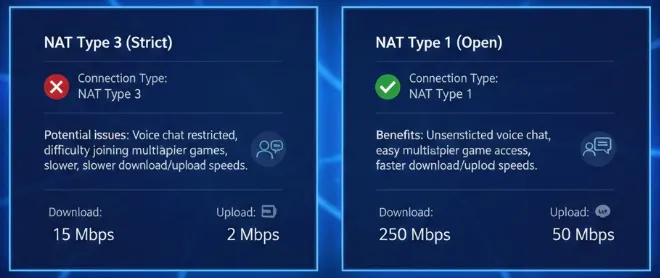
Before diving into technical tweaks, you must identify your network "Blood Type"—your NAT Type. This determines your ability to exchange data seamlessly with other players.
1. How to Test Your Connection
Different platforms use different labels, but the underlying technology is the same:
-
PS5/PS4:
 Image from playstation.com, Copyright by Merchant
- Go to Settings -> Network -> View Connection Status -> Test Internet Connection.
-
Critical Check: If you see "Type 3," you need to follow the optimization steps in Part 3 immediately.
-
Xbox Series X|S:
 Image from xbox.com, Copyright by Merchant
- Go to Settings -> General -> Network Settings.
-
Critical Check: Check the right side of the screen. If it says "NAT Type: Unavailable" or "Double NAT Detected," you have a serious gateway conflict.
2. What Do the NAT Types Actually Mean?
-
Type 1 / Open (The "Elite" Class):
-
Status: Your console is directly connected to the internet (or via a bridged modem) without firewall interference.
-
Experience: You can host lobbies and join any party. You’ll have the lowest possible latency and the fastest matchmaking.
-
-
Type 2 / Moderate (The "Standard" Class):
-
Status: Your console is behind a router, but ports are correctly configured (via UPnP or Forwarding).
-
Experience: The goal for most gamers. You can play normally, but you might not be able to connect to players with a "Strict" NAT.
-
-
Type 3 / Strict (The "Island" Class):
-
Status: You are behind multiple routers, or your ISP has placed you behind a CGNAT (no public IP).
-
Experience: You can only connect to "Open" players. This results in empty lobbies, broken voice chat, and frequent "Connection Lost" errors.
-
3. IPv6 Interference
By 2026, most ISPs have force-enabled IPv6. While IPv6 technically eliminates the need for NAT, compatibility issues between console protocol stacks and router firewalls often cause NAT errors or "jumping" NAT types. If your test results are inconsistent, try disabling the IPv6 Firewall in your router settings for a comparison test.
Router Optimization: Breaking the NAT Barrier
If your test results show NAT Type 3 (Strict) or if you have NAT Type 2 but still struggle to find matches, try these three methods. The goal is to remove firewall obstacles so that data packets can reach your console directly.
Method 1: Enable UPnP (The Easiest Fix)
UPnP (Universal Plug and Play) is an automated port mapping protocol. It allows your console to tell the router exactly which "doors" to open when a game starts and close them once you're done.
-
Pros: Fully automated; no need to memorize complex port numbers.
-
How to Set Up:
-
Log into your router's admin panel (usually 192.168.1.1 or 192.168.50.1).
-
Navigate to Advanced Settings -> WAN or NAT Forwarding.
-
Find the UPnP option and set it to Enabled.
-
Verification: Restart your console and run a connection test. If your NAT is now "Open" or "Type 2," you're good to go.
Method 2: Static IP & DMZ (The Most Effective for Strict NAT)
If UPnP fails—which is common with older routers or ISP-provided gateways—using a DMZ (Demilitarized Zone) is the most robust solution. It essentially creates a "priority lane" through your firewall specifically for your console.
-
Step 1: Assign a Static IP to Your Console
-
In the router's admin panel, find DHCP Server -> Address Reservation or Static IP Assignment.
-
Bind your console's MAC address to a fixed IP (e.g., 192.168.1.100).
-
-
Step 2: Enable DMZ Mapping
-
Navigate to the DMZ settings in your router.
-
Enter the Static IP you just assigned (e.g., 192.168.1.100).
-
Save and reboot.
-
Method 3: Precision Port Forwarding (The Secure Choice)
If DMZ feels too aggressive, you can manually open the specific communication ports used by game servers.
-
PlayStation Network (PSN) Core Ports:
-
TCP: 3478, 3479, 3480
-
UDP: 3074, 3478, 3479
-
-
Xbox Live Essential Ports:
-
TCP: 3074
-
UDP: 88, 500, 3074, 3544, 4500
-
2026 Advanced VPN & Hardware Setup
Optimize cross-border connections using high-performance protocols and Wi-Fi 7 features.
1. Protocol: WireGuard

Standard for 2026 gaming due to minimal CPU overhead.
-
Low Latency: Faster than OpenVPN with near-zero processing lag.
-
Instant Reconnect: Prevents being kicked from matches during brief packet loss.
-
Tip: Use Policy-based Routing to apply VPN only to the console, saving bandwidth for other devices.
2. Software Router (OpenWrt) Config
Essential settings for plugins like Clash or ShellCrash:
-
UDP Support: Gaming is UDP-heavy; ensure your node supports UDP forwarding.
-
Game Rules: Route console domains (*.playstation.net, etc.) through acceleration nodes.
-
DNS Mode: Use Redir-Host if "Server cannot be resolved" errors occur.
3. Wi-Fi 7 Optimization

Eliminate interference on the 6GHz band:
-
MLO (Multi-Link Operation): Connects to 5GHz and 6GHz simultaneously for a stable ping.
-
Preamble Puncturing: Uses clean parts of a congested channel instead of dropping the connection.
2026 Trending Gaming Router VPN Recommendations
If you're looking for a new router that can handle VPN and gaming acceleration with ease, here are the top choices in 2026:
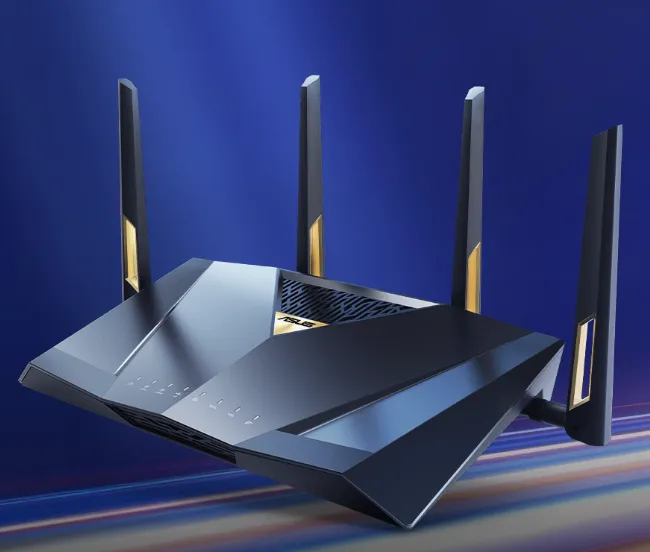
1. ASUS ROG Series
-
Models: ROG GT-BE98 / RT-BE88U (Wi-Fi 7)
-
Why: ASUS firmware features VPN Fusion, the gold standard for gaming routers.
-
VPN Strengths:
-
Device-Level Split Tunneling: Set your PS5 to use a Hong Kong WireGuard node while your TV watches Netflix via a US node and your phone stays local.
-
Built-in Plugins: Native support for UU, Xunyou, and direct WireGuard config imports.
-
-
Best For: Hardcore gamers who want stability and zero hassle.
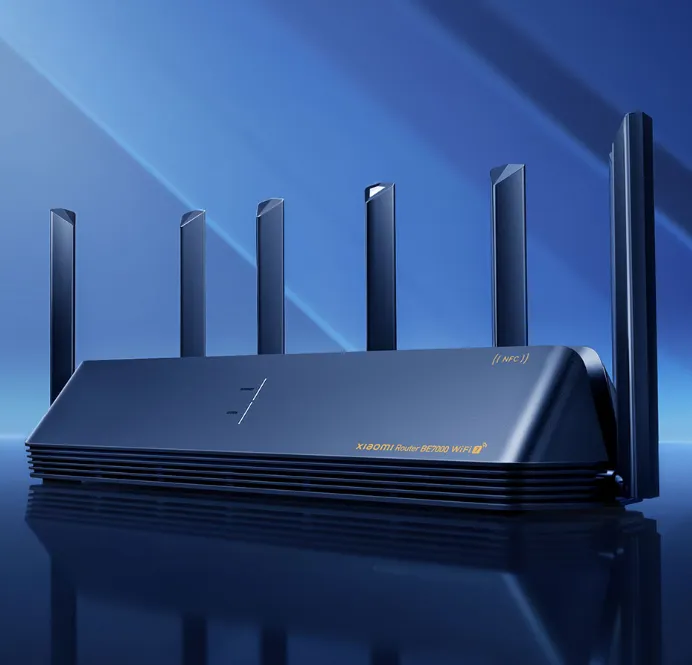
2. Xiaomi BE7000 / 10-Gigabit
-
Why: Incredible CPU performance and massive Wi-Fi 7 bandwidth at a mid-range price point.
-
VPN Strengths:
-
Official Acceleration Center: Deeply integrated game accelerators manageable via a mobile app.
-
Modding Potential: For advanced users, these routers are often "SSH-ready," allowing the installation of tools like ShellCrash.
-
-
Best For: Students and mainstream gamers who want great performance for less money.
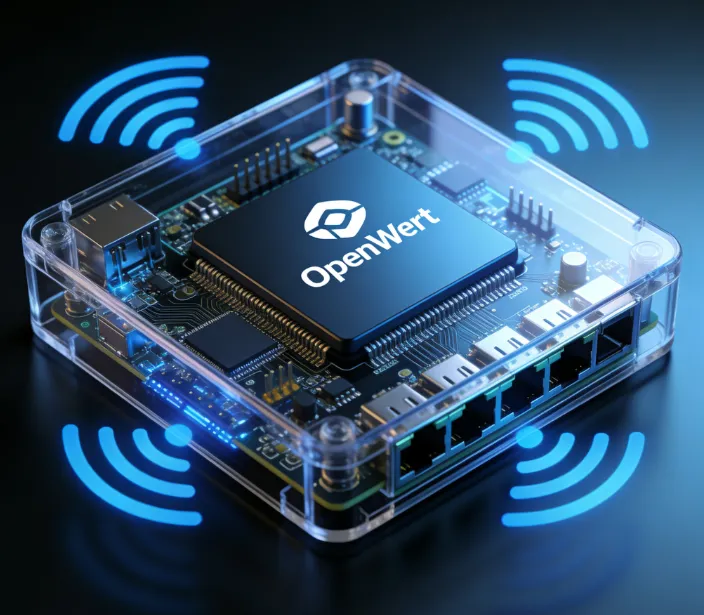
3. iStoreOS / OpenWrt Soft Router
-
Hardware: Mini PCs based on Intel N100 or Rockchip R5S.
-
Why: This is the "performance ceiling" for gaming networks.
-
VPN Strengths:
-
Extreme Granularity: Use OpenClash to accelerate only game traffic while letting updates download over your direct local line to save VPN bandwidth.
-
UDP Passthrough: Superior handling of UDP packets and NAT mapping compared to consumer hardware.
-
-
Best For: Tech-savvy users (Geeks) who want to solve latency issues for every device in the house.
2026 VPN Solution Comparison Table
|
Solution |
Setup Difficulty |
Stability (Ping) |
Target User |
Key Advantage |
|
Commercial Accelerators |
⭐ (Easiest) |
⭐⭐⭐⭐⭐ |
Casual/Office Workers |
Plug & Play; dedicated gaming lines with app control. |
|
WireGuard (Self/Paid) |
⭐⭐⭐ |
⭐⭐⭐⭐⭐ |
Advanced Players |
Lowest CPU overhead; nearly instant reconnects. |
|
Clash / ShellCrash |
⭐⭐⭐⭐ |
⭐⭐⭐⭐ |
Enthusiasts |
Powerful rule-based routing for multi-device setups. |
|
OpenVPN (Legacy) |
⭐⭐⭐ |
⭐⭐⭐ |
Legacy Support |
High compatibility, but higher latency due to overhead. |
Deep Selection Metrics for 2026:
-
CPU Performance: Aim for at least Quad-Core 2.0GHz to avoid packet loss under high-load VPN encryption.
-
MLO Support: Ensure your Wi-Fi 7 router supports Multi-Link Operation to truly benefit from the 6GHz band.
VPN Router Tutorial: Best VPN Router of 2026 and Essential Setup Guide
Step-by-Step Guide: VPN Configuration
Based on the three mainstream router categories mentioned above, here is the core logic for setting up your VPN connection:
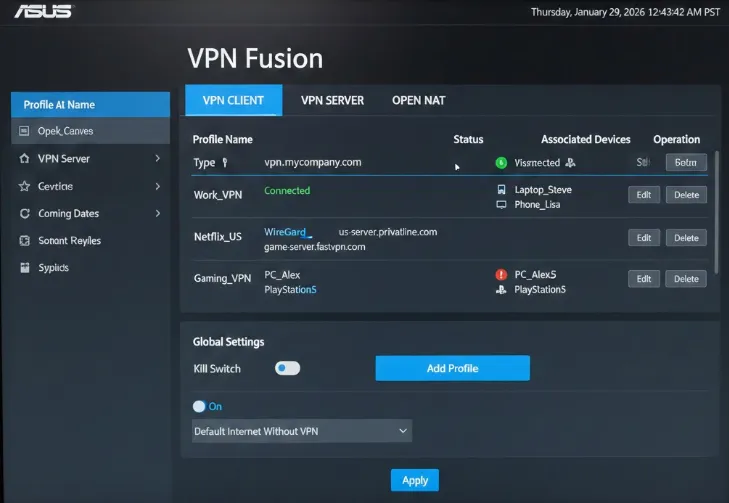
1. ASUS Solution: VPN Fusion Guide
-
Preparation: Obtain the WireGuard configuration file (.conf) from your VPN provider.
-
Add Profile:
-
Log into your router's admin panel -> VPN -> VPN Client -> Add Profile.
-
Select the WireGuard tab, upload the .conf file, and save.
-
The "Magic" Step (VPN Fusion):
-
Go to the VPN Fusion page.
-
Click Add Task.
-
Devices: Check your gaming console (e.g., PS5).
-
Connection Type: Select the WireGuard node you just added.
-
Save. Now, only your console uses the VPN, while your phone and PC stay on your standard broadband—ideal for "precision optimization."
2. Xiaomi Solution: One-Click Acceleration & Advanced SSH
-
Standard Mode:
-
Download the Mi Home app.
-
Go to the Router Plugin Center -> Install NetEase UU or Xunyou Accelerator.
-
Bind your console in the app and start acceleration. The system will automatically handle NAT mapping and routing.
-
Advanced Mode (ShellCrash):
-
Gain SSH access through developer communities (some models may require specific firmware or terminal commands).
-
Install the ShellCrash script via command line.
-
Import your subscription URL, set the mode to Rule, and enable Console Acceleration Mode in settings. This mode forces the forwarding of UDP packets for game consoles.
3. Software Router (iStoreOS) Solution: OpenClash Configuration
-
Installation: Search for and install OpenClash in the iStore Software Center.
-
Import: Upload your subscription link under Config Manage.
-
Core Settings:
-
Running Mode: Switch to Hybrid Mode (to handle both TCP and UDP simultaneously).
-
DNS Settings: Set Local DNS to your ISP's DNS and Remote DNS to your acceleration server's DNS to prevent DNS poisoning.
-
Blacklist/Bypass: Set your console's IP to "Always Proxy" in the rules.
-
Crucial: Ensure Enable UDP Forwarding is checked. This is the lifeline for maintaining an Open NAT.
VPN Troubleshooting & Connection Resolution Guide
If you encounter issues like "cannot connect," "frequent disconnections," or "webpages won't open" after configuration, please refer to the following guide for quick troubleshooting:
1. Core Fault Diagnosis Table
|
Symptom |
Possible Cause |
Solution (2026 Practice) |
|
WireGuard Handshake Failed |
Key error or system time out of sync |
Re-generate the key; ensure "System Time" has Network Time (NTP) enabled. |
|
Connected but Webpages Won't Open |
DNS pollution or leakage |
Lock the router DNS to 8.8.8.8 and 1.1.1.1 (or regional reliable DNS). |
|
UDP Communication Failed (Strict NAT) |
Node does not support UDP forwarding |
Change to a VPN node that supports UDP, or enable "Force UDP Forwarding" in the plugin. |
|
Phone Works, Console Doesn't |
Routing split rules failed |
Check VPN Fusion or split-tunneling plugins to ensure the console's MAC/IP is correctly assigned. |
|
Disconnections caused by MTU |
Packets too large and dropped by ISP |
Decrease the MTU of the WAN or VPN interface (Recommended: 1420 or 1280). |
2. 3 Steps to Identify a "Fake Connection"
-
Check Traffic Status: View WireGuard statistics. If Sent (Tx) traffic grows but Received (Rx) stays at 0, the node port is likely blocked.
-
Ping Node IP: Use router diagnostic tools to ping the server. Failure indicates a down line; success but no connection suggests protocol interference.
-
Split-Tunnel Test: Disable split-tunneling rules. If a global connection works, your routing rules (Gfwlist/Game Rules) are outdated.
3. Special Cases: Campus & Apartment Broadband
-
Challenge: Heavy UDP blocking by shared networks.
-
Solution: Use nodes supporting TCP Obfuscation or Shadowsocks-v2ray-plugin.
-
Action: Request a "Bypass" or "Obfuscated" config from your VPN provider to disguise gaming traffic as standard HTTPS.
4. The 1280 MTU Hack: Stop Sudden Disconnects
If you can enter the lobby but get kicked mid-match, your packets are likely being "shredded" (fragmented). Because 2026’s 5G/6G and IPv6 networks have larger headers, your VPN packets—already carrying the extra overhead of encryption—might exceed the standard 1500-byte limit of your carrier's infrastructure.
1. Why 1280 is the Universal "Floor": Under the IPv6 standard, the absolute minimum MTU that every single link on the internet must support is 1280 bytes. Unlike the standard 1500 limit, 1280 is the physical "safe zone." By manually setting your VPN MTU to 1280, you ensure your packets never need to be broken apart by mid-route routers, regardless of how complex your carrier's 5G/6G encapsulation is.
2. Fixing "Error 83" and Robotic Voice Chat: Packet fragmentation is the primary culprit behind the "Robot Voice" in Discord and the dreaded "Error 83" on console sign-ins. When a packet is fragmented, it takes longer to reassemble at the server, leading to jitter. If those fragments arrive out of order, the game server simply drops the connection.
3. How to Apply the 1280 Fix: Navigate to your router’s VPN client settings (e.g., VPN Fusion on ASUS) or your PC’s VPN application settings. Locate the MTU or MSS Clamping field and change it from "Auto" or "1500" to 1280. This simple adjustment guarantees your encrypted gaming data passes through any global carrier with 100% integrity, fixing 90% of sudden disconnects and voice lag issues instantly.
The Ultimate Fix: What if it’s Still NAT Type 3?
If you have tried every setting in the previous six chapters but your console still shows NAT Type 3 (Strict), the problem is likely beyond your router's control. It is usually caused by "Multi-layer Gateways" or ISP restrictions. Here is the definitive solution:
1. Eliminate "Double NAT": Switch Modem to Bridge Mode
-
Symptom: If you have a "Modem Routing + Router Routing" setup, your NAT will inevitably be restricted.
-
Principle: The modem acts as a router by default, meaning data packets are intercepted once by the modem before reaching your actual router.
-
Steps:
-
Call your ISP customer service and request to change your modem's mode to "Bridge Mode."
-
In your router's admin panel, change the connection type to "PPPoE" and enter your broadband username and password.
-
This allows your router to obtain a Public/WAN IP directly, eliminating the first barrier.
2. Identify and Solve "Pseudo-Public IP" (CGNAT)
-
Check: Log into your router and check the WAN IP address.
-
Warning Segments: If your WAN IP starts with 10.x, 172.x, 192.168.x, or ranges from 100.64.x.x to 100.127.x.x, you are inside an ISP's Carrier-Grade NAT (Large Local Area Network).
-
The Fix: In this scenario, DMZ and Port Forwarding are useless because traffic is blocked by the ISP's firewall before reaching your home.
-
What to Say: Call your ISP and say, "I need to install a remote security camera/smart home system and require a Public IP for remote access." In 2026, most major ISPs will provide a Dynamic Public IPv4 or IPv6 within 24 hours for free.
3. IPv6: The Ultimate Bypass for NAT
If your ISP refuses to provide a Public IPv4, IPv6 is your only savior.
-
Advantage: IPv6 has a massive address space where every device can have a unique global address, theoretically eliminating the concept of NAT.
-
Setup: Enable IPv6 in your router. If your console shows "IPv6: Success," the NAT status will usually automatically change to "Open" or "Type 1."
-
Note: Some older routers support IPv6 but still block inbound traffic by default. Ensure you enable "Allow Inbound Traffic" or a similar firewall exception in your router's IPv6 settings.
Why Reddit Gamers Recommend Dedicated IPs in 2026
According to the latest audits and megathreads on r/PS5 and r/XboxSeriesX, using a "Shared" VPN IP for competitive gaming is becoming increasingly risky. Sony’s 2026 security and anti-cheat AI has been upgraded to flag data center IPs shared by multiple simultaneous players, often resulting in widespread lockouts.
1. Escaping Error NP-34957-8 (PSN Sign-in Failed): The dreaded Error NP-34957-8 is now the primary headache for VPN users. This error occurs when Sony's servers detect "unusual traffic patterns" from a single IP. If you share a VPN node with someone who is violating terms of service or using a bot, the entire IP—and every user on it—gets flagged.
2. The "Guilt-by-Association" Ban: The community consensus for 2026 competitive play is to use a Dedicated IP (Static IP). Because this IP is unique to you, it ensures your console has a clean, consistent digital reputation. This prevents you from being "guilt-by-association" banned or shadow-banned due to the actions of another user on the same server, ensuring you never get kicked from a ranked match.
3. Verified by the Community: Users across major gaming subreddits report that while a shared IP might work for downloading games, only a Dedicated Residential IP provides a 100% success rate for maintaining an "Open NAT" status without triggering Sony’s aggressive proxy filters.
Conclusion: Building Your 2026 Pro Gaming Line
By deeply tuning your network as described in this guide, we can summarize the "Ultimate Form" of console network optimization into three levels:
|
Optimization Level |
Configuration Core |
Ideal For |
Key Benefit |
|
Stable Foundation (Entry-Level) |
Bridge Mode + Router PPPoE + UPnP |
Casual players / Local servers |
Resolves 90% of NAT errors; stable matching. |
|
Enhanced Connection (Mainstream) |
Foundation + Game Accelerator Plugin |
Office workers / International lobbies |
Slashes cross-border latency via dedicated lines. |
|
Elite Competitive (Hardcore) |
Foundation + Soft Router + WireGuard |
Hardcore Rank / Esports enthusiasts |
"Near-local" feel; precise device-level control. |
Pro-Tip: Always prioritize a wired connection. No matter how powerful Wi-Fi 7 is, physical signal fluctuations (jitter) can never be entirely eliminated. A $15 Cat 6A Ethernet cable will often save your Ping more effectively than a $1,000 router.
Frequently Asked Questions (FAQ)
Q1: Can I play competitive games on Starlink in remote areas?
-
Latency: In 2026, Gen 2 Starlink latency has dropped to 25-40ms, which is sufficient for Call of Duty.
-
Pro-Tip: Satellite internet is prone to jitter. Use a router with Bufferbloat Control behind the Starlink dish to smooth out your traffic.
Q2: Can Wi-Fi 7 really achieve the stability of an Ethernet cable?
A: Here is the data comparison:
-
Cat 6A Wired: Latency 0.1–0.3ms, Jitter < 0.1ms, Packet Loss 0%.
-
Wi-Fi 7 (MLO Enabled): Latency 1.5–3ms, Jitter 0.5–2ms, Packet Loss < 0.1%.
-
Verdict: While Wi-Fi 7 is incredibly powerful, a wired connection remains the "Gold Standard" for competitive gaming.
Q3: Why did my Ping jump from 40ms to 120ms after turning on the VPN?
A: Wrong node selection. Always choose a node physically closest to the game server (e.g., Tokyo for Japan servers), not just the node closest to your home.
Q4: Do I still need a dedicated "Gaming Accelerator Box" in 2026?
A: High-end Wi-Fi 7 routers now have built-in plugins that perform just as well. Boxes are best for casual players who prefer "Plug & Play" without router settings.
Q5: Can I run a router VPN and a console acceleration plugin at the same time?
A: Absolutely not. This causes "double encryption," which spikes latency, creates NAT errors, and causes severe packet loss.
Q6: My connection became laggy after a router firmware update. What should I do?
A: Wi-Fi 7 drivers are updated frequently and can conflict with old plugins. Try resetting the plugin or rolling back to a stable firmware version from the manufacturer’s site.
Q7: Since Wi-Fi 7 is so strong, is there still a point in using cables?
A: Physical cables offer unmatched interference resistance. For competitive 0-packet-loss environments, Cat 6A Ethernet is still the king.
Q8: Does Cloud Gaming (e.g., Xbox Cloud) require a specific NAT type?
A: Cloud gaming prioritizes bandwidth and raw latency over NAT. However, a "Strict" NAT may still cause issues with in-game party chat.