Imagine this: You’re in a clutch moment in Call of Duty or Valorant. You yell, "Defuse! Defuse!" but to your teammates, you sound like a glitchy 1980s robot—distorted, stuttering, and full of static.
This "Robot Voice" phenomenon is a nightmare for gamers playing on overseas servers or using a VPN. You check your Ping and it’s a solid 40ms; your FPS is capped at 240; even your local mic recordings are crystal clear. So, what’s the problem?
As we head into 2026 with 6G pre-research and ultra-high-frequency 5G hybrid networks, ISPs (Internet Service Providers) have become more aggressive with UDP traffic shaping and throttling. If your voice packets aren't optimized within the VPN tunnel, even a studio-grade microphone won't save your comms.
This guide will help you look past the "low latency" illusion and dive into protocols, network card configurations, and split-tunneling strategies to fix VPN voice issues for good.
💡 TL;DR: Quick Fixes
If you need to get back into the game right now, do these four things:
-
Switch Protocols: Change your VPN protocol to WireGuard.
-
Manual MTU: Set your VPN’s MTU manually to 1280.
-
Optimize Network Card: Disable "Interrupt Moderation" and "Energy Efficient Ethernet" in Device Manager.
-
Split Tunneling: Set Discord to bypass the VPN via Split Tunneling.
Root Cause Analysis: Why Does Your Voice Turn "Robotic"?
To solve the problem, you need to understand that VoIP (Real-Time Voice) data is different from web browsing. Voice data cares about consistency much more than speed.
1. Technical Factors Impacting VoIP Quality
-
The Nature of UDP: Most voice apps use the UDP protocol. It prioritizes speed and doesn't check for errors. If your VPN tunnel has high encryption overhead or your CPU struggles, small timing errors occur during packet encryption.
-
The Damage of Jitter: Voice engines need a steady stream of packets. If Packet A arrives in 40ms but Packet B takes 120ms, this variance (Jitter) forces the engine into "Packet Loss Concealment" mode. The software stretches the audio to fill the gaps, creating that metallic, robotic sound. Check your Jitter value using Speedtest by Ookla.
-
MTU (Maximum Transmission Unit) Overflow: Standard internet packets are 1500 bytes. VPNs add encryption headers to these packets. If you don't adjust your MTU, packets become too large and get "fragmented" (split in two), which causes massive audio drops in modern high-frequency networks.
2. VoIP Performance Metrics (2026 Standards)
|
Network Status |
Latency (Ping) |
Jitter |
Packet Loss |
MOS Score |
Audio Description |
|
Perfect |
< 50ms |
< 2ms |
0% |
4.5 |
Crystal clear, zero lag. |
|
Good |
50-120ms |
2-10ms |
< 0.5% |
4.0 |
Clear, very occasional skips. |
|
Warning |
120-200ms |
10-25ms |
1% - 3% |
3.2 |
The voice sounds "thin," occasional stutter. |
|
Critical |
200ms+ |
25-50ms |
3% - 5% |
2.5 |
Obvious robot/metallic voice. |
|
Failed |
300ms+ |
> 50ms |
> 5% |
1.0 |
Total communication breakdown. |
Conclusion: If your Jitter exceeds 25ms or Packet Loss hits 3%, hardware won't fix it. Robot voice is simply the codec's desperate attempt to reconstruct broken data.
Basic Troubleshooting: Essential Pre-VPN Checks
Before diving into complex VPN parameters, complete these hardware and system-level checks. In many cases, "Robot Voice" stems from instability in the basic physical link.
1. Physical Layer Optimization: Minimize Interference
-
Switch to Ethernet: Avoid Wi-Fi at all costs. Even with Wi-Fi 7 in 2026, wireless interference causes micro-jitter in encrypted UDP streams. A Cat6 cable or better can instantly eliminate 80% of local jitter.
-
USB Bus Contention: If you use a USB microphone or audio interface, avoid USB hubs. Plug directly into the Motherboard Rear I/O. High-speed VPN traffic can cause USB bus spikes, resulting in audio pops or crackling.
2. Lock Windows Audio System Settings
-
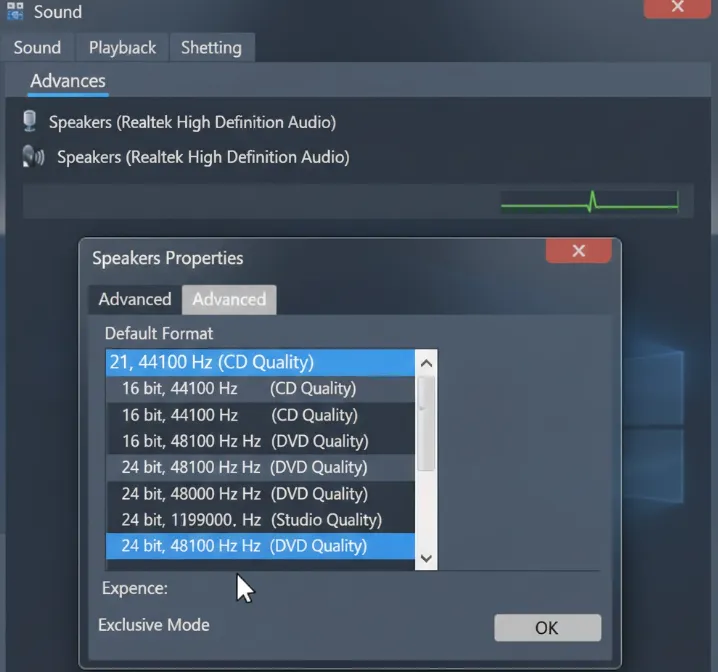
Sample Rate Alignment: Mismatched sample rates trigger system-level "Audio Resampling," which adds 5ms–20ms of CPU processing latency.
-
Setting: Settings -> System -> Sound -> More sound settings -> Recording -> [Your Mic] -> Properties -> Advanced.
-
Lock all devices to 2 channel, 24-bit, 48,000Hz (Pro Quality).
-
-
Disable Exclusive Mode: This improves audio stability in multitasking environments by preventing specific apps from hijacking the driver.
-
Setting: Same as above -> Uncheck "Allow applications to take exclusive control of this device."
-
3. Network Drivers and DNS Cleanup
-
Update OEM Drivers: Download the latest NIC drivers (e.g., Intel I225-V or Realtek 2.5G) directly from the manufacturer. Generic Windows Update drivers often lack optimizations for high-frequency packet handling.
-
Flush DNS Cache: VoIP servers in 2026 utilize aggressive IP rotation. Clearing your cache ensures your VPN client resolves to the nearest available Voice Point of Presence (PoP).
- Setting: Open CMD/Terminal as Admin and run ipconfig /flushdns.
4. Kill Background "Traffic Killers"
-
Pause Cloud Sync: Manually pause OneDrive, Dropbox, or iCloud.
-
The Bufferbloat Issue: Sudden upload bursts when these apps detect file changes are the most common non-VPN cause of robotic voice. Use the system tray to pause sync before gaming.
Local Network & Device Optimization(Windows vs. Mac)
Before adjusting VPN parameters, ensure your local hardware isn't the bottleneck.
1. Physical Link & Environment: 5G Hotspots and Starlink
-
Prioritize Wired Connections: Even with Wi-Fi 7, "Air Interface Jitter" occurs when processing encrypted UDP packets. Always use a LAN cable when possible.
-
Starlink Users: Satellite internet experiences micro-jitter during satellite handovers. If your voice stutters on Starlink while using a VPN, enable the "Packet Redundancy" (or Traffic Doubling) feature in your VPN client to combat physical layer instability.
-
5G Mobile Hotspots: 5G mmWave has poor penetration. If the signal is unstable, your voice will sound distorted. Ensure your hotspot is placed near a window and disable "Power Saving Mode" on your phone.
2. System-Level Tuning: Windows vs. Mac
-
Windows Users: Visit the official Intel or Realtek support sites to update your NIC (Network Interface Card) drivers. Do not rely on generic drivers.
-
Mac Users (macOS VoIP Latency Fix): macOS "Location Services" periodically scans for Wi-Fi networks, causing instantaneous lag spikes. Disable this under System Settings -> Privacy & Security -> Location Services while gaming. Additionally, running sudo nvram boot-args="keepsyms=1" in Terminal can improve the responsiveness priority of the network stack.
Advanced VPN Settings: Protocol and Routing
If basic troubleshooting fails, you need to intervene in how the VPN handles your data.
1. Protocol Choice: Lock WireGuard, Reject OpenVPN
In 2026, protocol choice is the single most important factor for voice stability.
-
WireGuard (Recommended): This is currently the most efficient protocol globally. Its minimalist code (under 4,000 lines) ensures that the "Encapsulation Latency" for each voice UDP packet is almost negligible.
-
Setting: VPN Settings -> Connection/Protocol -> Select WireGuard.
-
Avoid OpenVPN: Do not use OpenVPN (TCP) while gaming. TCP's Retransmission Mechanism is a breeding ground for "Robot Voice." If a single packet is lost, TCP freezes the entire stream until the missing packet is recovered, causing your audio to stop and then suddenly "speed up" like a chipmunk.
2. Routing Policy: Enable Split Tunneling
Do not force your entire system through the VPN proxy.
-
The Discord Bypass: If your local ping to Discord servers is low, use Split Tunneling. This allows Discord to connect directly via the backbone network, completely bypassing the VPN node's jitter.
- Setting: VPN Settings -> Split Tunneling -> Select "Bypass VPN for selected apps" -> Add Discord to the list.
-
Domain-Based Routing: Some advanced VPNs support domain exclusion. Try excluding the voice server domains of your specific game to improve in-game VoIP quality.
3. Stability Tech: Enable Multipath Routing
This is the "secret weapon" of high-end gaming boosters in 2026.
-
How it works: The booster (e.g., ExitLag) clones your voice packets and sends them over two distinct physical paths simultaneously. If Path A jitters, the system seamlessly uses the packet from Path B.
-
Setting: Booster Settings -> Optimization -> UDP Routes -> Set to 2.
-
While this consumes double the bandwidth, it is nearly perfect at eliminating "Robot Voice" caused by single-link congestion.
-
4. Node Selection: Prioritize Jitter Stability over Low Ping
Do not choose a node based solely on the lowest Ping value; look at the stability.
-
Avoid Hotspot Nodes: During peak hours (8 PM - 11 PM), avoid high-traffic nodes like "Tokyo 01" or "Los Angeles 01." Overloaded nodes suffer from Queueing Jitter as the CPU struggles to process massive UDP queues.
-
Stability First: Use a tool that tests Jitter. If a node has 30ms Ping but >10ms Jitter, it will sound worse than a 60ms Ping node with 1ms Jitter.
-
Setting: Turn off "Auto-Select" -> Manually lock a node based on Jitter test results.
Network Card (NIC) & MTU Optimization: Eliminating Packet Loss
If you've tried different nodes and protocols but the robotic voice persists, the issue often lies in how your system processes packets at the driver level.
1. Manual MTU Tuning: Finding the Optimal Packet Size
The MTU (Maximum Transmission Unit) determines the largest data packet size allowed on your network. VPNs require extra space for encryption headers; if your MTU is too high, packets will be split—a process called IP Fragmentation—which causes severe VoIP packet loss.
-
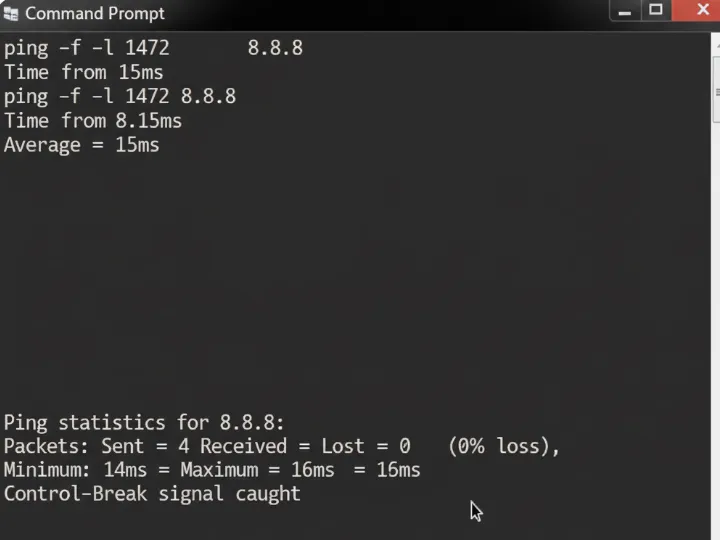
Precision Testing Method:
-
Open Command Prompt (CMD) as Administrator.
-
Enter the command: ping www.google.com -f -l 1472.
-
If you see "Packet needs to be fragmented," decrease the number (e.g., 1460, 1440...) until the ping is successful.
-
Calculation formula: The highest non-fragmented value found + 28 bytes (IP and ICMP headers) = your network MTU baseline.
-
Applying to VPN: Since WireGuard and other protocols add 60–80 bytes of overhead, manually restrict your VPN client's MTU to 1380 or even 1280.
- Setting: VPN Settings -> Advanced/Connection -> Manual MTU -> Enter 1280.
-
2026 Pro-Tip: 1280 is the "Magic Number"—it's the IPv6 minimum and bypasses fragmentation on 90% of networks.
2. Advanced NIC Optimization: Reducing Hardware Latency
Default Windows network settings are designed for power efficiency, not real-time VoIP stability.
-
Setting: Device Manager -> Network Adapters -> Right-click your NIC (Intel/Realtek) -> Properties -> Advanced.
-
Essential Tweaks:
- Energy Efficient Ethernet (EEE): Disable. This prevents the network card from entering a low-power state during momentary silences, avoiding "first-syllable clipping."
-
Interrupt Moderation: Disable (or "Extreme Low"). While this slightly increases CPU usage, it minimizes processing latency and significantly reduces jitter.
-
Jumbo Packet: Disable. Voice packets are tiny; large frames increase processing jitter for small, sensitive VoIP data.
-
Power Management:
- Switch to the Power Management tab and uncheck "Allow the computer to turn off this device to save power."
2026 Gaming Booster Buyer's Guide: Recommended Tools for VoIP
Summary Table: Top Optimization Tools
|
Tool Name |
Type |
Key Advantage |
Target Audience |
VoIP Stability |
|
Gaming Booster |
Multipath routing; per-packet optimization. |
Pro Gamers, high-intensity VoIP users. |
⭐⭐⭐⭐⭐ |
|
|
Gaming Booster |
Massive Asia-Pacific nodes; high ease of use. |
International students, Blizzard/Valorant players. |
⭐⭐⭐⭐ |
|
|
Privacy VPN |
Native WireGuard; open-source and transparent. |
Minimalists, Tech Geeks. |
⭐⭐⭐⭐ |
|
|
General VPN |
Proprietary NordLynx protocol; massive server list. |
Casual users, streaming & security. |
⭐⭐⭐ |
|
|
General VPN |
Unlimited device connections; Dynamic IP. |
Multi-device households. |
⭐⭐⭐ |
Gaming Boosters (Recommended for Esports)
1. ExitLag - The Top Choice for Pro Gamers
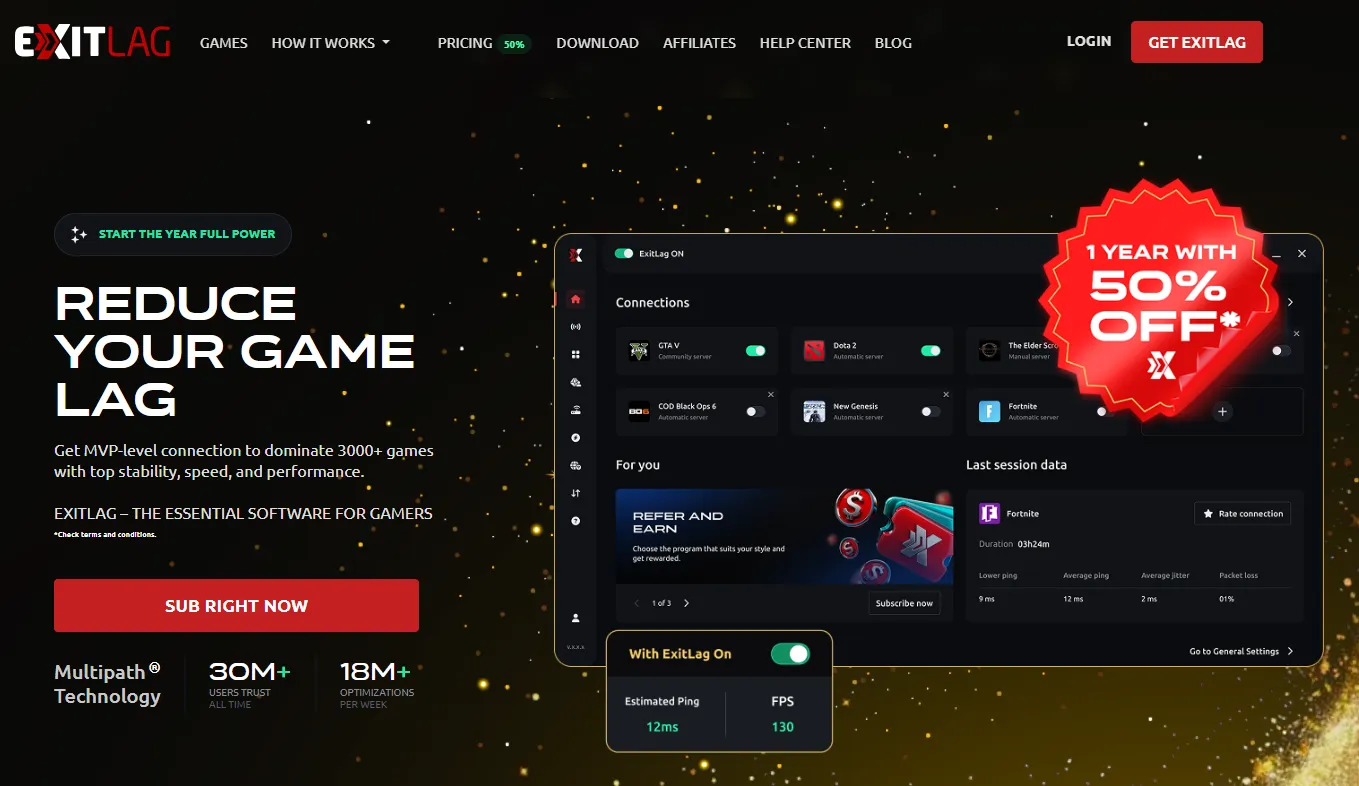
|
Dimension |
Details / Performance |
|
Server Network |
Dedicated private lines across major global esports hubs (Frankfurt, Seoul, Tokyo, etc.). |
|
Privacy & Security |
Focuses on connection optimization, not anonymity. Does not provide traditional VPN encryption. |
|
Kill Switch |
Available. Instantly blocks the game process if the optimized link drops to prevent lag spikes. |
|
Price |
From ~$2.63/mo. Supports multiple platforms (PC/Mobile). |
|
Customer Support |
24/7 expert-level ticket support with rapid routing feedback for specific games. |
|
Key Feature |
Multipath Connection: Sends two copies of voice packets simultaneously—if at least one arrives, the audio remains perfect. |
How to set up?
-
Configuration: Enable Multipath Connection. By sending two copies of your voice packets, it ensures zero-loss audio even if one line jitters.
-
Setting: ExitLag -> Optimization -> UDP Routes -> Set to 2; TCP Routes -> Set to 0.
2. GearUP Booster - Best for Asia-Pacific & Multi-Platform
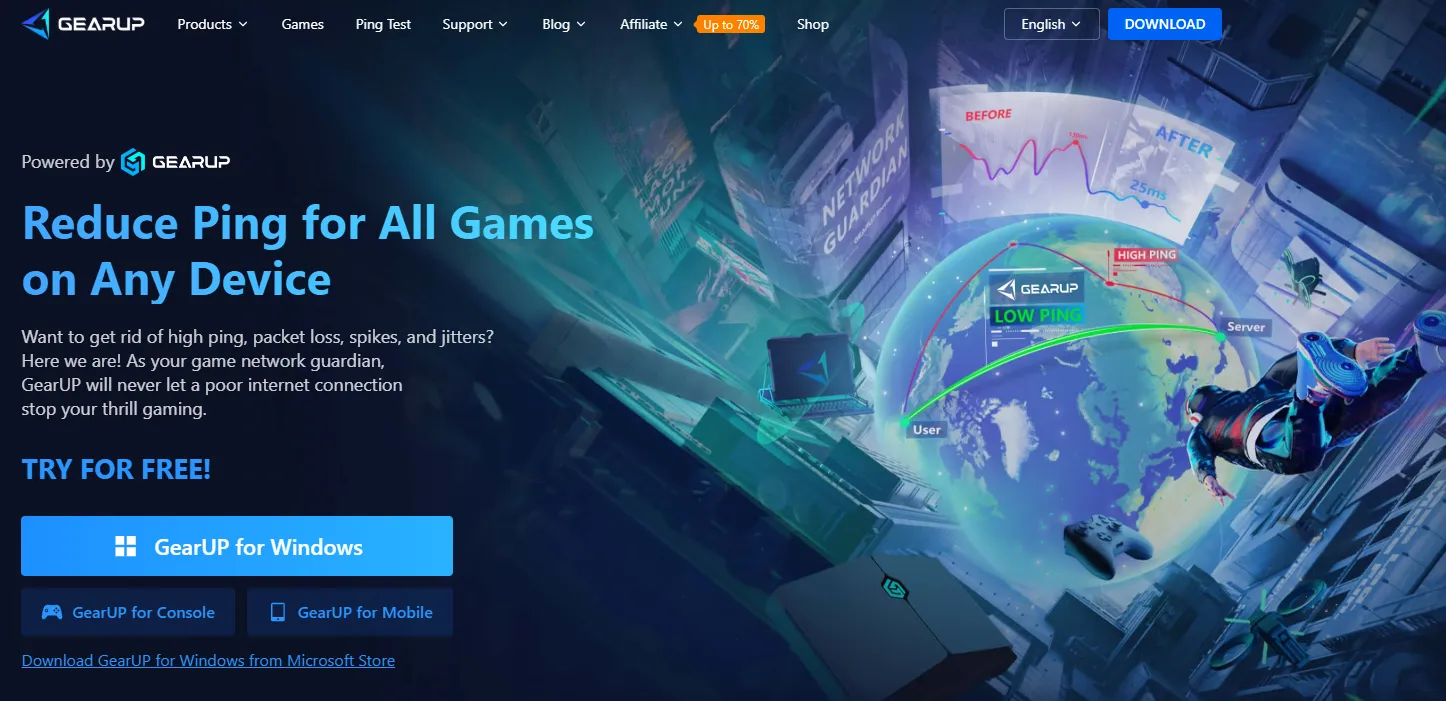
|
Dimension |
Details / Performance |
|
Server Network |
Extensive coverage in Asia-Pacific with exclusive nodes for China and Southeast Asia. |
|
Privacy & Security |
Accelerates game data only; does not provide general web privacy. |
|
Kill Switch |
No traditional switch, but features intelligent route switching (AIR technology). |
|
Price |
From ~$3.99/mo. High value with frequent promotions. |
|
Customer Support |
Built-in quick feedback channel with multi-language support; excellent for popular mobile titles (e.g., PUBG M). |
|
Key Feature |
Discord Dedicated Fix: One-click button to reset Discord routing and force it onto a dedicated line. |
How to set up?
-
Configuration: Use "Mode 4" (Virtual NIC). If you experience voice lag in 2026, try switching to "Boost Mode," which forces an optimized IP path for Discord.
-
Setting: Booster Interface -> Click "Fix Voice" button -> Confirm optimization for Discord routing.
Privacy VPNs (Recommended for General Overseas Access)
1. NordVPN - The All-Rounder Flagship
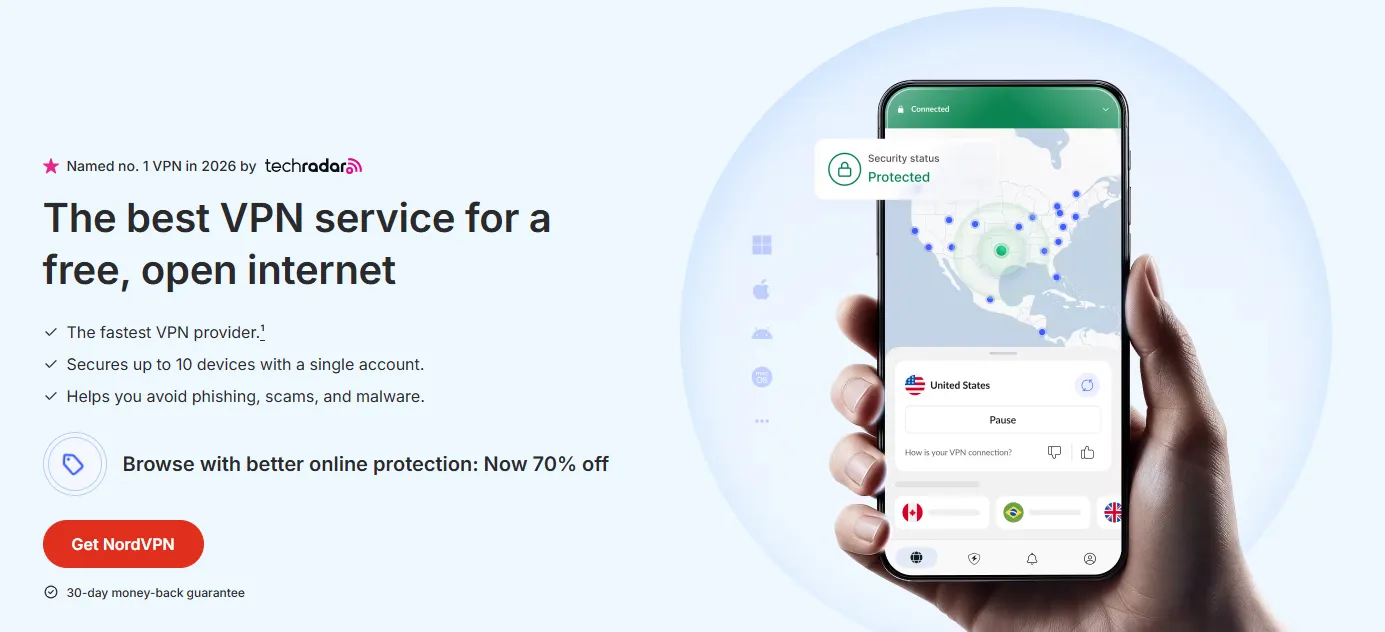
|
Dimension |
Details / Performance |
|
Server Network |
8800+ servers across 178+ locations, including numerous Dedicated IP options. |
|
Privacy & Security |
Robust. Audited by third parties. Supports Double VPN (Double Encryption). |
|
Kill Switch |
Available. Supports app-level Kill Switch for specific programs. |
|
Price |
From ~$2.99/mo (2-year plan). Monthly plans are more expensive. |
|
Customer Support |
24/7 Live Chat with extremely fast response times. |
|
Key Feature |
NordLynx Protocol: A private variant of WireGuard that balances high encryption with VoIP transmission efficiency. |
2. Surfshark - Best for Multi-Device Sharing
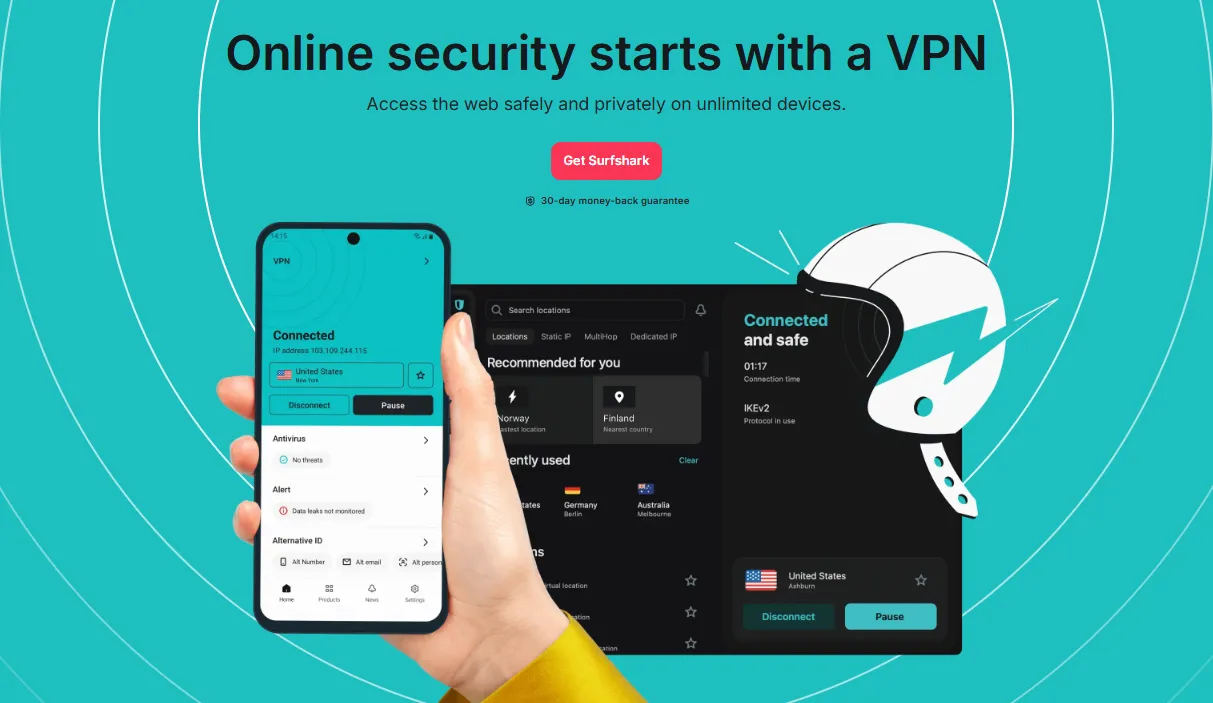
|
Dimension |
Details / Performance |
|
Server Network |
4500+ servers. Industry leader in country coverage (100+ countries). |
|
Privacy & Security |
High. RAM-only servers equipped with "Alternative ID" (Anonymous identity generator). |
|
Kill Switch |
Available. Very stable; prevents IP leaks that could lead to being blacklisted by game servers. |
|
Price |
From ~$1.99/mo. Supports unlimited simultaneous device connections. |
|
Customer Support |
24/7 Live Chat and a very detailed documentation library. |
|
Key Feature |
Nexus Technology: Allows users to customize entry and exit nodes for precise cross-border voice routing. |
How to set up?
-
Configuration: You must enable the NordLynx protocol.
-
Setting: Settings -> Connection -> Lock Protocol to NordLynx.
-
Pro-Tip: Enable "Invisibility on LAN." Sometimes local network broadcasts interfere with UDP packet efficiency. (Settings -> Advanced -> Enable Invisibility on LAN).
3. Mullvad VPN - For Privacy Geeks & Techies
|
Dimension |
Details / Performance |
|
Server Network |
Mid-sized (700+ servers), but all are high-performance physical servers. |
|
Privacy & Security |
Industry-leading. No email required, supports cash payments, 100% RAM-only, zero logs. |
|
Kill Switch |
Always on. System-level lock, not app-level. |
|
Price |
Constant €5/mo. No discounts, no long-term lock-ins. |
|
Customer Support |
Email support; professional but primarily handles technical issues. |
|
Key Feature |
Minimalist Protocol Stack: Purest WireGuard implementation with ultra-low latency for small VoIP packets. |
How to set up?
-
Custom Ports: If your ISP throttles the default WireGuard port (51820), change it to 443 (UDP) or 53 in Mullvad settings to bypass traffic shaping and eliminate voice jitter.
-
Setting: Mullvad Settings -> App Settings -> WireGuard Key -> Port -> Manually set to 443 or 53.
VoIP App Deep Dive: Discord & In-Game Voice Configuration
1. Discord Deep Optimization Checklist
Discord's AI-heavy features can sometimes backfire in unstable VPN environments.
-
Audio Subsystem: If you experience frequent disconnects or distortion, try switching from "Standard" to "Legacy". The legacy subsystem often handles network jitter more gracefully.
-
Disable AI Suppression Patches:
- Krisp Noise Suppression: If your packet loss exceeds 2%, Krisp may misidentify your broken voice as background noise and cut you off. Turn off Krisp and use the traditional "Standard" noise suppression instead.
- Automatic Gain Control: Disable this. Set your sensitivity manually to prevent VPN latency spikes from making your volume fluctuate wildly.
-
Disable QoS Priority: Turn off "Enable Quality of Service High Packet Priority." Many VPN clients cannot correctly process DSCP-tagged packets, and enabling this may cause packets to be blocked or reordered.
2. In-Game VoIP Optimization
In-game voice often consumes more resources and has lower priority than Discord.
-
Enable Push-to-Talk (PTT): Always use PTT. Voice activity modes continuously send small background noise packets, increasing the constant packet pressure on the VPN tunnel. PTT only opens the tunnel during active communication, reducing jitter probability.
-
Attenuation Settings: Lower the voice volume in-game and increase the "Attenuation" ratio (the setting that lowers game volume when teammates talk). This helps you distinguish commands from chaotic game audio when the network quality dips.
3. Disable System-Level "Enhancements"
-
Windows Audio Enhancements: In sound device properties, go to the "Enhancements" or "Advanced" tab and check "Disable all enhancements." Certain spatial audio plugins (like Dolby Atmos or DTS) increase the buffer length in the audio chain, which indirectly amplifies the feeling of VPN latency.
2026 Future Outlook: How AI Codecs Will End "Robot Voice"
As we move deeper into 2026, VoIP is undergoing a revolution thanks to AI integration. Traditional Packet Loss Concealment (PLC) is being replaced by powerful Generative AI Codecs.
-
Google Lyra & Microsoft Satin: These next-gen codecs don't just transmit waveforms; they use machine learning to extract speech features. Even in extreme environments with 50% packet loss, AI can "predict" and synthesize missing speech segments based on context. The result is smooth, natural audio without the metallic distortion.
-
Smart Jitter Buffer: Future VPN clients will feature built-in neural networks that predict 5G/6G beam switching timings. By pre-caching voice packets before handovers occur, they achieve "seamless connectivity" at the physical layer.
This means in the near future, "Robot Voice" will finally become a relic of the past, regardless of how poor your network environment is.
Conclusion: The 4-Step Troubleshooting Workflow
Fixing robot voices isn't about "speed"—it's about de-jittering.
-
Protocol Audit: Ensure you are using WireGuard or NordLynx.
-
MTU Optimization: Set your VPN MTU to 1380 or lower (1280 is recommended).
-
Routing Verification: Use Split Tunneling to bypass the VPN for voice apps or use dedicated gaming routes.
-
System Tuning: Disable NIC power saving and lock your audio sample rates.
2026 Pro-Tip: If you are using a 5G CPE router or a mobile hotspot, jitter is physically inevitable due to base station characteristics. In these cases, dropping your MTU to 1280 is often your only "lifeline" to stable communication.
⚠️Why 1280 is the "Nuclear Option" for Fixing Stutter
If your voice sounds robotic despite having a fast connection, your data packets are likely being "shredded" by your ISP. This happens when your VPN-encrypted packets are too large for the network path, forcing the router to break them into smaller pieces. In the world of real-time gaming, these fragmented pieces often arrive out of order or get dropped entirely.
1. The IPv6 "Floor": Under the IPv6 standard, the minimum Maximum Transmission Unit (MTU) that every link must support is 1280 bytes. Unlike the older IPv4 (which allowed much smaller fragments), any packet smaller than or equal to 1280 bytes is guaranteed a "safe passage" through any modern global carrier without being fragmented.
2. Handling 5G/6G Encapsulation Overhead: Modern mobile and satellite networks use complex encapsulation (like GPRS Tunneling Protocol or SRv6). This takes up "space" inside the packet. If your VPN is set to the default MTU of 1500, the addition of VPN encryption AND ISP encapsulation will exceed the limit, causing the stuttering "Robot Voice."
3. Implementation: Setting the "Safe" MTU: To eliminate voice lag instantly, manually set your VPN’s MTU to 1280.
The Result: Your packets become "invisible" to the fragmentation triggers of global ISPs. Even on highly congested 5G mmWave or early 6G links, your voice packets will remain intact, ensuring crystal-clear comms during high-stakes matches.
Trade-off: While this slightly reduces raw download speeds for large files, it is the ultimate fix for jitter-sensitive applications like Discord, TeamSpeak, and in-game proximity chat.
Frequently Asked Questions (FAQ)
Q1: Why is Discord still laggy even if I only proxy the game via Split Tunneling?
A: Even with Split Tunneling, the VPN client still manages the network driver. If the VPN client’s processing load (or CPU usage) hits its limit, even direct data streams will experience "Queueing Jitter" as they pass through the NIC. Try disabling "Interrupt Moderation" in your network adapter properties.
-
Setting: Device Manager -> Network Adapters -> [Your NIC] -> Properties -> Advanced -> Disable "Interrupt Moderation."
Q2: Can I run a gaming booster and a standard privacy VPN at the same time?
A: Strongly not recommended. This creates a "Tunnel-in-Tunnel" effect, which severely compresses the available MTU space and drastically increases the risk of packet loss. Choose one and configure routing rules properly.
Q3: Why does my Discord disconnect when I turn on my gaming booster?
A: This usually happens because the VPN modifies the global gateway, forcing Discord to re-establish its handshake.
-
Fix: Enable Split Tunneling for Discord in your VPN settings to force it to use a direct connection.
Q4: Why does my voice fix itself for a few minutes after restarting the VPN, then break again?
A: This is likely ISP Traffic Shaping. When you transmit encrypted UDP packets for an extended period, the ISP may identify and throttle the traffic. Try changing your VPN port to 443 or 53 to disguise the traffic.
Q5: What should I do if my VPN voice stutters frequently in a 5G/6G hybrid network environment in 2026?
A: 5G mmWave or early 6G networks experience instantaneous packet loss during base station handovers.
-
Optimization: Enable "Fast Reconnect" in your VPN client.
-
Technical Adjustment: Manually set the WireGuard Persistent Keepalive to 15-20 seconds. This keeps the firewall "hole" open and reduces reconnection latency caused by network beam switching.