You settle in to watch Stranger Things, hit play, and suddenly the screen goes black. A message appears: "You seem to be using an unblocker or proxy." (Error Code: M7111-5059). If you have seen this screen, you aren't alone.
As we move through 2026, Netflix has deployed one of the most sophisticated anti-VPN firewalls in the world. Using advanced residential IP filtering and deep packet inspection, it has detected your VPN’s IP address and effectively locked the gates to its global library.
The reality is that Netflix is no longer just blocking "proxies"—it is targeting the very infrastructure most VPNs rely on. When thousands of users share the same data-center IP, Netflix flags it instantly, leaving you stuck with a limited local catalog or, worse, no access at all.
Don't panic. Getting back to your binge-watching session doesn't require a degree in computer science. This guide explains exactly why this ban happens in the current streaming landscape and provides 5 proven steps to bypass this error instantly using a "Stealth VPN" and modern obfuscation techniques.
You can be back at the "Skip Intro" button in under 3 minutes.
What is Error M7111-5059 & Why Did It Happen?
Simply put, error M7111-5059 is Netflix’s way of saying: "We know you are faking your location." It is a digital "keep out" sign that appears when the platform identifies that your connection is originating from a VPN, proxy server, or unblocker service rather than a standard home internet connection.
How Netflix Knows
Netflix uses a multi-layered detection system to spot VPN users. Here are the three primary reasons you just got caught:
-
Shared IPs (The "Crowded House" Effect): Most commercial VPNs use shared IP addresses to provide anonymity. However, if Netflix sees traffic from 5,000 different devices all coming from a single "house" (IP address), it’s an immediate red flag. They blacklist that IP instantly, assuming it’s a VPN server.
-
DNS Leaks: Your VPN might change your IP address to the US, but if your browser sends a DNS request that routes through your local ISP in Germany, Netflix sees the discrepancy. This "geo-leakage" tells Netflix exactly where you actually are.
-
Cookie Data: Your browser is a digital historian. If you logged into Netflix yesterday from London without a VPN, and today you’re suddenly in Los Angeles, the cookies stored in your browser cache will betray your true location, triggering the proxy error even if your VPN is working perfectly.
The 2026 Shift: Why Netflix Blocks "Server" IPs
In 2026, the cat-and-mouse game has changed. Netflix no longer just blocks suspicious traffic; it actively cross-references your connection against global databases like IP2Location or MaxMind.
Most budget VPNs host their servers in massive data centers like AWS, DigitalOcean, or Google Cloud. Netflix flags these "Data Center IPs" instantly because no regular person watches movies from a server farm. To stay ahead, you must use a VPN that provides "Residential-grade IPs"—addresses that appear to belong to a standard home ISP (like Comcast, AT&T, or BT).
Pro Tip: Look for VPNs that offer "Dedicated Residential IPs" or those with a high rotation frequency of residential nodes to ensure your connection looks like a genuine home user.
3 Quick Fixes for Netflix Proxy Error M7111-5059 (No New VPN Required)
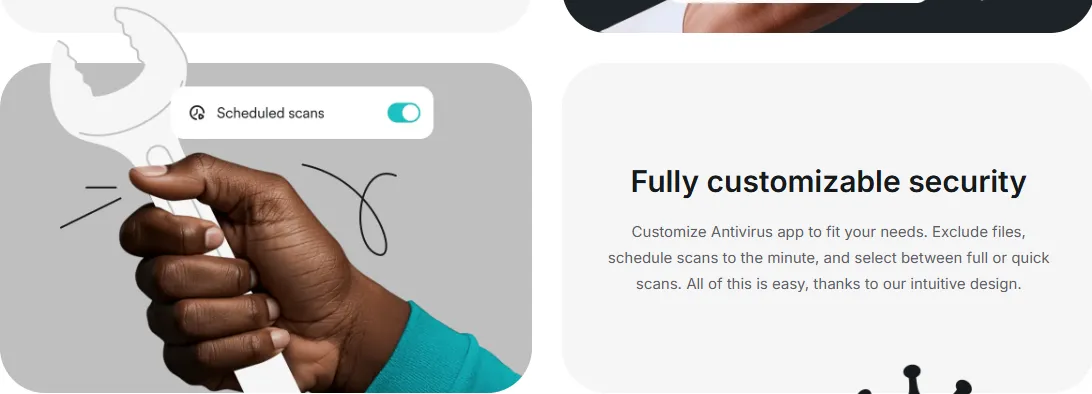
If you are seeing the M7111-5059 error, try these three steps first. They resolve about 70% of proxy issues without requiring you to switch VPN providers.
Step 1: Clear Browser Cookies & Cache
Why: As mentioned, Netflix stores your location data locally. If you recently used Netflix without a VPN, your browser may still be "telling" Netflix you are in your home country.
-
The Fix: Go to your browser settings and clear all history, cookies, and cached images. Alternatively, open a fresh Incognito/Private window, which starts with zero tracking data.
Step 2: Switch Servers
Why: Netflix blacklists IPs, not entire VPN companies. The specific server you are connected to might have been flagged by Netflix's automated system just moments ago.
-
The Fix: Disconnect and reconnect to a different city in the same country. For example, if "New York" is blocked, try "Los Angeles" or "Chicago." Modern VPNs often have "Streaming Optimized" servers specifically for this purpose.
Step 3: Disable IPv6
Why: Many VPNs are built to route IPv4 traffic but often fail to properly tunnel IPv6 traffic. If your computer has IPv6 enabled, your real IP address might be "leaking" out alongside your VPN’s IPv4 address.
-
The Fix: Go to your network settings and disable IPv6. This forces your device to use the IPv4 tunnel provided by your VPN, ensuring your real location stays hidden.
The Ultimate Solution — Use a "Stealth" VPN
Why Basic VPNs Fail
If you have tried the quick fixes above and still see the M7111-5059 error, it means your current VPN provider is too "loud." Netflix uses Deep Packet Inspection (DPI) to look for metadata patterns that identify VPN encryption protocols like OpenVPN. When the basic fixes fail, you need a VPN with Obfuscation (also known as Stealth Mode).
How It Works: Hiding in Plain Sight
Stealth VPN technology is designed to bypass the most rigid firewalls (like those used in 2026 by Netflix or even national-level censors). Instead of sending data that looks like "encrypted VPN traffic," it disguises your connection as regular HTTPS web traffic.
By scrambling the packet headers and using port 443 (the same port used for secure banking and shopping), your VPN traffic becomes invisible to Netflix's detectors. To the streaming giant, you look like a regular person just browsing a website, making it nearly impossible for their automated systems to trigger the proxy ban.
Why Residential IPs are the 2026 Game Changer
Netflix has moved beyond simple IP blacklisting. They now flag entire "Autonomous System Numbers" (ASNs) associated with data centers (like AWS or DigitalOcean). A Residential IP is assigned by an ISP (like Comcast or AT&T) to a physical home. To Netflix, this traffic is indistinguishable from a regular user, making it the "Gold Standard" for bypassing proxy errors without triggering the M7111-5059 flag.
Top 3 VPNs Proven to Fix Error M7111-5059 in 2026
If the quick fixes don't work, you need a provider that specializes in unblocking. These three VPNs lead the market in 2026 for their ability to consistently bypass the M7111-5059 error.
1. ExpressVPN (The Most Reliable)

ExpressVPN remains the gold standard for streaming due to its "always-on" approach to obfuscation.
-
Why it works: It uses the proprietary Lightway protocol, which has built-in obfuscation that is extremely difficult for Netflix to detect. Additionally, ExpressVPN rotates its IP pool more frequently than any other provider, staying one step ahead of the blacklist.
-
Network: 3,000+ servers across 105 countries. It provides extensive coverage in high-demand regions like the US, UK, Japan, and Canada.
-
Refund Policy: 30-day money-back guarantee.
ExpressVPN Review 2026: Is It Still the Industry Leader? (Verified Test)
2. NordVPN (Best Feature Set)
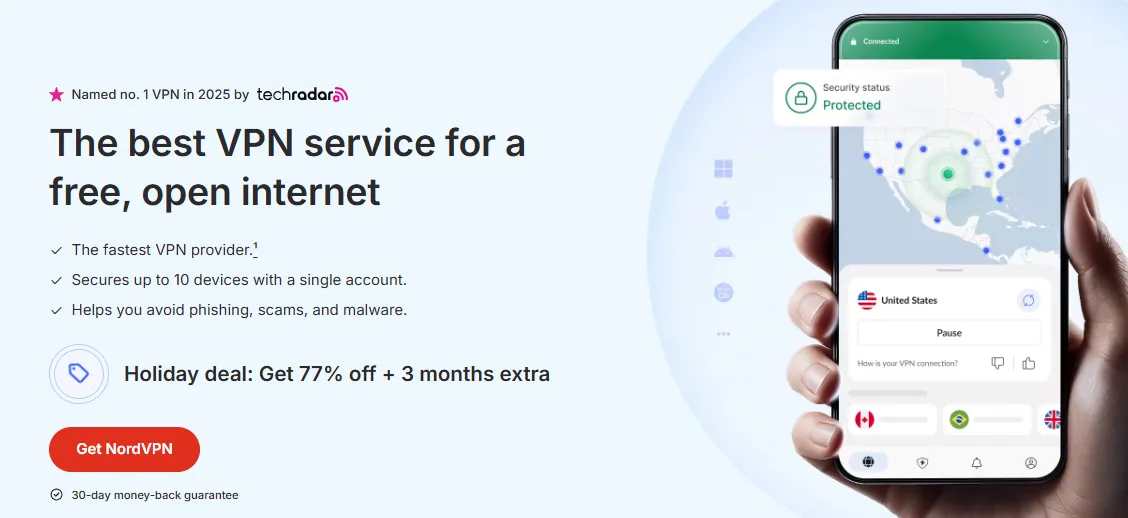
NordVPN offers a specialized toolkit for users who need a guaranteed connection to their favorite libraries.
-
Why it works: It features dedicated Obfuscated Servers specifically designed for environments with heavy firewalls. Furthermore, NordVPN offers Dedicated IP options; by using an IP address assigned only to you, you avoid the "shared IP" red flag that Netflix looks for.
-
Network: 6,000+ servers in 61 countries. It has a massive presence in the US and Europe.
-
Refund Policy: 30-day money-back guarantee.
NordVPN Review 2026: Is It Still the Best VPN? (Tested)
3. Surfshark (Budget-Friendly Fix)

Surfshark is the best option for those who want high-end unblocking capabilities without the premium price tag.
-
Why it works: It includes Camouflage Mode, which automatically enables obfuscation to hide your VPN usage from your ISP and Netflix. It also features a "NoBorders" mode, which helps the app function even on restricted networks like those in schools or offices.
-
Network: 3,200+ servers in 100 countries.
-
Refund Policy: 30-day money-back guarantee.
Surfshark VPN Review 2026: Best Value VPN with Unlimited Devices
Step-by-Step Guide to Bypassing the Ban
Follow this exact sequence to reset your session and clear the M7111-5059 error once and for all.
-
Close Netflix: Completely exit the Netflix browser tab or force-close the app on your smartphone or TV. It is critical that Netflix is not running in the background.
-
Configure Your VPN:
-
Open your VPN app (e.g., ExpressVPN or NordVPN).
-
Crucial: Go to Settings/Preferences and ensure that a modern protocol like "Lightway" or "OpenVPN UDP" is selected. These protocols are the most effective at handling obfuscation.
-
Connect: Choose a "Streaming-Optimized" server if your provider labels them. If not, pick a standard server in your target region (e.g., USA - New York).
-
Verify Your IP: Before opening Netflix, open your browser and go to a site like iplocation.net. Confirm that the location shown matches your VPN server and that your original home IP is nowhere to be seen.
-
Relaunch Netflix: Open Netflix and search for a region-specific title. The error should be gone, and you can enjoy your show in high definition!
Fixing Error M7111-5059 on Apple TV & Smart TVs: Smart DNS vs. VPN
If you are getting the proxy error on a device like an Apple TV or an LG Smart TV, a standard VPN might not be the best fix. Since these devices often lack native VPN support, users turn to Smart DNS.
Why Smart DNS is Often Better for Streaming:
-
No Encryption Overhead: Unlike a VPN, Smart DNS does not encrypt your entire data stream. It only intercepts the DNS requests related to your location. This results in faster speeds and 4K playback without buffering.
-
Fewer "Handshake" Errors: Netflix's 2026 firewall often triggers M7111-5059 or NW-2-5 errors when it detects the "encryption handshake" typical of a VPN. Smart DNS looks like a regular connection, making it less likely to trigger these automated flags.
-
Universal Compatibility: You can set up Smart DNS directly on your router or in the network settings of your TV/Console, bypassing the need for an app.
The Verdict: If you only care about unblocking Netflix on your big screen, use Smart DNS. If you need privacy and security while browsing, stick with a VPN with Obfuscation.
Netflix Proxy Error NW-2-5 & How to Fix It
While M7111-5059 is a location-specific error, Error Code NW-2-5 is a connectivity-specific error. It signals that your device cannot reach Netflix's servers at all, often due to a "handshake" failure between your VPN and your local ISP.
What NW-2-5 Means
This error translates to: "A network connectivity issue is preventing your device from reaching the Netflix service." It is common on Smart TVs, gaming consoles (PS5/Xbox), and streaming sticks.
5 Steps to Fix NW-2-5 in 2026
-
The "Try Again" Loop: Sometimes the connection just timed out. Click "Try Again" on the error screen. If it fails twice, move to step 2.
-
Restart Your Home Network: * Unplug your router and modem for 30 seconds.
-
Plug them back in and wait for all lights to stabilize.
-
This clears the DNS cache of your hardware, which often triggers NW-2-5 when using a VPN.
-
Check DNS Settings (For TVs/Consoles):
-
If you are using a VPN on a router, ensure your DNS is set to your VPN's specific addresses.
-
Alternatively, try using Google DNS (Primary: 8.8.8.8 | Secondary: 8.8.4.4) to bypass ISP-level blocks that trigger NW-2-5.
-
Wired vs. Wireless: If you are on Wi-Fi, the signal might be dropping just enough to trigger a timeout. Switch to an Ethernet cable if possible to stabilize the connection.
-
Disable "Double VPN" or "Multi-Hop": Using two VPN servers at once creates too much latency (lag). Netflix will time out and show NW-2-5. Stick to a single, high-speed obfuscated server for the best results.
How to Fix other Netflix Errors without VPN or Proxy
Sometimes Netflix misidentifies regular users as proxy users. If you aren't using a VPN but still see the error, here is how to fix it:
-
Check Your IP Address: Netflix sometimes blacklists entire ranges of IP addresses that belong to data centers. If your Internet Service Provider (ISP) has assigned you an IP from such a range, Netflix will block you by default. Verify your IP on iplocation.net; if the "Usage Type" says "Data Center" instead of "ISP/Residential," you are being flagged.
-
IPv6 Conflicts: Many ISPs use IPv6 tunnel brokers to provide connectivity. Netflix often treats these tunnels as proxies because they can obscure your true geographic location. Disabling IPv6 in your device's network settings forces the connection through a standard IPv4 route, which often clears "phantom" proxy errors.
-
Public/Shared Wi-Fi Issues: Networks in offices, schools, or hotels often route traffic through a central proxy or use "transparent proxies" for security. These are almost always flagged by Netflix. If possible, switch to a mobile hotspot to verify if the network is the culprit.
-
Browser Extensions: Check for malicious or "data-saving" extensions. Some "Free Video Downloaders" or "Speed Boosters" actually act as hidden proxies for your browser traffic. Disable all extensions and try again.
-
Contact Your ISP: If your IP is falsely flagged, the most permanent solution is to ask your ISP for a "fresh" or "static residential" IP. Inform them that you are receiving an M7111-5059 error on Netflix and ask them to verify that your IP is correctly registered with your actual home location.
Netflix Unblocker Fix for iPhone & Android
Fixing the proxy error on mobile apps is slightly different because the Netflix app caches your "home" region data much more aggressively than a mobile browser.
The 3-Step Mobile Reset
-
Force Stop & Clear Cache (Android):
-
Go to Settings > Apps > Netflix.
-
Tap Storage and select Clear Cache and Clear Data. This forces the app to re-check your location via the VPN on the next launch.
-
Reinstall or Offload App (iOS/iPhone):
-
iOS doesn't have a simple "Clear Cache" button for apps. You must long-press the Netflix icon > Remove App > Delete App, then reinstall it from the App Store while your VPN is connected.
-
Alternatively, go to Settings > General > iPhone Storage > Netflix and tap Offload App to clear temporary files without deleting your profile.
-
Toggle Airplane Mode: After connecting to your VPN, toggle Airplane Mode ON and OFF. This refreshes your network stack and ensures your cellular or Wi-Fi data is correctly tunneling through the VPN before you open Netflix.
Smart TV & Apple TV Specifics: The Power Cycle Trick
The 60-Second Power Cycle Trick for Smart TVs: Unlike browsers, Smart TVs (Samsung, LG, Sony) often have "sticky" DNS caches that don't clear even if you restart the app. The Fix: Unplug your TV from the power outlet for a full 60 seconds. While unplugged, hold down the power button on the TV itself for 15 seconds to drain residual power. This force-flushes the volatile memory and is often the only way to clear M7111-5059 on TV apps.
Why Premium VPNs Beat Free Ones for Netflix in 2026
If you are still trying to use a free VPN to fix error M7111-5059, you are likely fighting a losing battle. Here is a technical breakdown of why premium services are required for modern streaming:
|
Feature |
Premium VPN (2026) |
Free VPN |
|---|---|---|
|
IP Rotation Frequency |
Hourly |
Monthly (Easy to block) |
|
Obfuscation (Stealth) |
Built-in (Lightway/NordLynx) |
None |
|
Netflix Compatibility |
99% Success Rate |
< 5% Success Rate |
|
Speed & Stability |
Optimized for 4K / No Limits |
Throttled / Constant Buffering |
Frequently Asked Questions (FAQ)
Q: Will a free VPN fix this error?
A: No. Free VPNs have small IP pools and thousands of users, making them the first ones Netflix blacklists. They also lack the "Stealth" technology needed to bypass 2026's deep packet inspection.
Q: Does a Dedicated IP help?
A: Yes. A Dedicated IP belongs only to you. Since Netflix flags IPs based on "abnormal" traffic (e.g., 1,000 people on one IP), a Dedicated IP looks exactly like a regular home connection, making it almost impossible to detect.
Q: What if the error persists after all these steps?
A: Try a different browser or clear your storage again. If that fails, contact your VPN’s 24/7 support. Leading providers like ExpressVPN and NordVPN keep a live list of which servers currently work for Netflix.
Q: Can I use a VPN on my Smart TV/Apple TV?
A: Yes, but most Smart TVs don't support VPN apps directly. You can either install the VPN on your router, use a Smart DNS service (provided by your VPN), or cast from a VPN-enabled mobile device.
Q: Is it illegal to use a VPN with Netflix?
A: Using a VPN is legal in most countries. However, it violates Netflix’s Terms of Use. While Netflix tries to block VPN traffic, they generally do not ban individual user accounts for using one; they simply block the video stream.
Q: Why is my Netflix VPN not working even though my IP is changed?
A: If your IP checker shows a new location but Netflix still blocks you, you likely have a WebRTC leak or a DNS mismatch. Even if your IP is hidden, your browser might be leaking your original location via WebRTC (real-time communication) requests. To fix this, use a VPN browser extension that includes WebRTC blocking, or disable WebRTC manually in your browser's advanced settings. Additionally, ensure you have cleared your browser's DNS cache (flushing DNS).
PS: All images in this article are sourced from the merchant's official website and are copyrighted by the merchant.