In 2025, with cyber threats becoming more insidious and Microsoft's default data collection increasing privacy concerns, a reliable VPN is no longer optional—it is the digital necessity for safeguarding your Windows device, ensuring both security and complete privacy.
The Importance of a Windows VPN
Windows is the most widely used operating system globally, but its popularity also makes it a prime target for hackers and cyber threats. Therefore, using a VPN (Virtual Private Network) on your Windows PC or laptop is a necessary line of defense to ensure digital security and privacy. As Windows 10 and Windows 11 dominate the global PC market, their massive user base makes them the primary targets for cybercriminals. In 2025, we are seeing threats against Windows devices becoming more insidious, especially in public Wi-Fi environments, where users’ data security faces severe challenges. Additionally, the large amount of user telemetry data collected by Microsoft by default is a major driver for Windows users to choose a VPN for privacy protection.
Countering Growing Cyber Threats: A VPN provides military-grade encryption (AES-256), which converts all your data into unreadable code, masking your real IP address and online activities. This is crucial for protecting your sensitive information from hackers, network eavesdroppers, and phishing attacks, especially on insecure public Wi-Fi networks in places like cafes and airports.
Addressing Operating System Privacy Concerns: Microsoft collects a significant amount of user data by default, including diagnostic information and usage habits. A top-tier no-logs VPN ensures that your online identity and activities are not recorded or linked back to you, providing a necessary privacy shield for your digital life and returning full control of your internet usage to you.
Content Access and Bypassing Censorship: A VPN can help you bypass geo-restrictions and strict network censorship, allowing you to securely and reliably access international streaming services, social media, blocked news, and educational websites, no matter where you are.
Secure Downloading and Gaming Experience: For high-bandwidth activities like P2P torrenting and online gaming, a VPN can prevent Internet Service Provider (ISP) bandwidth throttling or "speed limits," while also protecting your IP from potential DDoS (Distributed Denial of Service) attacks.
Quick Guide: Best VPNs for Windows PCs compared
|
Rank |
VPN Name |
Best For |
Key Advantage |
Exclusive Features |
Average internet speed loss overall |
Average internet download speed loss on Windows with WireGuard |
|
1 |
Best Overall, Fastest Speed |
Unmatched speed and reliability; military-grade security; independently audited no-logs policy. |
Lightway Protocol, TrustedServer Technology (RAM-based servers). |
15% |
12% (Lightway) |
|
|
2 |
Top Security and Speed |
Industry-leading security features; extremely fast; anti-malware included. |
NordLynx Protocol, Threat Protection, Meshnet. |
18% |
10% (NordLynx) |
|
|
3 |
Streaming and P2P Optimization |
Servers optimized for specific tasks, intuitive interface, easy to use. |
Dedicated servers for streaming, gaming, and downloading; built-in ad blocker. |
25% |
18% |
|
|
4 |
Highly Customizable Security & Value |
Huge server network, customizable encryption levels; open-source app. |
MACE (Powerful malware/ad blocking), Multi-Hop feature. |
22% |
15% |
|
|
5 |
Best Value and Device Coverage |
Unlimited simultaneous connections; exceptional value; robust built-in ad blocker. |
CleanWeb (Ad/malware blocking), Nexus/SDN, Unlimited connections. |
20% |
14% |
Introduction to Key VPNs for Windows PCs and Laptops
1. ExpressVPN: The Windows All-Round Performance King

ExpressVPN firmly holds the top spot on our recommendation list due to its exceptional speed, powerful security features, and easy-to-use Windows client. Whether you are watching HD streaming, playing fast-paced games, or handling sensitive work files, its proprietary Lightway Protocol offers lightning-fast connections while maintaining top-tier encryption. The Lightway Protocol is specifically designed for speed and efficiency, making connections faster and more stable on Windows.
ExpressVPN sets the industry standard for privacy protection: it uses RAM-based TrustedServer Technology, ensuring that all data on the servers is completely wiped clean with every reboot, making long-term storage impossible. Combined with its headquarters location in the British Virgin Islands (BVI) and an independently audited strict no-logs policy, it provides the most trustworthy privacy assurance for Windows users. The one-click connect feature of the Windows client makes it extremely convenient to use.
Security Features: AES-256 bit encryption, Perfect Forward Secrecy, automatic Kill Switch, Lightway Protocol optimization.
Compatibility: Works with Windows 11, 10, 8, and 7.
Money-Back Guarantee: 30-day risk-free money-back guarantee.
2. NordVPN: Top-Tier Security and Speed Guarantee

NordVPN is another market giant, widely popular among Windows users for its ultra-high security standards and innovative features. It uses the proprietary NordLynx Protocol, based on WireGuard, which delivers top speeds while maintaining powerful security performance. NordLynx is optimized for the Windows platform, ensuring a perfect balance between performance and security.
NordVPN’s Threat Protection feature is a major highlight for Windows security, as it not only blocks ads and trackers but also scans and prevents malware and suspicious phishing sites when you download files, acting as a lightweight security suite. Furthermore, the Meshnet feature allows you to securely link and access up to 60 devices via an encrypted connection, which is ideal for Windows remote collaboration and file sharing. For users requiring maximum security, its Double VPN feature encrypts traffic through two different VPN servers, offering an extra layer of protection.
Security Features: Double VPN, Obfuscated Servers, Threat Protection (built-in anti-malware and anti-tracking), NordLynx Protocol.
Server Network: 6,000+ servers across 60+ countries.
3. CyberGhost: The Ideal Choice for Windows Streaming and Downloading
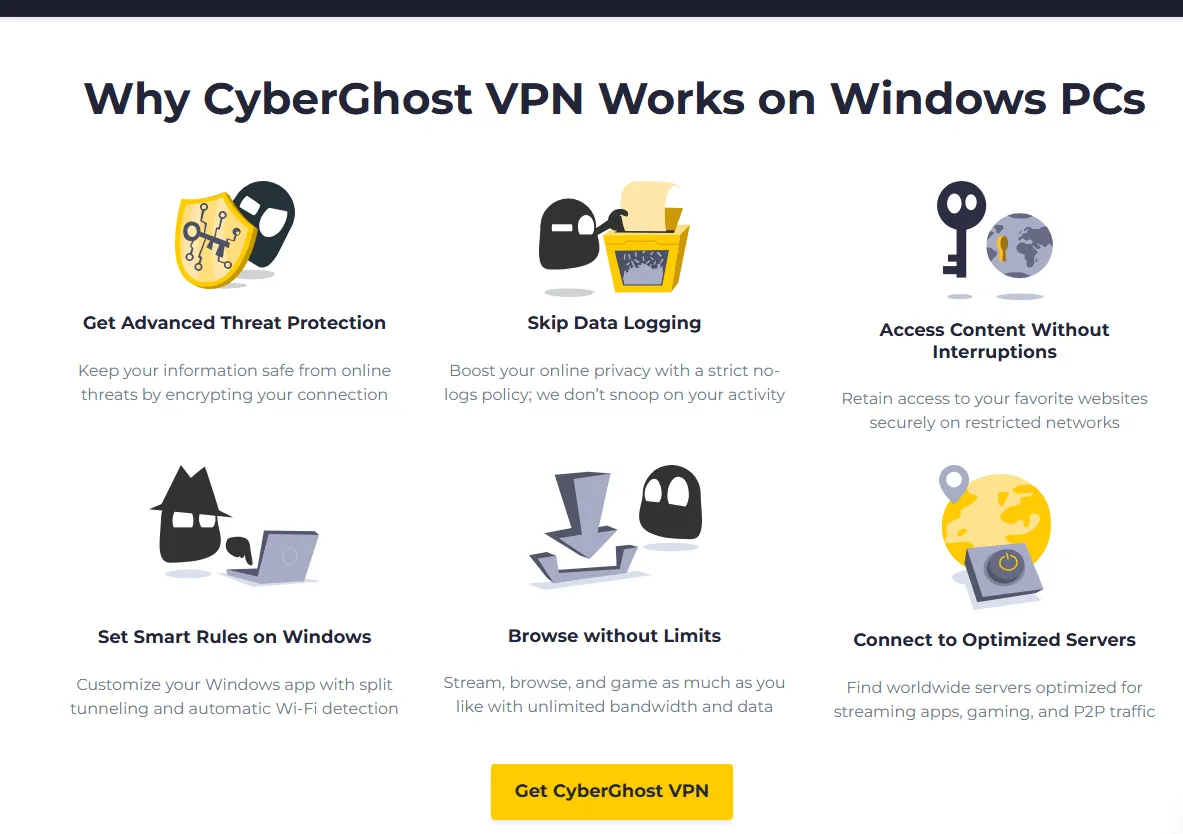
If you frequently use your Windows device for streaming, downloading, or gaming, CyberGhost is an excellent option. It offers over 11,000 servers globally and features a large number of servers optimized for specific activities. For example, its optimized streaming servers can reliably access major platforms, providing a smooth 4K viewing experience with minimal latency. CyberGhost's Windows application is intuitively designed, making it easy for even VPN beginners to get started. Its unique Smart Rules feature allows users to customize automated actions, such as automatically connecting to a specific server when the Windows system starts, or enabling the VPN automatically when certain applications (like a torrent client) are opened. It also includes an ad blocker for malicious ads, adding an extra layer of security by preventing infected ads from loading while you browse. CyberGhost offers a generous 45-day money-back guarantee, one of the longest in the industry.
Security Features: Strong encryption, ad blocker for malicious ads, Smart Rules automation feature.
Server Network: Vast global server count (over 100+ countries).
4. Private Internet Access (PIA): Great Value and Deep Customization
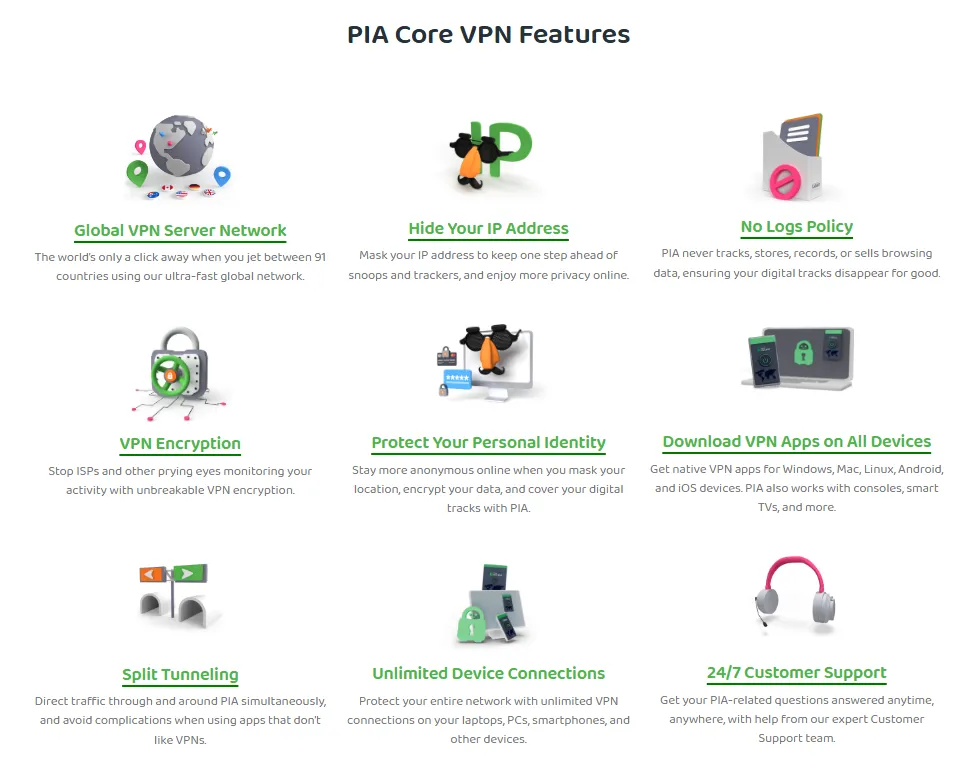
PIA is favored by many advanced Windows users for its exceptional value and powerful customizability. It has one of the largest server networks in the industry, which effectively avoids server congestion and ensures stable and reliable connections. For security-conscious users, PIA offers flexible encryption choices: you can select the faster AES-128 encryption for bandwidth-intensive tasks, or the more secure AES-256 encryption for sensitive data handling. Its application code is fully open-source, allowing anyone to audit its security, which greatly increases transparency. A core security advantage is the MACE feature, a DNS-level tool that effectively blocks malware, trackers, and ads, providing strong built-in threat defense for Windows.
Security Features: MACE (DNS-level blocking), Open-source app, Customizable encryption (AES-128/256), Multi-Hop.
5. Surfshark: Best Value and Unlimited Connections
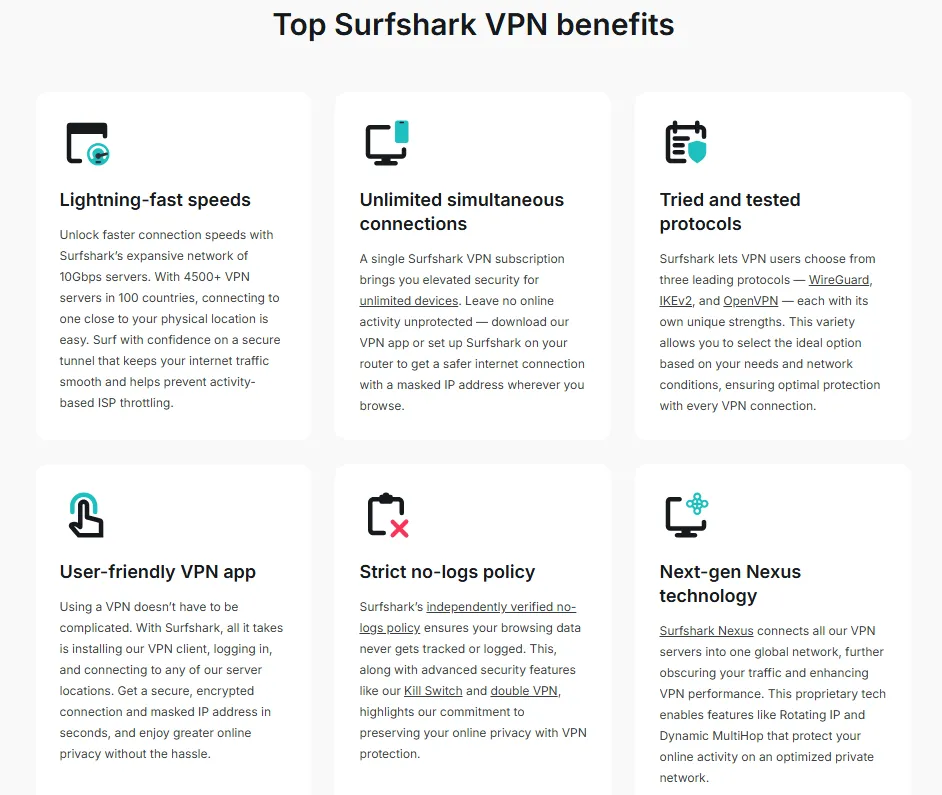
Image credit to surfshark.com, copyright belongs to the original author
Surfshark is the best choice for budget-friendly users because it offers an unlimited number of simultaneous device connections. This means you can protect all your Windows PCs, laptops, phones, and tablets at home with a single subscription, making it ideal for multi-user or multi-device Windows families. Surfshark’s CleanWeb feature is a blessing for the Windows browsing experience, as it effectively blocks ads, trackers, and malicious links. Furthermore, its Nexus technology (or Software Defined Network, SDN) optimizes connections between servers, providing a more stable and faster connection experience. For Windows users in strictly censored regions, the NoBorders mode automatically detects restricted networks and directs users to servers specifically optimized for bypassing blocks.
Security Features: CleanWeb (powerful ad/malware blocker), NoBorders Mode (bypasses strict firewalls), Double VPN, Nexus/SDN architecture.
Compatibility: Works with Windows 11, 10, 8, and 7.
How We Tested and Ranked Recommended Windows VPNs
We follow a strict and transparent methodology to test and rank VPNs for Windows, ensuring the reliability of our recommendations:
Windows Client Usability and Design: We thoroughly tested each VPN's desktop client on the latest Windows 11 and Windows 10 operating systems, evaluating installation simplicity, user interface design, and feature layout. Only VPNs that provide a stable, fully functional, native Windows application that doesn't consume excessive system resources are selected.
Speed Test (Core Metric): Using recognized tools like Ookla, we conducted multiple average download and upload speed tests on local servers, as well as servers in the US, Europe, and Asia. Connection stability and low latency are key indicators for evaluating high-ranking VPNs.
Security Feature Verification: We verified the effectiveness of AES-256 encryption and DNS/IPv6 leak protection to prevent IP address exposure. The reliability of the Kill Switch is paramount; we simulated network disconnections to ensure it immediately cuts off the internet when the VPN connection unexpectedly drops, protecting user privacy.
Privacy Policy Auditing and Verification: We reviewed the terms of the VPN providers’ no-logs policies, prioritizing companies that have been audited by independent third parties (such as PwC or Deloitte) or verified through real-world cases (such as failing to hand over user data following a court subpoena).
Content Access Capability: We tested the VPN's ability to bypass geo-restrictions on streaming services (such as Netflix, Disney+, Amazon Prime Video, etc.), ensuring users can consistently and smoothly watch global content.
Comparison Table: Recommended VPNs for Windows 11, 10, 8, and 7 in 2025
|
VPN Name |
Server Count |
Speed Performance (Max 5) |
Strict No-Logs Policy |
Kill Switch |
Max Simultaneous Connections |
Supports Edge Extension |
Windows Compatibility |
|
ExpressVPN |
105 Countries |
⭐⭐⭐⭐⭐ |
Yes (Audited) |
Automatic and Reliable |
8 |
Yes |
11, 10, 8, 7 |
|
NordVPN |
60+ Countries (6,000+ Servers) |
⭐⭐⭐⭐⭐ |
Yes (Audited) |
Automatic and Reliable |
10 |
Yes |
11, 10, 8, 7 |
|
CyberGhost |
100+ Countries (11,000+ Servers) |
⭐⭐⭐⭐ |
Yes (Audited) |
Automatic and Reliable |
7 |
No |
11, 10, 8, 7 |
|
PIA |
91 Countries (Vast Global Network) |
⭐⭐⭐⭐ |
Yes (Verified) |
Automatic and Reliable |
Unlimited |
Yes |
11, 10, 8, 7 |
|
Surfshark |
100+ Countries (3,200+ Servers) |
⭐⭐⭐⭐ |
Yes (Audited) |
Automatic and Reliable |
Unlimited |
Yes |
11, 10, 8, 7 |
Steps to Install a VPN on Windows
Installing a VPN on your Windows PC or laptop is very simple. Here are the general steps, using ExpressVPN as an example:
-
Choose a Plan and Sign Up: Visit the official website of your chosen VPN, sign up for an account, and select a suitable subscription plan.
-
Download the Application: Log into your account, navigate to the "Products" or "Download" section, find the client program for Windows, and download the installer (usually an .exe file).
-
Run the Installer: Double-click the downloaded .exe file, follow the on-screen prompts, select the installation path, and complete the installation.
-
Log In and Connect: Open the VPN application and log in using the username/activation code and password you received upon registration.
-
Select a Server: You can select "Smart Location" to automatically connect to the server with the lowest latency and fastest speed, or choose a country/region from the global server list to connect manually.
-
Start Secure Browsing: Click the "Connect" button. Once connected, your Windows device's traffic will be protected by encryption.
How to Manually Set Up a VPN (L2TP/IPsec) on Windows 10 and 11
Windows has a built-in function for manually setting up a VPN connection, which is useful for connecting to corporate networks or using specific protocols (like L2TP/IPsec or SSTP).
Note: You must have the following information provided by your VPN service provider to complete the setup:
-
Server Name or Address
-
VPN Type/Protocol
-
Pre-shared Key (required only for L2TP/IPsec)
-
Username and Password
1: Open VPN Settings
-
Click the "Start" button (or press the Windows key).
-
Type VPN and click on "VPN settings" in the search results.
2: Add a VPN Connection
-
In the VPN settings window, click "Add a VPN connection".
-
In the dialog box that appears, fill in the following information:
|
Field |
Option |
Description |
|
VPN provider |
Windows (built-in) |
Select Windows (built-in). |
|
Connection name |
(Custom Name) |
Name your connection, e.g., "My ExpressVPN L2TP" or "Company VPN." |
|
Server name or address |
(Your VPN Address) |
Paste the IP address or domain name provided by your VPN service. |
|
VPN type |
L2TP/IPsec (or SSTP) |
This is the most common built-in VPN protocol. Select the protocol supported by your provider. |
|
Type of sign-in info |
User name and password |
Select "User name and password." |
3: Configure L2TP/IPsec Pre-shared Key (if needed)
If you selected the L2TP/IPsec protocol, you also need to configure the security settings:
-
After completing the previous step, click "Save".
-
In the VPN settings list, find the connection name you just created and click on it.
-
Click "Advanced options".
-
At the bottom, find "Edit this connection's properties".
For Windows 11:
-
On the "VPN Settings" page, find your connection and click the "..." menu on the right.
-
Select "Properties".
-
Select "Security" on the left side of the properties window.
-
In the "Authentication" section, find "Pre-shared key".
-
Enter the pre-shared key provided by your VPN service provider.
4: Connect to the VPN
-
Click the "Network" icon (Wi-Fi or Ethernet icon) in the bottom right corner of the screen.
-
In the network flyout that appears, you will see the VPN connection you created.
-
Click on your connection name.
-
Click the "Connect" button.
-
If prompted, enter your VPN account username and password.
Once connected, the status will show as "Connected", and your network traffic will be routed through the VPN tunnel.
⚠️ Security and Performance Tip
Please note that Windows' built-in VPN feature typically does not support the most advanced and fastest protocols, such as ExpressVPN's Lightway or NordVPN's NordLynx (based on WireGuard).
Recommendation: For the best speed, security, and compatibility, it is always recommended to use the dedicated Windows client applications provided by ExpressVPN, NordVPN, or other top VPNs, rather than the manual setup feature in Windows. Dedicated apps offer a more reliable Kill Switch and more robust leak protection.
Conclusion on PC VPN services in 2025
In 2025, choosing a reliable VPN for your Windows PC or laptop is a necessary investment for protecting personal privacy and countering increasingly complex cyber threats. We conducted comprehensive testing and concluded that ExpressVPN is the best choice for most users due to its superior speed, military-grade security, and excellent Windows client. NordVPN offers robust security protection and the innovative Meshnet feature, while Surfshark is the ideal choice for budget users due to its unlimited connections and exceptional value.
Frequently Asked Questions (FAQ)
Q: Why does my VPN disconnect after my Windows PC wakes up from sleep mode?
A: Troubleshooting: This is usually caused by Windows' power management settings, which shut down the network adapter during sleep to save power. You can try the following to ensure the network adapter stays active during sleep mode:
-
Go to Device Manager > Network Adapters.
-
Right-click the network adapter you are using (e.g., your Wi-Fi or Ethernet card) and select "Properties".
-
Switch to the "Power Management" tab.
-
Uncheck the "Allow the computer to turn off this device to save power" option.
[Advanced Troubleshooting: Fixing the Missing "Power Management" Tab Issue]
If you cannot find the "Power Management" tab in the network adapter properties (a common issue in Windows 10/11), you can try modifying the registry to fix it:
-
Open the Registry Editor (type regedit in the search bar and run it).
-
Navigate to the path: HKEY_LOCAL_MACHINE\SYSTEM\CurrentControlSet\Control\Power
-
Right-click on the blank space on the right, select "New" > "DWORD (32-bit) Value".
-
Set the name of the new value to PlatformAoAcOverride.
-
No need to modify the value (keep it at 0).
-
Restart your computer. After restarting, the "Power Management" tab should now appear in the network adapter settings.
Important Note: If you prefer not to change any system settings, or if this method is ineffective, be sure to ensure the VPN's Kill Switch is enabled. Using a premium VPN like ExpressVPN, which offers an automatic Kill Switch, ensures that your data remains encrypted and safe even if the VPN disconnects before the network connection does.
Q: Can I run multiple VPNs simultaneously on Windows?
A: Technically, no. Most VPN clients' drivers will conflict with each other, leading to unstable network connections or even crashes.
Detailed Explanation:
-
Driver Conflicts: Top-tier VPN clients install their own network adapter drivers and routing rules. When you try to run two or more VPN clients simultaneously, their drivers and routing settings will compete for network control, which will almost certainly lead to IP address leaks, connection drops, and even system-level network instability.
-
Significant Performance Degradation: Even if they could run simultaneously, your traffic would need to go through two or more encryption and decryption processes. This would result in a drastic drop in network speed and a significant increase in latency (Ping value), making the network experience very poor.
Alternative Solution: If you want different applications to use different connections, you should utilize the Split Tunneling feature provided by the VPN client, rather than running multiple clients:
-
Split Tunneling: This feature allows you to select which applications' traffic goes through the VPN encrypted tunnel and which applications' traffic uses the local network directly (without VPN).
-
For example, you can use a single VPN client and its Split Tunneling feature to route your browser through the VPN to access international content, while allowing your games or torrent clients to connect directly to the local network (or vice-versa).
Summary: Avoid running multiple VPN clients simultaneously. Using a single, reliable VPN service and leveraging its built-in Split Tunneling feature to manage the traffic flow of different applications is a safer and more efficient approach.
Q: Can a VPN prevent malware on Windows?
A: Some top-tier VPNs can. Many top VPNs come with extra security features that act as a complement to your antivirus software:
-
PIA's MACE feature can block known malware domains and ads.
-
NordVPN's Threat Protection can scan downloads for malware and block them before they infect your device.
-
CyberGhost's and Surfshark's CleanWeb blockers can prevent infected ads from loading.
Q: Should I disable IPv6 on Windows 10/11?
A: Answer: It is not recommended to disable IPv6 on Windows devices. While disabling it can prevent IPv6 leaks, it may cause issues with certain network functionalities. If your VPN cannot handle IPv6 traffic, it should have built-in IPv6 leak protection (as ExpressVPN does) rather than requiring users to change system settings.
Q: Can I use my Windows VPN on Android, iPhone, PC, Mac, or other devices?
A: Absolutely. The VPN subscription you purchase for Windows is usually cross-platform, not limited to Windows use. Most top-tier VPN service providers (such as ExpressVPN, NordVPN, Surfshark, etc., mentioned in your file) offer dedicated applications to cover all major platforms you asked about:
-
Mobile Devices: Android phones/tablets and iPhone/iPad (iOS).
-
Desktop Devices: Mac (macOS).
-
Other Devices: Smart TVs, gaming consoles, and routers, etc.
For example, according to our comparison information:
-
ExpressVPN allows 8 simultaneous connections.
-
NordVPN allows 10 simultaneous connections.
-
Surfshark and Private Internet Access (PIA) even offer an unlimited number of device connections, meaning you only need one account to protect all your devices. You simply need to download and install the corresponding client application on each device and log in to your account to use it.
Q: Can I use a free Windows VPN?
A: Strongly discouraged. Free VPNs are usually slow, have few servers, and impose strict data limits. More importantly, they often lack reliable encryption and a no-logs policy, and some may even record and sell your data, posing a huge threat to your privacy.
Q: What is a VPN Kill Switch, and is it important?

A: A Kill Switch is a crucial security feature. If your VPN connection unexpectedly drops, it immediately cuts off your device's internet connection, preventing your real IP address and unencrypted data from being exposed on the network. This is vitally important for Windows users.
Q: Will a VPN slow down my internet speed?
A: All VPNs will cause some degree of speed reduction due to the encryption and data routing process. However, with top-tier VPN protocols like ExpressVPN's Lightway or NordVPN's NordLynx, the speed loss is usually negligible, especially when connecting to nearby servers.
Q: Does a VPN hide my ISP?
A: A VPN hides your real IP address and your specific activities on the network. Therefore, your ISP can only see that you are connected to the VPN server's IP address, but they cannot track the specific websites you visit, search content, or files you download.
Q: What are the pros and cons of self-hosted VPNs (e.g., fanqiang tizi or circumvention tools) compared to paid VPNs?
A: For average users, we strongly recommend using established paid VPN services. Self-hosted VPNs have the following distinct disadvantages:
-
High Technical Requirements: Requires complex skills in server selection, performance optimization, and protocol configuration (such as V2ray, Trojan).
-
Inadequate Security Protection: The encryption of self-hosted protocols may be weaker, lacking advanced security features like a Kill Switch, IP/DNS leak protection, and ad blocking, leading to high data leakage risk.
-
High Maintenance Costs: Requires significant time and effort for troubleshooting and technical updates to counter network blockades. IP addresses can be blocked at any time, requiring the purchase of new IPs.
-
Potentially Higher Cost: The accumulated cost of purchasing servers and new IPs is often more expensive than subscribing to a paid VPN.
-
Legal Risks: In mainland China, privately setting up and selling circumvention software is illegal, and even personal use may carry risks.
Q: What are the risks of using cracked or pirated VPN software?
A: Looking for cracked VPN versions to get free service is extremely dangerous and should be strictly avoided:
-
Introduction of Malware: Cracked versions often bundle malware, adware, or spyware, which can lead to hacking, data theft, and even system damage.
-
Privacy and Security Threats: Pirated software cannot guarantee data and privacy security. It may contain backdoors that allow hackers to access your personal information and accounts, exposing you to serious security and legal risks.
-
Lack of Updates and Support: Cracked versions cannot receive the latest security patches and software feature updates, making them vulnerable to network blockades and unable to guarantee compatibility with the latest Windows systems.
Q: How can I effectively boost my VPN connection speed on a Windows PC?
A: You can significantly improve your VPN speed and experience through the following methods:
-
Choose a Closer Server: For users, connecting to servers with lower latency, such as Taiwan, Hong Kong, Japan, Korea, Singapore, or the US West Coast, usually yields faster speeds.
-
Avoid Peak Network Hours: During peak hours, such as 8 PM to 12 AM, if nearby nodes are congested, try connecting to lightly loaded remote nodes like Canada, the UK, or Australia.
-
Use Split Tunneling: Utilize this feature to ensure traffic accessing domestic websites does not pass through the VPN, encrypting only international traffic. This reduces network latency and VPN load, improving domestic access speed.
-
Optimize Local Device and Network: Disable unnecessary background applications and network connections; regularly update the Windows operating system and VPN client software; try to use a wired (Ethernet) connection instead of wireless.
-
Change Protocol or Provider: Try switching to a different VPN protocol in the client settings (e.g., switching from OpenVPN to WireGuard or Lightway); sometimes changing VPN service providers can also bring a better connection experience.
Q: What should I do if my Windows VPN won't connect?
A: If your PC VPN fails to connect, try the following troubleshooting steps in order:
-
Change Server Node: Try connecting to another country or a different IP node within the same country.
-
Restart Client or Computer: Simply restarting the VPN client or your Windows PC can sometimes resolve temporary network connection issues.
-
Switch VPN Protocol: Try switching to a different VPN protocol in the client settings (such as TCP, UDP, WireGuard, etc.), as certain protocols might be temporarily blocked by the network.
-
Upgrade VPN Client: Ensure your VPN client is the latest version to avoid compatibility or known vulnerability issues.
-
Check Local Firewall/Antivirus: Temporarily disable Windows or third-party firewalls to see if they are blocking the VPN connection.
-
Contact Customer Support: If none of the above methods work, immediately contact your VPN service provider's online customer support for professional technical assistance.
-
Consider a Refund: If the connection issue cannot be resolved and you are still within the money-back guarantee period, consider applying for a full refund.