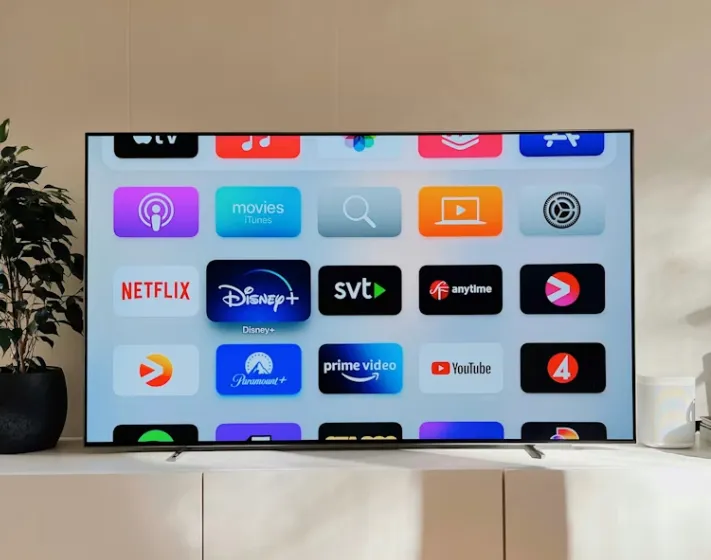
The Apple TV, especially the latest Apple TV 4K model, has become the core of modern home entertainment systems. It offers a smooth interface, allowing users to centrally manage and enjoy content from hundreds of global streaming apps on the big screen. However, due to content licensing and copyright agreements, almost all streaming services enforce strict Geo-restrictions. This means that when you travel to different countries or regions, you often cannot watch your subscribed services, or you can only access a very limited content library. What's more challenging is that the tvOS system running on Apple TV does not support the direct installation of VPN applications, making it difficult for users to directly address geo-restrictions and privacy protection. This requires users to adopt more creative, indirect methods to implement VPN protection. This guide aims to comprehensively address these pain points. We will detail the Apple TV VPN setup challenges and the corresponding best solutions, bring you the 5 best Apple TV VPNs rigorously tested and evaluated for 2026, and provide the 3 easiest setup methods to understand. Through this guide, you will be able to easily unlock global streaming content while enjoying top-tier online security and privacy protection. ExpressVPN, with its outstanding performance in speed tests, simplified router setup process, and vast global server network, remains our top recommendation. Its reliable 30-day money-back guarantee allows you to try it risk-free without any worries.
What is Apple TV, and Why Does Apple TV Need a VPN?
Apple TV is a series of digital media players (commonly known as set-top boxes) designed and manufactured by Apple Inc. Its primary function is to connect to a television and allow users to stream content from the internet. Through the tvOS operating system, it acts as a multimedia content hub, integrating Apple's own Apple TV+, iTunes movie/TV show rentals, as well as global mainstream streaming services like Netflix, Disney+, Hulu, HBO Max, YouTube TV, and ESPN.
Core Distinction:
-
Apple TV (Device): A hardware device used to play streaming content. It runs the tvOS system and features Siri Remote control and App Store access.
-
Apple TV+ (Service): Apple's original content subscription service.
Even without an Apple TV device, users can watch Apple TV+ on other devices, but using the Apple TV device provides a more deeply integrated ecosystem experience and access to hundreds of apps.
Why Apple TV Needs a VPN: Geo-Unblocking, ISP Throttling & 4K Assurance :Using a VPN on Apple TV is not just about unlocking content; it's about gaining comprehensive streaming freedom, speed assurance, and privacy security. Here is a detailed explanation of the core reasons:
-
Bypass Geo-restrictions, Access a Wider Content Library: Streaming platform content libraries (such as Netflix movies and series) vary greatly between countries. A VPN "fools" streaming services by replacing your real IP address with an IP address from a target country (e.g., the United States or Japan). This allows you to not only continue accessing your subscribed services when traveling abroad but also unlock exclusive content available in other countries.
-
Avoid ISP Throttling, Ensure Smooth 4K Playback: Your Internet Service Provider (ISP) may intentionally slow down your connection speed (known as "bandwidth throttling") when detecting high-bandwidth activities (like 4K streaming, large file downloads). A VPN encrypts all your data traffic with military-grade encryption (like AES-256), preventing the ISP from identifying the type of content you are watching, thereby stopping targeted speed restrictions and ensuring stable, zero-buffering 4K streaming playback.
-
Overcome Network Censorship and Blocking: In regions with restricted network environments or strict blocking of specific services (like YouTube TV, Hulu), a VPN is the only effective tool to bypass the "firewall" and access global information and entertainment resources. It provides digital freedom to access the global internet.
-
Enhance Privacy and Security Protection: Your streaming habits, IP address, and other online activities are sensitive personal privacy data. A premium VPN transmits data through an advanced encrypted tunnel, preventing hackers on public Wi-Fi from eavesdropping, stopping ISPs from building a profile of your behavior, and defending against pervasive tracking by advertisers.
-
Access Regional Pricing Advantages: In a few cases, the prices for certain digital services or iTunes rentals/purchases may vary based on the user's geographical location. A VPN can help users explore potential regional pricing advantages by connecting to countries with lower prices.
How to Test and Rank the Best Apple TV VPNs
To scientifically test and rank VPN services for Apple TV (tvOS), you need to focus on streaming performance, stability, and ease of use. Below are the core criteria and specific steps for testing and ranking VPN services.
Part 1: The Five Core Criteria for VPN Ranking and Testing
Ranking a VPN for suitability on Apple TV is primarily based on the following five aspects:
-
Streaming Unblocking Capability
This is the primary purpose of using a VPN for Apple TV users. A top-tier VPN must be able to bypass the geo-restrictions of mainstream streaming platforms (such as Netflix, Disney+, Hulu, BBC iPlayer, etc.).
-
Test Method:
-
Multi-platform Verification: Connect to a VPN server in the target country (e.g., US, UK, Japan).
-
Content Access: Try opening content exclusive to that region (e.g., a movie only available in the US Netflix library). If it loads and plays smoothly, the test passes.
-
Stability: Repeat the test at least 3 times on the same server to ensure the stability of the unblocking, preventing instant detection and blocking by the streaming platform.
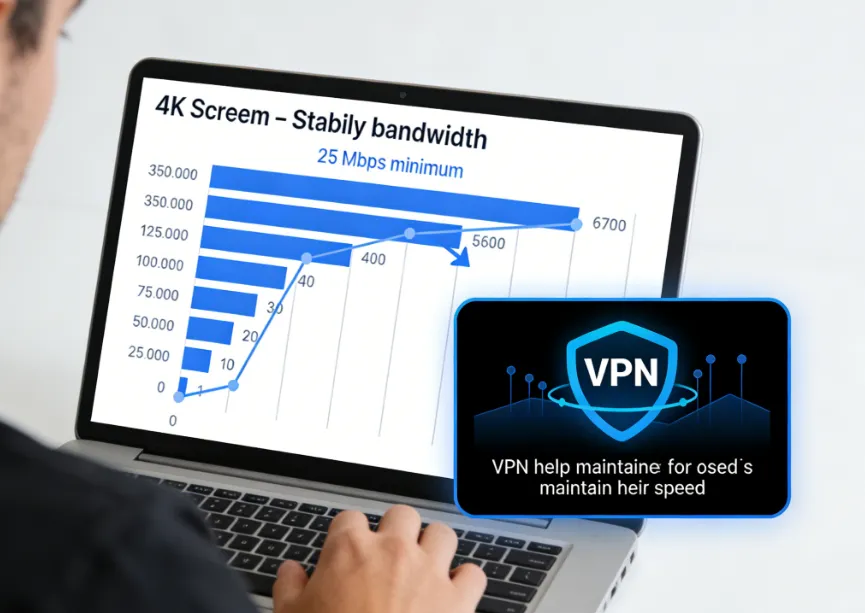
2. Speed and 4K Streaming Performance
A VPN will slightly reduce internet speed, but speed is crucial for 4K high-definition streaming.
-
Key Indicators:
-
Baseline Speed: Test the original internet speed without a VPN connection (as a control group).
-
VPN Speed: Test the download speed after connecting to the nearest server and the server in the target country.
-
Ideal Standard: The speed degradation rate should be less than 25%. To ensure a smooth 4K streaming experience, the stable speed should ideally reach at least 50 Mbps.
-
Apple TV Native App Compatibility and Ease of Use
Since the tvOS 17 update, some VPNs have started offering native Apple TV applications, which greatly simplifies the setup.
-
Ranking Weight:
-
Native App (Highest Score): If the VPN offers a native tvOS App, check if the installation and user experience are smooth, and if the interface is adapted for Siri Remote operation.
-
Support (Medium Score): For older models or VPNs that do not support a native app, test the configuration difficulty and success rate of their Smart DNS function (e.g., ExpressVPN's MediaStreamer).
-
Router Setup (Lowest Score): Check if the VPN provides pre-configured router firmware or detailed manual setup guides for routers.
-
Server Network and Reliability
The number, geographical distribution, and quality of servers directly affect unblocking capability and speed.
-
Test Points:
-
Coverage: Does it have a large number of servers globally, especially in popular streaming regions (US, UK, Canada, Japan, Australia)?
-
Proprietary Technology: Does the VPN use modern and fast connection protocols such as WireGuard, NordLynx, or Lightway?
-
Load Balancing: Connect to different servers in the same country and test the speed and stability to evaluate its server load balancing capability.
-
Security and Privacy Assurance
Although watching streaming media on Apple TV is the main goal, basic security and privacy protection are still indispensable.
-
Audit Standards:
-
No-Logs Policy: Has the VPN been independently audited and does it strictly adhere to a no-logs policy?
-
Encryption Standard: Does it use industry-leading AES-256 bit encryption technology?
-
DNS Leak Test: Although testing for leaks on Apple TV is more difficult, you can perform a DNS/IP leak test on a computer or mobile phone configured with the VPN to ensure its tunneling function is reliable.
Part 2: Specific Apple TV VPN Testing Steps
Based on the characteristic that Apple TV supports native VPN applications, here is the recommended testing process:
-
Preparation for Testing
-
Select Candidates: Based on the above criteria, select VPNs that offer native tvOS apps and have high ratings (e.g., NordVPN, ExpressVPN, Surfshark, etc.).
-
Utilize Money-Back Guarantee: Take advantage of the 30-day money-back guarantee usually offered by VPN service providers for risk-free testing.
-
Execute Connection Tests (in order of priority)
|
Priority |
Recommended Method |
Test Process |
Scoring Focus |
|
High |
Native App Test (tvOS 17+) |
1. Search for and download the VPN from the Apple TV App Store. 2. Log in and select a server location. 3. Check connection speed and stability. |
App launch speed, time required to connect, friendliness of the interface operation. |
|
Medium |
Smart DNS Test |
1. Activate the Smart DNS function on the VPN's official website and obtain the DNS address. 2. Manually enter the DNS address in the Apple TV network settings. 3. Attempt to unblock streaming media. |
Complexity of setup and success rate of unblocking. Note: This method does not encrypt, it is only for unblocking. |
|
Low |
Router VPN Test |
1. Flash the VPN firmware onto a compatible router or configure it manually. 2. Connect the Apple TV to the VPN router. 3. Test if all devices are under VPN protection. |
Configuration difficulty, impact on network speed (router performance limitations). |
-
Streaming and Speed Verification Steps
-
Speed Comparison: On the Apple TV browser (if installed) or a phone on the same network, measure the speed without a VPN using tools like Speedtest.
-
Connect VPN: Select a popular streaming destination country (e.g., the United States).
-
Speed Test: Remeasure the speed after connecting to the VPN, and record the degradation rate.
-
Content Verification: Open the streaming app for that country (e.g., Hulu, HBO Max).
-
Playback Test: Select a 4K movie, fast forward halfway, and check if it starts playing immediately and if buffering occurs during playback. Zero-buffering playback is the sign of a qualified speed.
-
Ranking and Summary
After completing all tests, you can perform the final ranking based on the following weights:
|
Ranking Factor |
Weight |
Evaluation Standard |
|
Unblocking Success Rate |
40% |
The stability of successfully unblocking mainstream platforms (Netflix, Disney+, etc.). |
|
4K Streaming Speed |
30% |
Minimum speed degradation and stable support for 4K playback. |
|
Native App Ease of Use |
15% |
Smooth App interface, complete functions, high adaptability with Siri Remote. |
|
Security and Network |
15% |
Large number of servers, advanced security protocols, reliable no-logs policy. |
Through the systematic testing above, you can comprehensively evaluate and rank the best VPN service that suits your Apple TV usage habits.
Apple TV VPN Challenges and Solutions
Challenge: System Compatibility Issues
Apple TV runs tvOS, which, unlike macOS, iOS, or Windows, does not have built-in VPN client support, nor can it download VPN applications from the App Store. This means the traditional "download and use" method is ineffective for Apple TV, and users must rely on network configuration.
Solution: Indirect Configuration and Sharing
We need to configure the VPN at the network level rather than the application level. The three main, reliable solutions are:
|
Solution |
Ease of Use |
Applicability |
Speed Impact |
Security |
Configuration Cost |
|
Method 1: Install VPN on Router |
Complex, but permanent |
Protects all connected devices at home |
Minimal, depends on router performance |
Highest (Provides encryption) |
Medium-High (May need to buy a new router) |
|
Method 2: Share VPN via Mac or PC |
Medium, requires an extra device to be on |
Suitable for cases where only one device needs a VPN |
Medium |
High (Provides encryption) |
Low (Uses existing computer) |
|
Method 3: Use Smart DNS Service |
Easiest, no complex setup required |
Only for unlocking content, does not encrypt traffic |
No speed loss |
Low (Unlocking only, no encryption) |
Low |
Brief Summary of Pros and Cons:
-
Router Solution (Best): Although the initial setup is complex, once completed, all devices (including game consoles, smart TVs) are automatically protected by the VPN, and it only occupies one "device connection" quota of the VPN subscription. This is the best solution for long-term stability and comprehensive security.
-
Smart DNS Solution (Easiest): The setup is extremely simple and does not lose connection speed. But please remember that it only changes your virtual location for streaming unblocking, and does not provide any encryption or privacy protection. If you are pursuing the highest privacy, do not choose this method.
Quick Guide: 2026 Best Apple TV VPN (Quick Look)
|
Rank |
VPN Name |
Best Feature |
Risk-Free Trial |
|
1 |
Overall Best: Fastest speed, proprietary router app, MediaStreamer easy to set up, perfectly unlocks 4K |
30-day money-back guarantee |
|
|
2 |
Streaming Expert: Servers optimized for unlocking, fast speed, and user-friendly interface |
45-day money-back guarantee |
|
|
3 |
Balance of Security and Speed: Unique SmartPlay feature automatically unlocks, NordLynx protocol is super fast |
30-day money-back guarantee |
|
|
4 |
Best Value for Money: Allows unlimited device connections, affordable price, comprehensive features |
30-day money-back guarantee |
|
|
5 |
King of Server Count: Industry's largest server network, advanced customizable security options |
30-day money-back guarantee |
2026 Detailed Review of the 5 Best Apple TV VPNs
1.ExpressVPN: Lightway, TrustedServer & Audited Privacy (Top Choice)
ExpressVPN has always been known in the industry for its ultra-fast connection speeds, which is crucial for high-definition and 4K streaming on Apple TV. Its self-developed Lightway protocol, combined with a server network spread across 105 countries, ensures that even when connecting to a remote server, users can enjoy a top-tier viewing experience with zero buffering and zero dropped frames.
Apple TV Key Features:
-
Proprietary Router Application/Firmware: Provides specially designed router firmware and an easy-to-manage application interface, making installation and server switching on compatible routers as simple as using a desktop app, greatly lowering the technical barrier.
-
TrustedServer Technology: All servers run on RAM (not hard drives), ensuring all data is erased upon every reboot, completely eliminating the possibility of log recording, providing industry-leading privacy protection.
-
MediaStreamer (Smart DNS): Provides a fast Smart DNS service, specially designed for unblocking content, which can be configured on Apple TV in just a few minutes.
-
Server Network: Thousands of servers in 105 countries
-
Apple TV Advantage: Proprietary router app and MediaStreamer (Smart DNS), Lightway protocol is extremely fast and stable, RAM-only servers ensure privacy.
-
Money-Back Guarantee: 30 days
2.CyberGhost: Excellent Performance with Streaming Optimized Servers

CyberGhost is the ideal choice for streaming enthusiasts because it offers servers specifically optimized for unlocking specific platforms. These servers are strictly tested and clearly labeled (e.g., "Netflix US Streaming"), enabling continuous and stable bypassing of VPN detection on platforms like Netflix and BBC iPlayer, greatly increasing the likelihood of a successful connection.
Its speed performance is strong, especially for servers close to the user, ensuring smooth playback of high-definition content on Apple TV. CyberGhost has one of the longest money-back guarantees in the industry (45 days), giving users ample time for full testing and configuration on their OpenVPN protocol-supporting routers.
-
Server Network: 11,000+ servers in 100 countries
-
Apple TV Advantage: Dedicated optimized servers for specific streaming platforms (like Netflix US), 45-day ultra-long money-back guarantee, provides OpenVPN configuration files.
-
Money-Back Guarantee: 45 days
3.NordVPN: Excellent Security Combined with SmartPlay
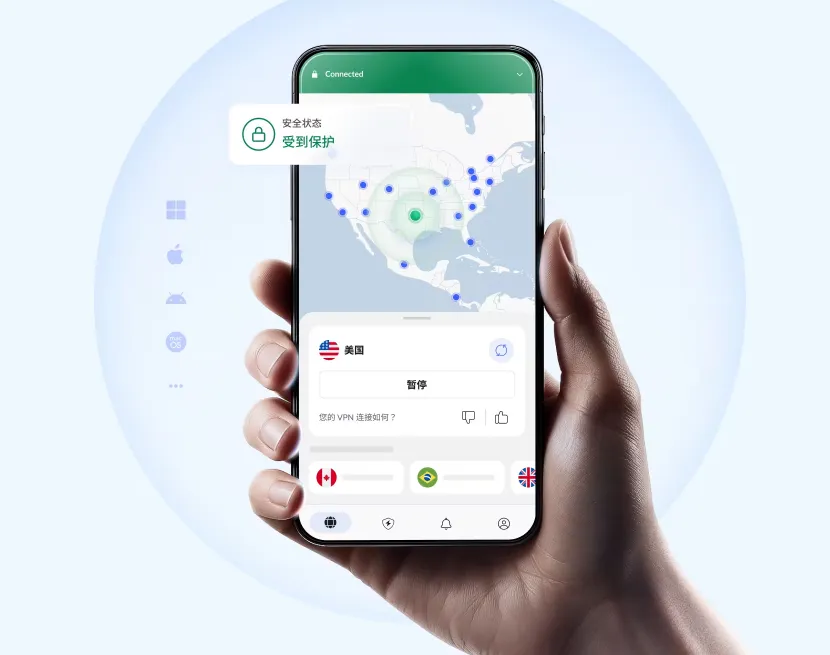
NordVPN is a VPN that perfectly integrates excellent security with fast performance. Its core advantage lies in the built-in SmartPlay technology. This feature seamlessly combines NordVPN's secure encryption tunnel with the IP-changing capability of Smart DNS, allowing users to automatically gain the ability to unlock streaming media when connected to the VPN without any additional settings.
NordVPN's NordLynx protocol, based on WireGuard, provides extremely high speed and excellent connection efficiency, fully meeting the bandwidth requirements of Apple TV 4K streaming. Its additional Threat Protection feature can block ads and malware even at the router level.
-
Server Network: 6,000+ servers in 111 countries
-
Apple TV Advantage: SmartPlay technology automatically unlocks streaming media, combined with the NordLynx protocol provides top-tier speed, Threat Protection enhances security.
-
Money-Back Guarantee: 30 days
4.Surfshark: The Economic Choice for Unlimited Connections

For large families or users with a large number of smart devices, Surfshark is the highest-value premium VPN. It allows users to connect an unlimited number of devices with a single subscription account. This means your Apple TV, mobile phone, tablet, and computer can all be protected simultaneously without worrying about device limits.
Despite the affordable price, Surfshark is not inferior in speed and unblocking capability, supporting Smart DNS and providing clear and concise router setup guides. Its unique Camouflage Mode (obfuscation mode) is very useful in high-restriction areas (such as China), capable of disguising VPN traffic to look like normal HTTPS traffic.
-
Server Network: 3,200+ servers in 100 countries
-
Apple TV Advantage: Unlimited device connections, extremely competitive price, supports Smart DNS and Camouflage Mode.
-
Money-Back Guarantee: 30 days
5.Private Internet Access (PIA): The Largest Server Network
Private Internet Access (PIA) leads the industry in server count, deploying tens of thousands of servers across 91 countries. This massive scale ensures that users can almost always find an uncrowded, high-speed connection point, effectively avoiding speed bottlenecks during streaming and reducing the risk of servers being blocked by streaming platforms.
PIA offers highly customizable security features, allowing users to choose different encryption levels (such as AES-128 or AES-256) as needed. It also has a strong history of privacy protection and a strict no-logs policy, making it a reliable choice for privacy-conscious Apple TV users who want advanced configuration on their routers.
-
Server Network: Tens of thousands of servers in 91 countries
-
Apple TV Advantage: Industry's largest server network, customizable encryption settings for advanced users, open-source client enhances transparency.
-
Money-Back Guarantee: 30 days
How to Set up a VPN on Apple TV (3 Simple Methods)
Since Apple TV does not support built-in VPN applications, here are the three specific methods to establish a connection. Each method has its own advantages and disadvantages, which you can choose according to your technical skill level and need for privacy security:
Method 1: VPN Router Setup (The Most Secure & Permanent Solution)
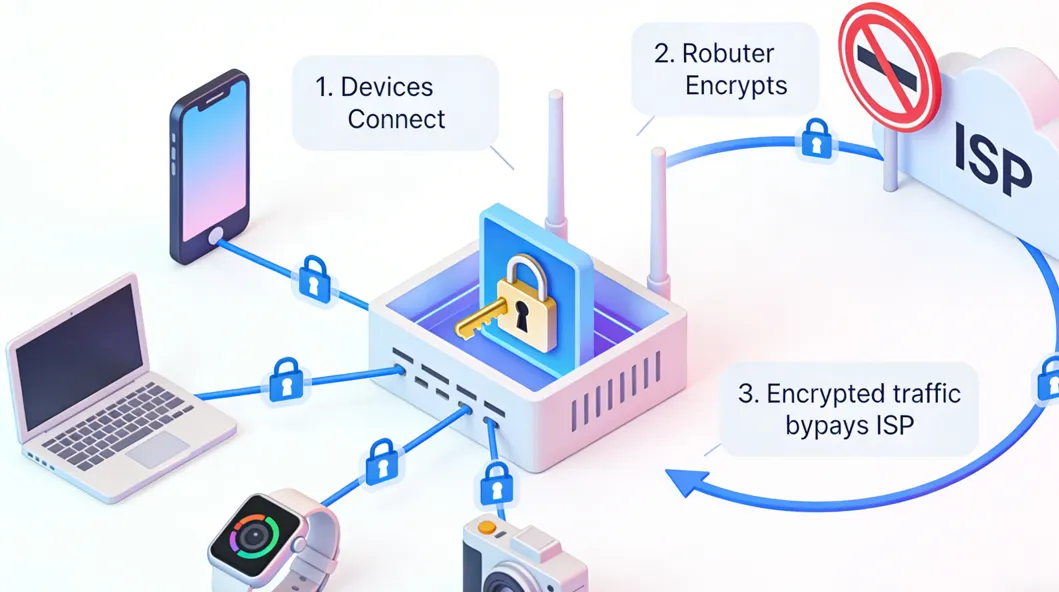
This is the most professional, stable, and permanent solution. It simultaneously protects all devices connected to the router at home, including Apple TV, game consoles, smart home devices, etc.
Compatibility Check and Preparation:
-
Router Selection: Ensure your router supports VPN client functionality (e.g., supports OpenVPN or IKEv2). Commonly supported firmware includes DD-WRT, Tomato, or custom firmware provided directly by the VPN service provider (like ExpressVPN).
-
Obtain Configuration File: Log in to your VPN service provider's website, download the OpenVPN configuration file (.ovpn file) for the server location you want to connect to, and your username and password (usually specially generated for router configuration).
Configure Router Firmware:
-
Access your router management interface through a web browser (usually by entering 192.168.1.1 or 192.168.0.1).
-
Navigate to the VPN Settings or VPN Client option.
-
Upload the .ovpn file, or manually fill in the server address, port, encryption protocol, and other details.
-
Enter the VPN credentials you obtained in step 1.
Activate and Verify:
-
Save and apply the settings. The router will restart and attempt to connect to the VPN server.
-
Verify Connection: Once the router is successfully connected, connect the Apple TV (via Wi-Fi or Ethernet) to that router. Open a browser app on the Apple TV (if installed) and visit a "What is my IP" website. If the displayed IP address is the address of the country/region where the VPN server is located, the setup is successful.
Pros and Cons:
-
Pros: All home devices are protected, only occupies one device quota of the VPN subscription, highest level of privacy protection.
-
Cons: Initial setup is complex, requires a certain level of technical knowledge, may slightly affect the router's maximum network speed.
Method 2: Share VPN via Mac/PC Hotspot (No New Hardware Required)
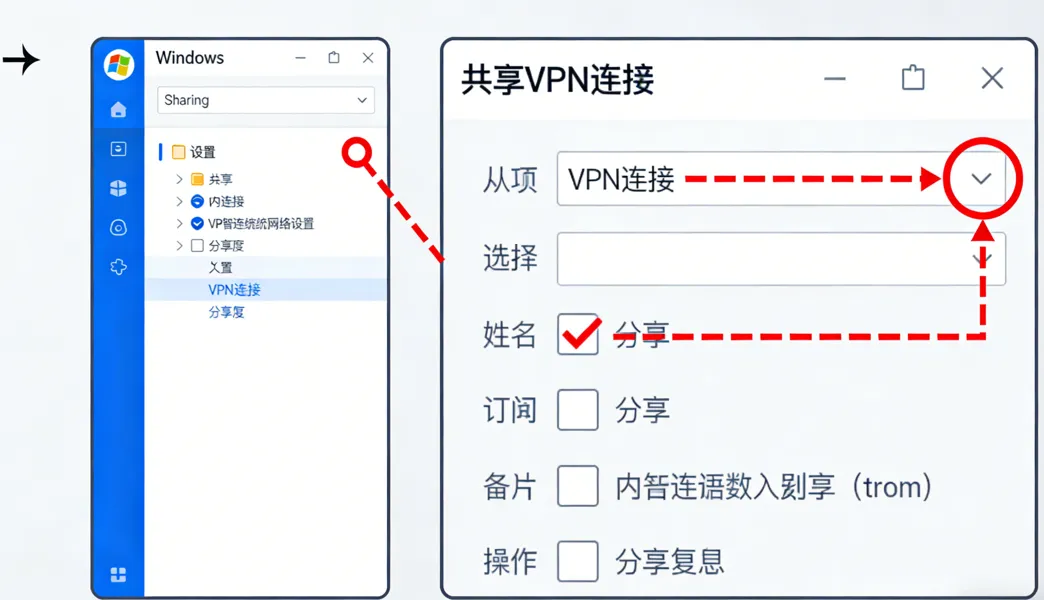
If you do not want to configure the router, or only want to use the VPN temporarily, you can use a Windows PC or Mac to act as a virtual VPN router and share the encrypted connection with the Apple TV.
Set up VPN Connection:
-
Install and connect to your chosen VPN client on your Mac or Windows PC, and select the country/region whose content you want the Apple TV to access.
Create a Virtual Hotspot/Shared Connection:
-
On Windows 10/11:
-
Enable Mobile Hotspot.
-
Go to "Control Panel" -> "Network and Sharing Center" -> "Change adapter options".
-
Right-click your VPN connection (usually the TAP adapter), select "Properties" -> "Sharing" tab.
-
Check "Allow other network users to connect through this computer's Internet connection" and select the Mobile Hotspot you just created in the drop-down menu.
-
On Mac:
-
Go to "System Settings" -> "General" -> "Sharing" -> "Internet Sharing".
-
Select your VPN connection (e.g., NordLynx or OpenVPN) in "Share your connection from".
-
Check "Wi-Fi" or "Ethernet" in "To computers using".
Connect Apple TV:
-
In the Apple TV Settings -> Network, connect to the Wi-Fi hotspot name created by your Mac or PC, or connect to the computer's Ethernet port via a network cable.
Pros and Cons:
-
Pros: Setup is relatively simple, no need to buy new hardware, provides complete encryption.
-
Cons: Your computer must remain powered on, may occupy two device quotas of the VPN subscription (computer and Apple TV), Wi-Fi shared connection stability may not be as good as a router.
Method 3: Smart DNS (MediaStreamer) Setup (Fastest for Geo-Unblocking)
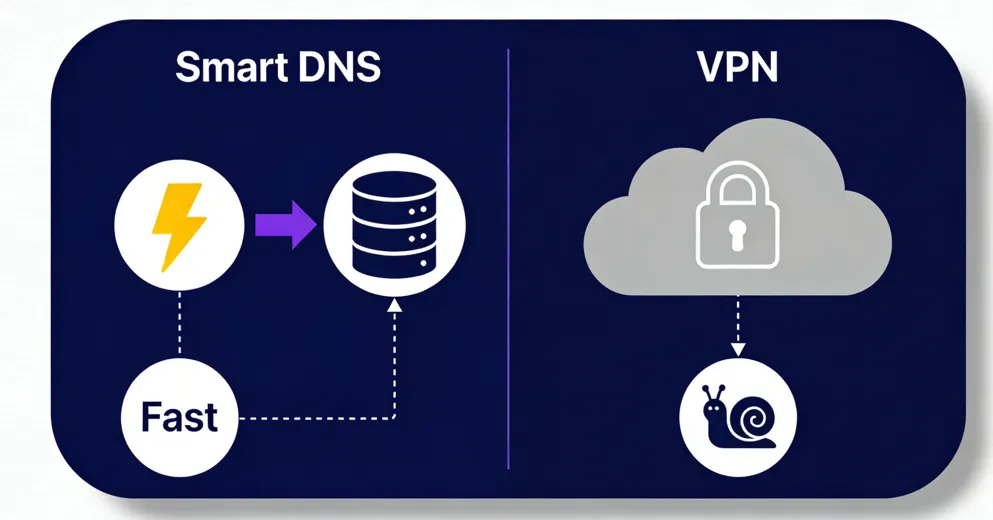
If your only goal is to unlock streaming content, and you have no requirement for encryption and privacy, Smart DNS is the fastest option with the least speed loss.
Activate Smart DNS Service:
-
Log in to the account control panel of your VPN service provider (such as ExpressVPN's MediaStreamer or NordVPN's SmartPlay).
-
Typically, you need to activate the Smart DNS service, and your public IP address needs to be registered and authorized by the VPN service provider's system, otherwise the service will not work.
Obtain DNS Address:
-
Write down or copy the Primary and Secondary Smart DNS server addresses provided by the VPN service provider.
Configure Apple TV DNS:
-
On the Apple TV, navigate to Settings -> Network.
-
Select your current Wi-Fi or Ethernet connection, and go to the Configure DNS option.
-
Change the setting from "Automatic" to "Manual".
-
Enter the primary and secondary Smart DNS addresses you obtained in step 2.
Finalize and Test:
-
Exit and re-enter the Apple TV application. You usually need to restart the Apple TV to clear the old DNS cache.
-
Try opening the streaming app you want to unlock, and test if you can see the content library of the target country/region.
Pros and Cons:
-
Pros: Easiest setup, zero speed loss, highest compatibility.
-
Cons: Does not provide any encryption protection, only for geo-unblocking, not as stable and reliable as a full VPN.
Key Factors for Choosing an Apple TV VPN
To ensure the best streaming experience on Apple TV, you must carefully weigh the following key factors when choosing a VPN:
-
Speed and Protocol: You should choose a service that supports WireGuard or VPN-exclusive fast protocols (such as Lightway, NordLynx). These protocols are not only fast but also highly efficient in connecting, able to reduce the impact on network speed to less than 10%, ensuring smooth playback of 4K HDR content.
-
Unblocking Capability and Stability: The best VPNs should have powerful Obfuscation Technology to circumvent deep packet inspection by streaming platforms. This ensures that the VPN can continuously and stably unlock content on major streaming platforms (such as Netflix, Hulu) for a long time.
-
Router/Smart DNS Support: Given the limitations of Apple TV, the VPN must provide detailed, easy-to-understand router configuration guides, pre-configured routers, or a one-click Smart DNS service.
-
Strict No-Logs Policy: An excellent VPN must be independently audited, committed to, and proved that it does not record any identifiable information about users, such as connection time, browsing history, or IP address, to protect your digital footprint.
-
Server Network Size and Distribution: A large server network helps to distribute the load and avoid server congestion. A wider global distribution means you can switch to more IP addresses in different countries to unlock more diverse regional content.
-
Customer Support: Since setting up on Apple TV involves router or computer configuration, complex technical problems may be encountered. 24/7 online chat technical support is crucial, ensuring you can get professional help at any time during the setup process.
Can I Use a Free VPN on Apple TV?
No, using a free VPN on Apple TV is strongly not recommended. Free VPNs are unreliable for streaming applications that require high performance and stability, and they often bring the following serious drawbacks:
-
Performance and Data Bottlenecks: Free VPNs usually impose strict limits on bandwidth and data volume (e.g., 5GB per month), which is far from enough for high-definition streaming, leading to frequent buffering and viewing interruptions. The speed is often also limited to a level that cannot support 4K playback.
-
Lack of Necessary Support: Free VPNs almost never provide the configuration files (OpenVPN or IKEv2 files) required for router setup, nor do they provide Smart DNS services, making them unusable or extremely difficult to configure on Apple TV.
-
Serious Security and Privacy Risks: Many free VPNs fail to provide adequate encryption protection. Even worse, they may sell your browsing data, inject advertisements, or even contain malware or trackers. Their business model is often built upon sacrificing user privacy.
To ensure your security, privacy, and smooth viewing experience, investing in a premium paid VPN with a 30-day or 45-day money-back guarantee is the only sensible choice.
Conclusion
Apple TV is an excellent device for enjoying an immersive streaming experience, but its native geo-restrictions and lack of VPN app support are major obstacles for users. By configuring it on a router or using a Smart DNS service, you can easily introduce the powerful features of a VPN to your Apple TV, unlocking global content and gaining top-tier security protection.
After comprehensive reviews of speed, compatibility, stability, and ease of use, ExpressVPN is undoubtedly the best choice for Apple TV users in 2026. Its innovative router application, TrustedServer Technology, and Lightway protocol ensure unparalleled speed and setup convenience. We encourage you to take full advantage of its 30-day money-back guarantee to personally experience the freedom of borderless global streaming.
Frequently Asked Questions (FAQ)
Q:Is Apple TV+ the same as Apple TV?
A:No. Apple TV+ is Apple's streaming subscription service, offering original content. Apple TV is a hardware device (set-top box) that allows you to access and play hundreds of streaming apps and services, including Apple TV+, through your television.
Q:Can Apple TV be tracked when using a VPN?
A:If you use a premium VPN recommended in this article, such as ExpressVPN or NordVPN, all your traffic will be protected by military-grade encryption, and these services strictly enforce a no-logs policy, ensuring that your Internet Service Provider (ISP) or any other party cannot track or monitor your viewing activities. Using a free VPN, however, may lead to tracking.
Q:Why does Apple TV need a high-speed VPN?
A:A high-speed VPN is crucial for Apple TV because it ensures you have enough bandwidth to eliminate buffering and lag when watching 4K, HD movies, or playing cloud games. A slow VPN will greatly reduce the quality of your internet connection, seriously affecting the streaming experience.
Q:Does VPN setup affect the AirPlay function?
A:In most cases, if the VPN is set up on the router, you need to ensure the VPN configuration allows local network communication. If you encounter AirPlay connection issues, you may need to adjust the router settings to allow local network traffic, or temporarily disable the VPN when you need to use AirPlay.
Q:What is the main difference between Smart DNS and VPN router setup?
A:Smart DNS (like ExpressVPN's MediaStreamer) only changes your virtual geographical location to unlock streaming media, but does not encrypt your data, so it does not provide privacy protection. VPN router setup, on the other hand, encrypts all traffic, providing the highest level of security and privacy protection.
Q:How do I know if my VPN router setup was successful?
A:The simplest way is to visit a website that displays your IP address (e.g., "What is my IP"). If the displayed IP address is the address of the country/region to which your VPN is connected, the setup is successful. Secondly, try accessing geo-restricted content (e.g., a specific country's Netflix content library). If you can successfully access it, the setup is working.
Q:Do I need to buy a special router for Apple TV?
A:Not necessarily. If your existing router supports OpenVPN client configuration or third-party firmware like DD-WRT/Tomato, you don't need to buy a new one. But if it doesn't, you may need to purchase a router model pre-flashed with firmware or officially recommended by the VPN service provider.
Q:If I share the VPN through a PC, do I need to keep the computer on all the time?
A:Yes. If you choose to share the VPN connection through a Mac or PC, your computer must remain powered on and the VPN connection must remain active, otherwise the Apple TV will not be able to route traffic through the VPN.
Q:Will the Apple TV App Store change based on my VPN location?
A:No. The Apple TV App Store region is tied to your Apple ID account region, not your IP address. To change the App Store region, you need to go into your Apple ID settings. The VPN only affects the geographical location that streaming apps see.