
The VPN Kill Switch is a fundamental feature for robust online privacy and data security. This guide provides an in-depth explanation of the Kill Switch's definition, mechanisms, the distinction between Standard and Advanced modes, and offers step-by-step setup instructions for Windows, macOS, Linux, and mobile platforms (iOS/Android). Implement this safeguard to guarantee your IP address is never exposed during unexpected VPN disconnections, thereby achieving maximum digital anonymity.
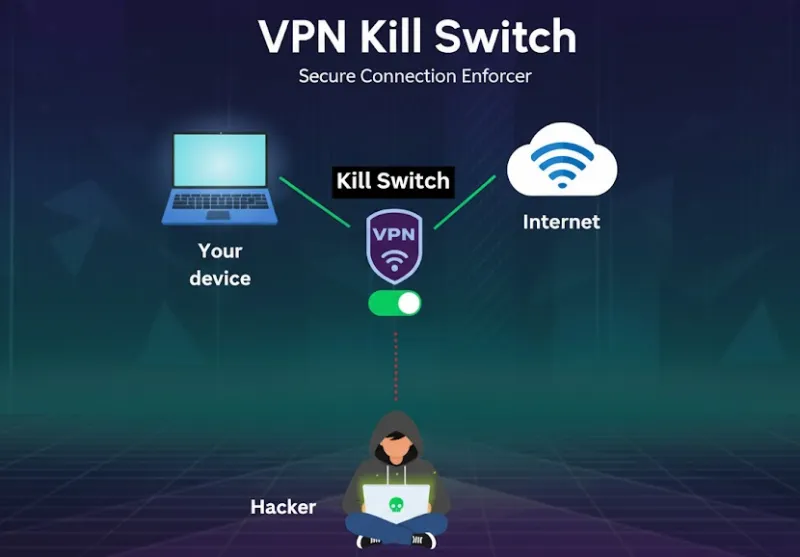
The Kill Switch is not designed to enhance connection performance; rather, it serves as a robust security mechanism deployed instantly during emergencies to ensure your privacy remains uncompromised.
The Mechanism in a Nutshell:
Should the encrypted tunnel between your device and the VPN server drop unexpectedly, the Kill Switch immediately and comprehensively blocks all external network traffic to and from your device. This immediate blockade prevents the exposure of your IP address and all outgoing DNS queries. The block persists until the connection is automatically and successfully re-established, typically to the last connected VPN server.
Simply Put:
-
No Active VPN Connection = No Internet Access.
-
Your data is safeguarded the instant the connection drops, ensuring no traffic bypasses the secure VPN tunnel.
-
Internet access is instantly and seamlessly restored upon automatic VPN reconnection.
The Kill Switch functions as a vigilant digital guardian: the moment it detects a break in your encrypted tunnel, it instantly shutters all communication channels, ensuring your device goes offline rather than leaking your private data.
Importance: The feature ensures round-the-clock privacy protection. For individuals involved in sensitive roles (e.g., journalists, political activists, or researchers) or those operating in heavily censored environments, the Kill Switch is a non-negotiable tool for maintaining anonymity and preventing identity compromise.
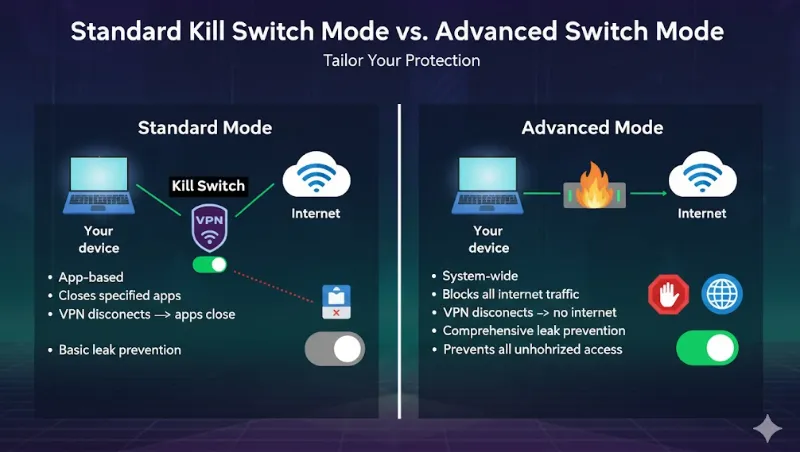
While most VPN providers offer a Kill Switch across major platforms (Windows, macOS, Linux, iOS, and iPadOS), they often feature distinct operational modes to meet varying levels of security requirements.
|
Feature |
Standard Kill Switch Mode |
Advanced / Permanent Kill Switch Mode |
|
Primary Goal |
Protection against Accidental Dropouts (only when connected). |
Protection against All Disconnections (always-on enforcement). |
|
Trigger Time |
Activated ONLY when the VPN connection drops unexpectedly. |
Operational at All Times, restricting all unprotected internet access, irrespective of the current connection state. |
|
Manual Disconnect |
If you manually disconnect the VPN, internet access is restored immediately (you are unprotected). |
Blocks internet access even if you manually disconnect the VPN. Network access only resumes after you connect to a server or disable the Advanced Kill Switch. |
|
Server Switching |
Remains active and maintains protection during server-to-server transitions. |
Remains active and maintains protection during server-to-server transitions. |
|
System Restart |
Typically requires the VPN application to be launched and connected to re-engage. |
The enforcement rules are persistent, remaining active even after your device shuts down and restarts. |
|
Availability |
Available across most platforms (Desktop and Mobile). |
Primarily reserved for Desktop platforms (Windows and Linux). |
Note:The choice of mode should be guided by your threat model. Both modes offer reliable protection against accidental drops. If you occasionally require unsecured internet access, opt for the Standard Mode. However, for maximum security, if your priority is ensuring you never accidentally connect unprotected, the Advanced Mode is the superior choice.
The following setup steps use Proton VPN as an example; the procedures for other major VPN services are generally similar.
Enabling the Kill Switch is a straightforward process, typically accessible within your VPN application's settings or the native operating system configuration.
Windows and Linux (Including Advanced Kill Switch Mode)
-
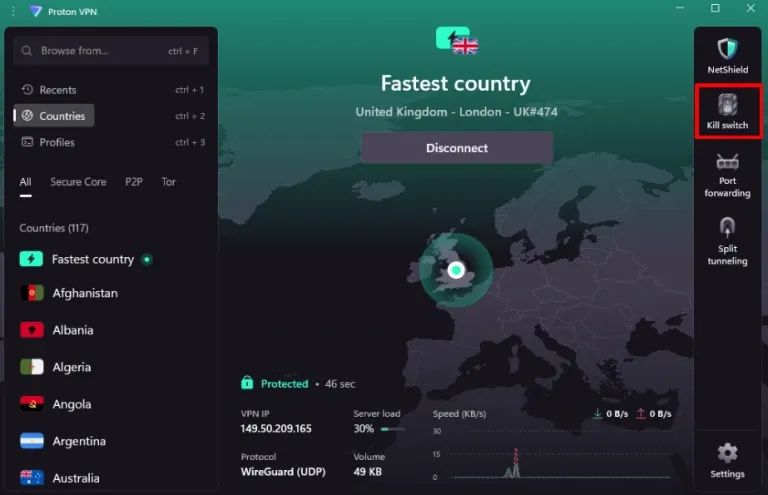
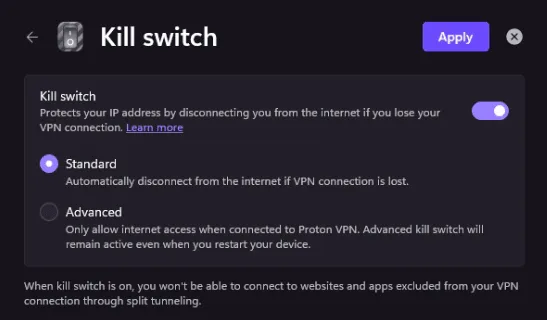
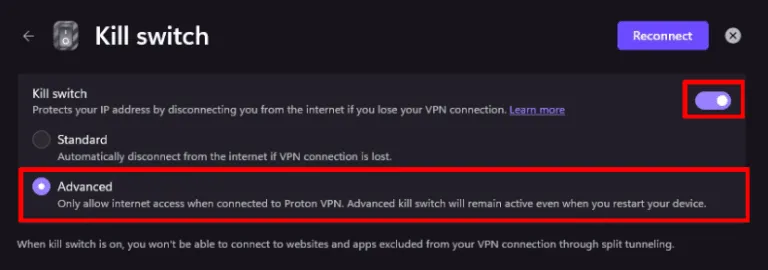
Open your VPN application and navigate to the "Settings" or "Connection/Features" menu from the main dashboard.
-
Locate and enable the "Kill Switch" function.
-
Mode Selection: Choose either the "Standard Kill Switch" or the "Advanced Kill Switch" based on your security profile. Linux applications often label these options simply as "Standard" or "Advanced".
-
Finalize: Save the configuration and follow any prompts to reconnect the VPN.
Note:The Advanced mode blocks all internet connectivity. If you use a Microsoft Account for Windows login, you may be blocked from re-authenticating after system updates or password changes, as this process requires internet access. It is strongly advised to create a fallback local (offline) Windows account before enabling the Advanced Kill Switch to ensure guaranteed access.
macOS
-
Open the VPN application and navigate to the "Settings" → "Countries" tab.
-
Toggle the "Kill switch ON"/ "Kill switch OFF".
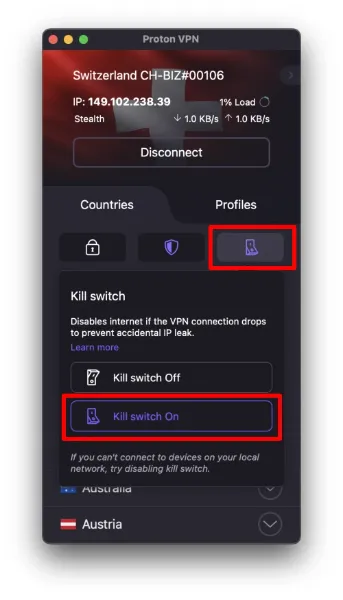
Note:Due to specific limitations within Apple’s operating systems, the Kill Switch may not block certain existing connections, specifically some DNS queries originating from Apple services, even when the Kill Switch is active. The feature will, however, reliably block all non-Apple connections.
Android (Leveraging System Features)
Android OS version 8.0 and above incorporates a native function that replicates the Permanent Kill Switch.
-
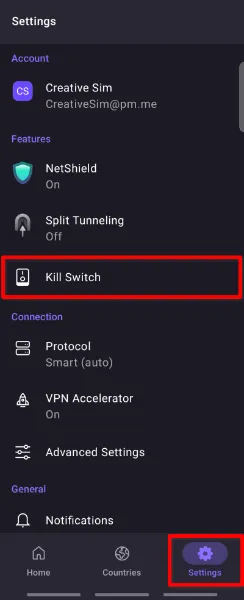
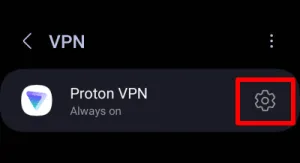
Access the Android system "Settings" -> "Network & internet" -> "VPN".
-
Identify your installed VPN app and tap the Settings icon adjacent to its name(e.g.Proton VPN).
-
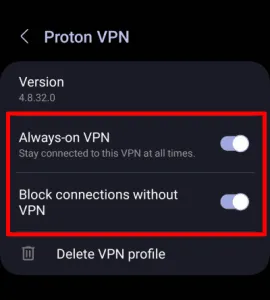
Enable "Always-on VPN" and "Block connections without VPN". This step activates the equivalent of the Advanced Kill Switch for the selected VPN.
-
Version Compatibility: This native system feature is only available for Android 8.0+.
iOS and iPadOS
-
Open the VPN application and navigate to "Settings" -> "Security Options" or "Features".
-
Locate and enable the "Kill Switch".
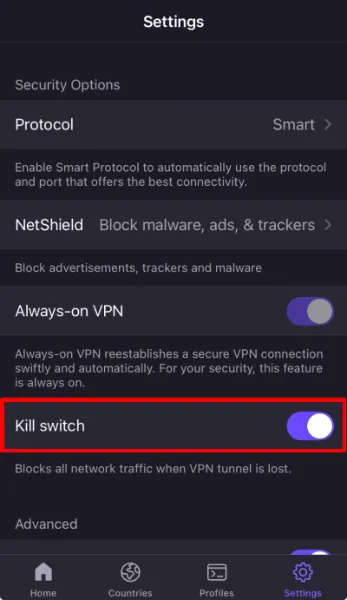
Note:When this feature is active on iOS/iPadOS, you may lose the ability to access other devices on your local Wi-Fi network (such as network printers, smart speakers, or local servers), as the Kill Switch prevents all traffic from leaving the device unless it is routed through the VPN tunnel.
-
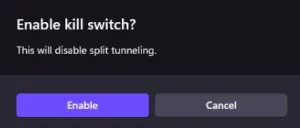
Rule: The Kill Switch function (Standard or Advanced) is architecturally incompatible with Split Tunneling.
-
Explanation: The Kill Switch's mandate is to lock down and halt all network traffic to prevent any potential leaks. Conversely, Split Tunneling's function is to explicitly permit a subset of application or website traffic to bypass the VPN, routing it directly through the local ISP. The operational goals of these two features are mutually exclusive.
-
Operational Advice: To ensure the maximum protection afforded by the Kill Switch, you must disable Split Tunneling within your VPN client.
The Kill Switch: The Essential Security Tool
The VPN Kill Switch is now considered a foundational element—not an optional extra—for any user serious about robust privacy protection. It effectively closes the vulnerability gap that can exist between the VPN application and the underlying operating system, minimizing the risk of accidental data exposure to the bare minimum.
Final Recommendations for Action
We strongly advise all VPN users to take the following steps:
-
Verify Status: Immediately check your VPN client application to confirm that the Kill Switch functionality is active.
-
Select the Right Stance: Align the mode with your risk tolerance. If you demand maximum privacy and can tolerate losing internet access when disconnected, decisively select the Advanced/Permanent Kill Switch. If you require the flexibility for occasional disconnection, choose the Standard mode.
Q1. "My internet connection is completely inaccessible, what should I do?"
-
Root Cause Analysis: In the vast majority of cases, this scenario results from enabling the Advanced/Permanent Kill Switch and then manually disconnecting the VPN. Since the Advanced mode enforces a continuous network lockdown, internet access is naturally blocked when the VPN is inactive.
-
Solution: Either reconnect to any VPN server to restore service, or navigate to the VPN application settings and manually disable the Advanced Kill Switch or revert to the Standard mode.
Q2. Is manual reconnection required after an unexpected disconnection?
-
For Unexpected Disconnections: Most high-quality VPN clients (such as Proton VPN) feature built-in auto-reconnect logic, typically requiring no manual intervention from the user.
-
For Manual Disconnections: If the Advanced Kill Switch is enabled, you must manually reconnect the VPN to regain internet access.
Q3. Does the Kill Switch negatively affect my internet speed?
-
No, it does not. The Kill Switch is a network routing and firewall policy. It only alters the network path/rules when the VPN tunnel fails. When the VPN is connected and running normally, the Kill Switch is in a passive, quiescent standby state and has zero measurable impact on your connection speed or overall performance.
Q4: Do I have to manually reconnect the VPN if the Advanced Kill Switch is enabled?
-
During Accidental Disconnection: Most VPN applications (including the Windows and Linux versions) are configured to automatically attempt reconnection to the last VPN server in the event of an unintended drop, regardless of whether you are using the Standard or Advanced Kill Switch mode.
-
During Manual Disconnection: If you have manually disconnected the VPN connection, your device will remain in the Advanced Kill Switch's protected state (i.e., no network access). At this point, you must either manually connect to a VPN server or manually disable the Advanced Kill Switch to regain internet access.
PS: All images in this article are from Proton VPN 's official website, and the copyright belongs to the merchant.