It is 2026, and the home entertainment landscape has evolved into a sprawling ecosystem of high-definition content. You have settled into your couch, remote in hand, ready to stream the latest critically acclaimed series or catch a live international sports match in stunning 8K resolution. But instead of the opening credits, you are greeted by the modern viewer’s most frustrating adversary: the "Content Not Available in Your Region" error screen.
Despite the explosion of streaming services over the last decade, digital borders have arguably become stricter. Licensing agreements have fragmented content libraries globally, meaning the subscription you pay for in one country offers a completely different catalog than in another. This "geo-blocking" creates a paradox where we have more access to technology than ever, yet artificial barriers frequently dictate what we can and cannot watch.
What is a Smart TV VPN?
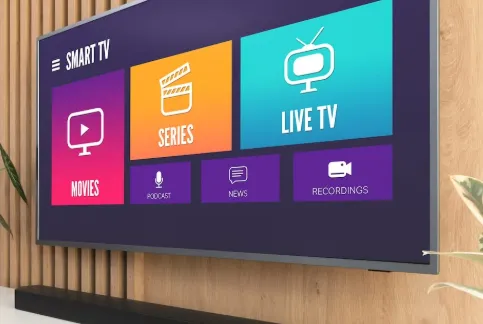
This is where a Virtual Private Network (VPN) becomes an essential tool for the modern living room. At its core, a Smart TV VPN functions as a secure, encrypted tunnel for your internet traffic. It masks your TV’s actual IP address and location, replacing it with one from a server in a country of your choice.
However, implementing this on a television is distinct from using it on a phone or laptop. While mobile devices are built with open software ecosystems, Smart TVs often run on proprietary, "walled garden" operating systems. While some platforms like Android TV (Google TV) allow for easy, native app installation, major players like Samsung (Tizen OS) and LG (webOS) generally do not support direct VPN software. This fundamental difference means that "using a VPN on a Smart TV" is not always a one-click process; it often requires bridging the gap between your TV and the secure network.
The 2026 Context: Why it matters now
As we navigate 2026, the argument for using a VPN extends far beyond simply unlocking a wider library of movies. The digital landscape has shifted:
-
ISP Throttling: Internet Service Providers have become increasingly sophisticated at inspecting data packets. They often target high-bandwidth activities—like 4K and 8K streaming—and intentionally slow down connection speeds (throttling) to manage network congestion. A VPN hides the type of data you are transmitting, preventing ISPs from selectively slowing down your movie night.
-
Data Privacy: Smart TVs are now recognized as some of the most invasive IoT (Internet of Things) devices in the home, capable of using Automatic Content Recognition (ACR) to track everything you watch and sell that profile to advertisers. A VPN helps obscure your viewing identity.
Whether you are a tech enthusiast trying to secure your home network or a casual viewer looking to bypass a regional sports blackout, the solution exists. This guide will detail the most effective and future-proof methods for securely running a VPN on any Smart TV platform. From the simplicity of native app installations on Android TV to advanced router configurations for Samsung Tizen, LG webOS, Roku, and Fire TV, we will ensure you regain control of your digital viewing experience.
Why You Need a Smart TV VPN: Geo-Unblocking, Privacy, and Buffer-Free 4K/8K Streaming
If the introduction established the problem, this section establishes the solution's necessity. A VPN is not merely a convenience; it is a critical piece of technology for maximizing your privacy, performance, and freedom in the 2026 streaming environment.
A. Bypassing Geo-Restrictions: Unlocking Global Content Libraries
The primary and most popular reason for installing a VPN on your Smart TV is to dismantle digital borders. Streaming platforms operate under strict licensing agreements that dictate where content can be shown.
-
Regional Libraries: Services like Netflix, Amazon Prime Video, and Disney+ offer vastly different movies and shows based on your detected geographical location. By connecting to a VPN server in the United Kingdom, for example, your Smart TV instantly appears to be physically located there, unlocking the entire UK catalog.
-
International Sports: Dedicated sports broadcasters often restrict live matches to specific territories. Whether you are following an international football league or a specific regional wrestling tournament, a VPN allows you to virtually "attend" the event from anywhere in the world.
-
Accessing Home Services While Abroad: If you are traveling or living overseas, a VPN allows you to maintain access to your paid streaming subscriptions and local news channels from your home country, ensuring you don't miss out on content you've already paid for.
B. Privacy and Security: Protecting Personal Data
In the era of data monetization, your Smart TV is an increasingly vulnerable entry point for privacy invasion.
-
Hiding Activity from Your ISP: Without a VPN, your Internet Service Provider (ISP) can see every website, app, and streaming service you connect to. While they may claim not to share this data, history shows that ISPs can and do sell anonymized user data or comply with governmental requests. A VPN encrypts your entire connection, making your activity invisible to your ISP, securing your digital footprint.
-
Securing Against Smart TV Tracking: As mentioned previously, Smart TVs use ACR and other trackers to build comprehensive profiles of your viewing habits. While the VPN doesn't stop the TV manufacturer from seeing what you watch locally, it prevents external observers, hackers, or third-party data collectors from intercepting and exploiting the data transmitted from your TV over the public internet.
C. Preventing Bandwidth Throttling: Ensuring Stable 4K/8K Quality
Nothing ruins a cinematic experience faster than buffering, stuttering, or sudden downscaling from Ultra HD to standard definition.
-
The Throttling Mechanism: When your ISP detects sustained, high-volume data use (like continuous 4K/8K streaming, which demands significant bandwidth), they may deliberately restrict your connection speed to reduce overall network strain. This is called bandwidth throttling.
-
The VPN Solution: Because a VPN encrypts the data passing through your TV, the ISP cannot determine what you are streaming—they only see encrypted traffic traveling to the VPN server. Unable to identify the traffic as high-bandwidth video, the ISP cannot selectively throttle your connection, ensuring you maintain the full speed allocated by your plan for stable, high-quality streaming.
D. Future-Proofing Your Entertainment Setup
The digital media landscape is constantly shifting. Investing in a VPN today is an investment in future flexibility.
-
Adapting to New Regulations: Governments and regulatory bodies frequently introduce new laws regarding data residency, censorship, and content distribution. A VPN provides an agile defense, allowing you to instantly switch your apparent location to bypass unforeseen digital walls.
-
New Platform Integration: As streaming wars intensify, platforms like Roku and Fire TV constantly update their geo-detection mechanisms. By implementing a stable, network-wide VPN solution (like the router method, detailed later), you shield all your devices—and any future devices you purchase—from these detection methods, guaranteeing persistent access regardless of platform updates.
E. The 2026 Streaming Secret: Why You Need a Residential IP VPN
In the 2026 streaming landscape, traditional VPNs are struggling. Platforms like Netflix and Disney+ have deployed advanced filters that distinguish between Data Center IPs (the server farms used by most VPN providers) and Residential IPs (the addresses assigned to real households by ISPs like Comcast or BT).
If your Smart TV connection originates from a data center, you are far more likely to see the dreaded "Proxy Detected" error, or have your bandwidth throttled to 1080p. To ensure consistent 4K and 8K streaming without interruptions, you should look for VPNs that offer Residential-grade IPs. These nodes make your connection look like a genuine home user, allowing you to bypass strict geo-fences and unlock global libraries with ease.
Choosing the Right VPN for Smart TVs in 2026
A. Key Features: WireGuard Protocols, Smart DNS, and Speed Reliability
Selecting a VPN for a Smart TV is different from choosing one for a laptop. Since streaming is the priority, speed, reliability, and ease of geo-unblocking are the most critical factors.
-
Fastest Protocols (WireGuard Implementation): The older OpenVPN protocol is robust but slower. In 2026, any serious VPN provider must offer a modern, high-speed protocol, most notably WireGuard (or a custom derivative like NordLynx). These are lightweight and dramatically reduce the encryption overhead, minimizing speed loss, which is crucial for 4K/8K streaming.
-
Large Server Network (for Reliability): A vast network prevents server overcrowding, ensuring faster speeds and better stability. More importantly, it provides fallback options. If a streaming service successfully blocks one server's IP, you can instantly switch to another in the same country.
-
Smart DNS Feature Included: As seen in Method 3, Smart DNS is essential for the fastest geo-unblocking on closed platforms (Samsung, LG). The best VPN services integrate this feature, allowing users to switch between the full security of a VPN and the raw speed of Smart DNS easily.
-
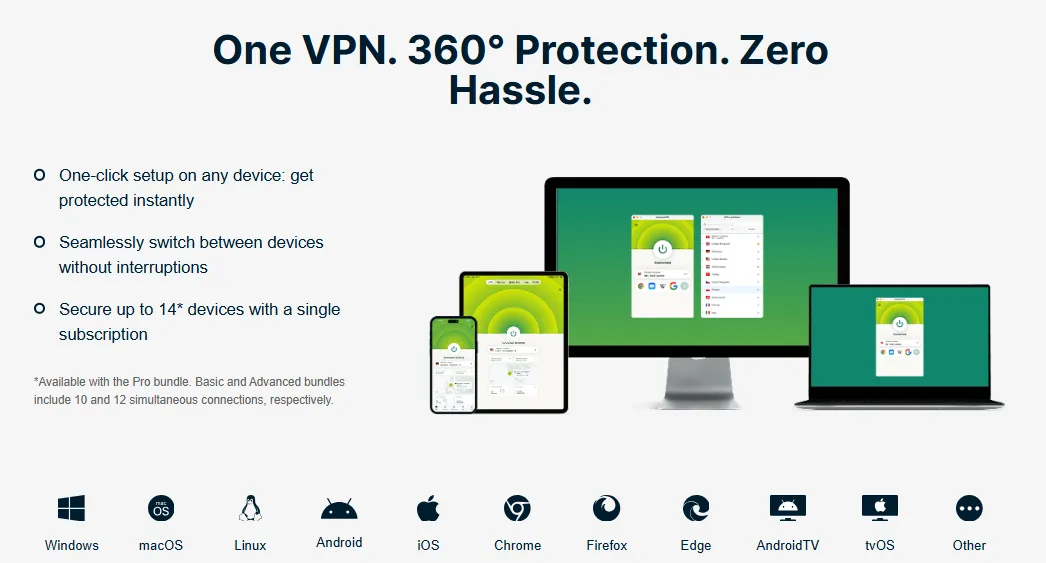
Simultaneous Connections: To cover your Smart TV (using a router or virtual router method) plus your mobile devices, gaming consoles, and laptops, ensure the VPN plan offers a high number of simultaneous connections (8 or more is ideal). This prevents you from having to log out of one device to use another.
B. Top VPN Recommendations (Brief Mention)
While individual needs vary, the following providers consistently lead the industry for speed, geo-unblocking reliability, and Smart TV compatibility:
-
ExpressVPN: Often cited as the easiest to set up on routers and provides an excellent dedicated Smart DNS service (MediaStreamer), making it a top choice for Samsung and LG users.
-
CyberGhost: CyberGhost is designed specifically with streaming enthusiasts in mind, offering a massive server infrastructure coupled with specialized servers that guarantee access to geo-blocked content.
-
Private Internet Access: Private Internet Access is renowned for its commitment to user privacy and open-source transparency. It offers a huge server count and robust features at a competitive price point, making it the best value for privacy-conscious streamers.
-
IPVanish: IPVanish stands out by offering unrestricted simultaneous connections, making it the perfect choice for large families or households with numerous streaming devices, smartphones, and computers.
-
PrivateVPN: Don't let the smaller server network fool you—PrivateVPN is a budget-friendly powerhouse that punches above its weight in global streaming unblocking capabilities.
Choosing one of these top-tier services ensures you have the necessary tools—be it native apps, router files, or Smart DNS addresses—to implement any of the four methods described in this guide.
5 Best VPNs for Smart TVs in 2026
Here are the top five VPNs we recommend for Smart TVs in 2026, ranked by their specific utility and performance for streaming devices.
1、ExpressVPN (The Ultimate Speed & Ease-of-Use Choice)
ExpressVPN consistently delivers premium performance and remains the industry standard for simplicity and speed, making it the top choice for any Smart TV owner who prioritizes a hassle-free, buffer-free viewing experience.
-
Strengths:
-
-
Best-in-Class MediaStreamer (Smart DNS): This feature is a dedicated Smart DNS solution that works exceptionally well on non-native VPN devices (like Samsung Tizen or LG WebOS TVs), allowing for location spoofing without the performance drag of full encryption.
-
Fastest Speeds: Utilizes the custom Lightway protocol, guaranteeing minimal speed loss, which is critical for smooth 4K and 8K streaming quality.
-
Dedicated Android TV App: A clean, functional, and highly rated app available directly from the Google Play Store for Android TV and Amazon Fire TV devices.
-
-
Smart TV Focus:
-
-
ExpressVPN is built for Effortless Setup on Any TV Brand. Whether you use the native app on an Android TV or the MediaStreamer service on an LG/Samsung model, the connection process is incredibly simple and reliable.
-
|
Pros |
Cons |
|
Unblocks nearly every major streaming service (Netflix, Hulu, BBC iPlayer). |
Higher price point than competitors. |
|
Excellent 24/7 customer support via live chat. |
Connection limit is lower than some rivals (though adequate for most users). |
|
Trusted Server Technology (RAM-only servers) ensures robust privacy. |
2、CyberGhost (The Streaming Specialist)
CyberGhost is designed specifically with streaming enthusiasts in mind, offering a massive server infrastructure coupled with specialized servers that guarantee access to geo-blocked content.
-
Strengths:
-
-
Massive Server Network: Boasting one of the largest server fleets in the world, reducing server congestion and increasing speed reliability.
-
Optimized Streaming Servers: Servers are clearly labeled by the specific service they unblock (e.g., "Netflix US," "BBC iPlayer," "Hulu"), removing the guesswork often found with other VPNs.
-
Generous Money-Back Guarantee: Offers an extended 45-day money-back guarantee, giving you ample time to test its performance on your specific Smart TV.
-
-
Smart TV Focus:
-
-
The service features a User-Friendly, Highly Intuitive Interface for Large Screens. The dedicated Android TV app is built to be easily navigated using a TV remote, with streaming-optimized servers located directly on the main dashboard.
-
|
Pros |
Cons |
|
Specialized servers are highly reliable for streaming access. |
Speed can be inconsistent on very distant servers. |
|
Excellent security features and a transparent no-logs policy. |
The extensive feature set may seem overwhelming to new users. |
|
Very affordable with long-term plans. |
3、Private Internet Access (PIA) (Best Value & Privacy Focus)
Private Internet Access is renowned for its commitment to user privacy and open-source transparency. It offers a huge server count and robust features at a competitive price point, making it the best value for privacy-conscious streamers.
-
Strengths:
-
-
Strongest Privacy Features: The service is 100% open-source and has a court-proven no-logs policy, making it incredibly transparent and trustworthy.
-
Highly Configurable Connection Options: Advanced users can adjust encryption levels, protocols (WireGuard, OpenVPN), and connection settings directly within the app.
-
Excellent Connection Limit: Allows up to 10 simultaneous connections, protecting all devices in a large household.
-
-
Smart TV Focus:
-
-
Advanced Features Manageable on Android TV/Fire TV Apps. Despite its complex features, the native Android TV app is streamlined enough to be easy to use for simple "Connect" functionality while still allowing tech-savvy users to tweak advanced settings for optimal 4K performance. PIA also provides streaming-optimized servers for popular regions.
-
|
Pros |
Cons |
|
Vast network coverage across many countries and US states. |
Streaming unblocking can be less consistent than ExpressVPN or CyberGhost. |
|
PIA MACE (built-in ad, tracker, and malware blocker). |
The sheer number of server options can be confusing at first glance. |
|
Highly competitive long-term pricing. |
4、IPVanish (Best for Unlimited Devices)
IPVanish stands out by offering unrestricted simultaneous connections, making it the perfect choice for large families or households with numerous streaming devices, smartphones, and computers.
-
Strengths:
-
-
True Unlimited Simultaneous Connections: Protect every device you own under a single subscription.
-
Fast Service, Particularly Strong in the US: Owns and operates its own server infrastructure, ensuring excellent performance and stability, especially when connecting to US servers for streaming services like Netflix US and Hulu.
-
Integrated Threat Protection: Includes a feature to block ads, trackers, and malicious content.
-
-
Smart TV Focus:
-
-
Ideal for Large Households with Multiple Streaming Devices. Since there's no limit on connections, you can install the native app on your Android TV, a Fire Stick, and your gaming consoles via a VPN-enabled router without worrying about device counts.
-
|
Pros |
Cons |
|
Owns and operates its server network for better security and speed control. |
Based in the US (part of the 5 Eyes Alliance), which may concern extreme privacy advocates. |
|
Native apps for Android TV and Fire TV are simple and clean. |
International streaming unblocking can be spotty outside of major regions. |
|
Strong P2P/torrenting support on all servers. |
5、PrivateVPN (Best Budget Unblocker)
Don't let the smaller server network fool you—PrivateVPN is a budget-friendly powerhouse that punches above its weight in global streaming unblocking capabilities.
-
Strengths:
-
-
Low Cost: Highly affordable long-term pricing, making it accessible to budget-conscious users.
-
Excellent for Unblocking Diverse and Niche Streaming Platforms Globally: Known for its dedicated streaming support, which reliably accesses services that often defeat bigger VPNs.
-
High Quality Network: Despite fewer servers, PrivateVPN purchases "High Quality Network" bandwidth directly from IP transit providers, ensuring fast speeds.
-
-
Smart TV Focus:
-
-
Simple, Clean Application Design, Effective Smart DNS Solution. The apps for Android TV and Fire TV are minimalistic and easy to use, while its Smart DNS feature provides a reliable, no-fuss method for unblocking content on Samsung and LG TVs.
-
|
Pros |
Cons |
|
Top-tier global streaming unblocking for the price. |
Smaller server network (around 200+ servers). |
|
Excellent for beginners due to the simple interface. |
Connection speeds can be slower than top-tier competitors, potentially causing occasional buffering on 4K streams. |
|
Allows up to 10 simultaneous connections. |
How to Install a VPN on Your Smart TV
Method 1: The Direct Approach (Best for Android/Google TV)
The simplest and most straightforward way to run a VPN on a Smart TV is to install a dedicated client application directly onto the device's operating system. This method only applies to Smart TVs that run a full, open operating system, such as Android TV, Google TV, and streaming sticks running Amazon Fire OS.
A. Native VPN Apps: Step-by-step Guide
Because these platforms are built on Android architecture, they allow VPN providers to develop apps that function identically to their mobile counterparts.
-
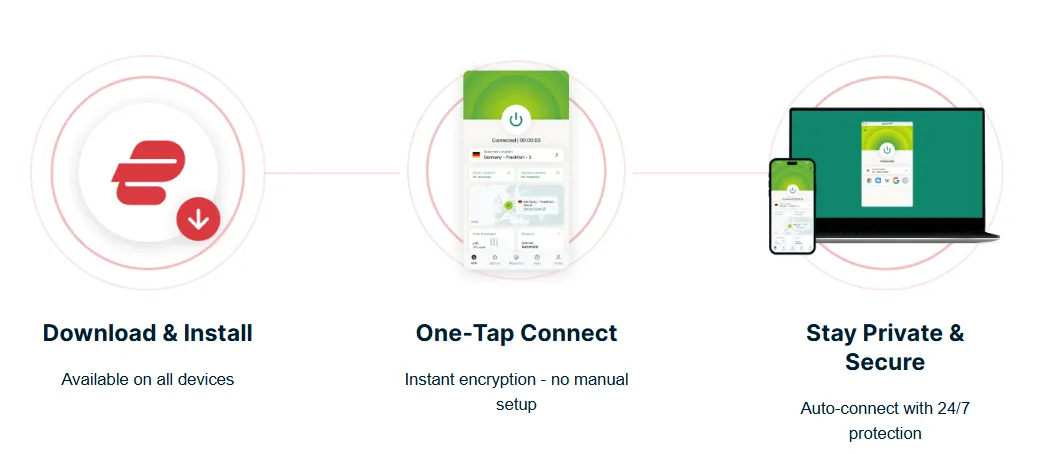
Subscribe: Choose a reputable VPN service that offers a native app specifically optimized for Android TV or Fire OS.
-
Access the App Store: Navigate to the Google Play Store (for Android/Google TV) or the Amazon Appstore (for Fire TV).
-
Search and Install: Use the search function to find your chosen VPN provider's app. Select it and click the "Install" button.
-
Launch: Once installed, the app will appear in your Smart TV's main application drawer.
B. Setup Walkthrough: Log In, Select, and Connect
The setup process is simple and controlled entirely via your TV remote:
-
Log In: Open the VPN app and enter the credentials (username and password) associated with your subscription.
-
Select a Server: Use the app's server list interface to browse and choose a country based on the content you wish to access (e.g., select a U.S. server to access the American Netflix library).
-
Connect: Click the main "Connect" button. The app will establish the secure, encrypted tunnel, and your TV's public IP address will be instantly masked.
-
Verify: The app will typically display a status message confirming that the connection is active and protected. You can now launch your streaming service of choice.
C. Pros and Cons: Easiest Setup vs. Limited Platform Availability
|
Feature |
Pros (Advantages) |
Cons (Disadvantages) |
|
Ease of Use |
The most user-friendly method; no extra hardware or technical knowledge required. |
Only available on select platforms (Android/Google TV, Fire TV). Incompatible with Samsung (Tizen), LG (webOS), and Roku. |
|
Control |
Full control over server selection, settings, and VPN protocol directly on the TV interface. |
Can be less reliable for geo-blocking than the router method, as some advanced platforms may still detect the device’s real location through other means. |
|
Encryption |
Provides the highest level of encryption for the TV's traffic, as the connection is managed locally. |
The VPN is only active on the Smart TV itself, leaving other network devices unprotected. |
Method 2: The Router Method: The Universal Solution for Samsung Tizen, LG webOS, and Roku
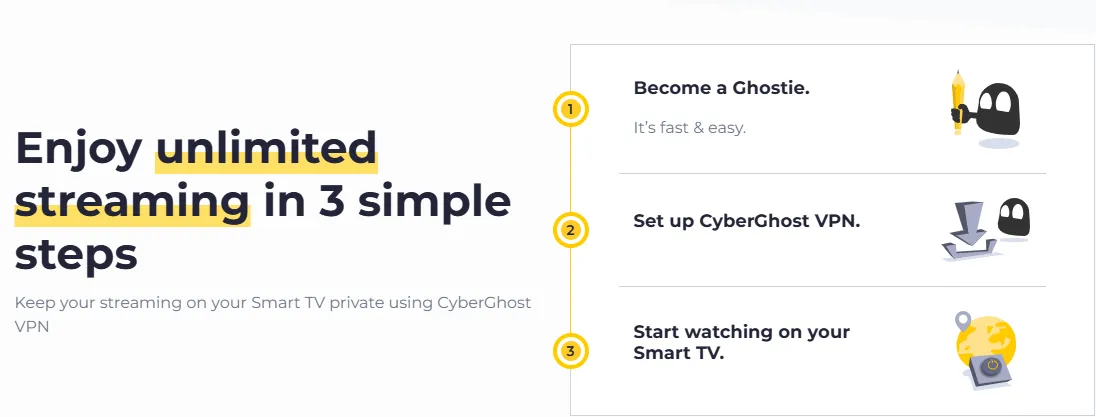
For users running Smart TVs on closed operating systems like Samsung's Tizen OS, LG's webOS, or Roku, the router method is the most powerful and comprehensive way to enforce a network-wide VPN connection. This approach secures every device connected to your home Wi-Fi, solving the "no native app" problem entirely.
A. Overview: Network-Wide Protection
The core concept of the router method is simple: instead of installing a VPN app on the end device (the TV), you install the VPN configuration directly onto the router that manages your home internet.
Once configured, the router takes over the job of encrypting and routing all traffic through the VPN server. Your Smart TV simply connects to the Wi-Fi network as normal, and all of its internet traffic is automatically protected without needing any app or special settings on the TV itself. This creates a permanent, always-on VPN shield for your entire smart home ecosystem, including gaming consoles, smart speakers, and laptops.
B. Required Equipment: Compatibility is Key
Not all routers are capable of running VPN software. You will need a router that is either pre-configured for VPNs or supports third-party firmware:
-
VPN-Ready Routers: Many modern, high-end routers from brands like Asus, Netgear, and Linksys come with built-in client support for OpenVPN or WireGuard protocols, allowing for configuration through their standard admin interface.
-
Custom Firmware Routers: For older or less-capable routers, you may need to install (or "flash") open-source firmware like DD-WRT or OpenWRT. This process replaces the manufacturer's default software with a powerful, customizable operating system that fully supports VPN client functionality.
-
Pre-Flashed Routers: Some VPN providers or third-party sellers offer routers that come pre-installed and pre-configured with the VPN software, offering a true plug-and-play experience.
C. Setup Guide (Router Firmware)
While the exact steps vary by router model, the process generally follows these three critical steps:
-
Download Configuration Files: Access your VPN provider's website dashboard and download the required configuration files (usually .ovpn for OpenVPN or specific key files for WireGuard). These files contain all the server addresses and encryption keys your router needs.
-
Access Router Settings: Open a web browser on a computer connected to your home network and navigate to your router's default IP address (e.g., 192.168.1.1). Log in using your administrator credentials.
-
Upload and Configure: In the router's settings menu (often found under "VPN Client," "Network Settings," or "WAN"), upload the configuration file you downloaded. Select the desired server location (e.g., Australia) and activate the VPN connection. Your router will restart, and every device connected to it, including your Smart TV, will now appear to be in the chosen country.
D. Pros and Cons: Ultimate Coverage vs. Complex Initial Setup
|
Feature |
Pros (Advantages) |
Cons (Disadvantages) |
|
Universal Coverage |
Secures all devices simultaneously, including platforms like Samsung, LG, and Roku that don't allow native apps. |
Requires a compatible router, which may involve a purchase or the technically advanced and risky process of flashing custom firmware. |
|
Always-On Security |
The VPN is active 24/7. You never have to worry about forgetting to switch it on or accidental disconnections. |
Switching server locations requires accessing the router's administrative interface, which is slower than using a native app on a phone or computer. |
|
Device Resources |
Your Smart TV is not running the encryption process, freeing up its internal CPU for better streaming performance. |
Router hardware limits speed. If the router's processor is weak, it may not be able to handle fast encryption, potentially resulting in slower 4K/8K streaming speeds compared to a dedicated PC or phone app. |
Method 3: Smart DNS Alternative: Speed-Optimized Geo-Unblocking for Non-Native Apps
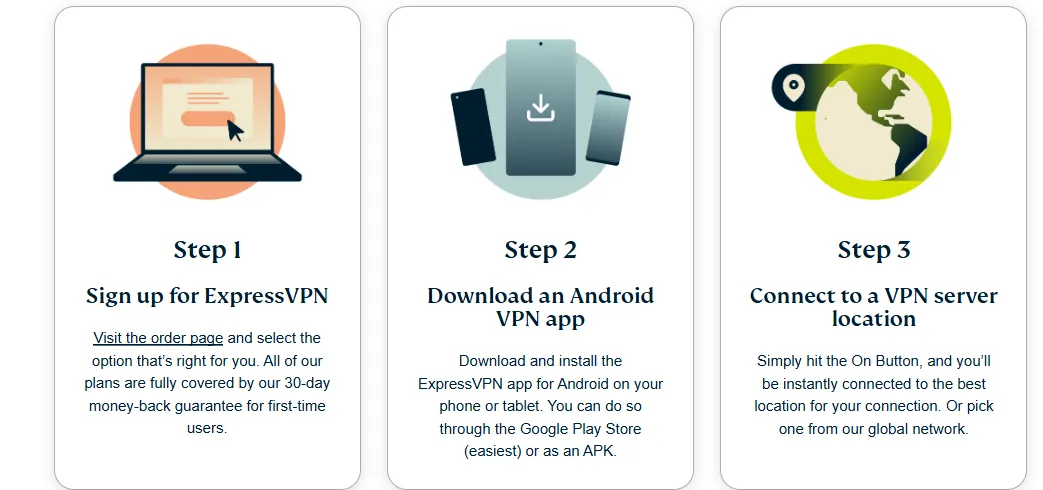
While the router method (Method 2) provides the highest level of security and universal compatibility, it often involves a trade-off in raw speed due to the heavy encryption process handled by the router's processor. For users whose primary goal is geo-unblocking content in Ultra HD without sacrificing a single bit of speed, the Smart DNS alternative is highly effective.
A. What is Smart DNS? The Key Distinction
Smart DNS technology and VPNs are both used for geo-unblocking, but they function fundamentally differently:
-
VPN (Virtual Private Network): Creates an encrypted tunnel for all your internet traffic, routing it through a secure server in the country of your choice. This provides privacy, security, and location masking.
-
Smart DNS: Does not encrypt your data or change your IP address. Instead, it reroutes only the specific part of your connection that verifies your geographic location (your DNS queries). When you try to access a geo-restricted site, the Smart DNS server spoofs your location data just enough to grant you access, but the rest of your high-bandwidth video stream comes directly from the streaming service to your TV via your fastest local connection.
B. When to Use It: Prioritizing Speed Over Security
Smart DNS is the ideal choice when:
-
Speed is Paramount: Since there is no encryption overhead, Smart DNS offers significantly faster speeds, making it excellent for 4K and 8K streaming where bandwidth demands are highest.
-
Geo-Unblocking is the Only Goal: If you are not concerned about hiding your data from your ISP or requiring high-level privacy, but simply need to access foreign content libraries.
-
On Incompatible Platforms: This method works perfectly on closed systems like Samsung Tizen and LG webOS, as all Smart TVs allow manual configuration of DNS settings.
Important Caveat: Smart DNS offers zero encryption or privacy benefits. Your ISP can still see what you are doing, and your connection is vulnerable to general internet threats.
C. Configuration Steps: Changing DNS Settings
Setting up Smart DNS is platform-agnostic, requiring you to manually input new DNS server addresses provided by your VPN/Smart DNS service into your Smart TV’s network menu.
Step-by-Step for Samsung Tizen / LG webOS:
-
Obtain DNS Servers: Locate the primary and secondary DNS server addresses provided by your Smart DNS service (these are usually two sets of numbers, e.g., 104.200.0.1).
-
Access Network Settings: On your Smart TV remote, navigate to Settings > Network > Network Status or Network Settings.
-
Change DNS Manually: Select your current Wi-Fi or Wired connection and look for an option like "IP Settings" or "DNS Settings." Change the setting from "Automatic" to "Manual."
-
Input Addresses: Enter the Primary DNS address provided by your service. If available, enter the Secondary DNS address as well.
-
Save and Restart: Save the settings, exit the menu, and power cycle your Smart TV (turn it off and back on) to ensure the new settings take effect.
Your Smart TV will now use the Smart DNS service to route location checks, unlocking geo-restricted content while maintaining full streaming speed.
Method 4: Virtual Router Setup: Share VPN Hotspot from PC/Mac to Any Smart TV
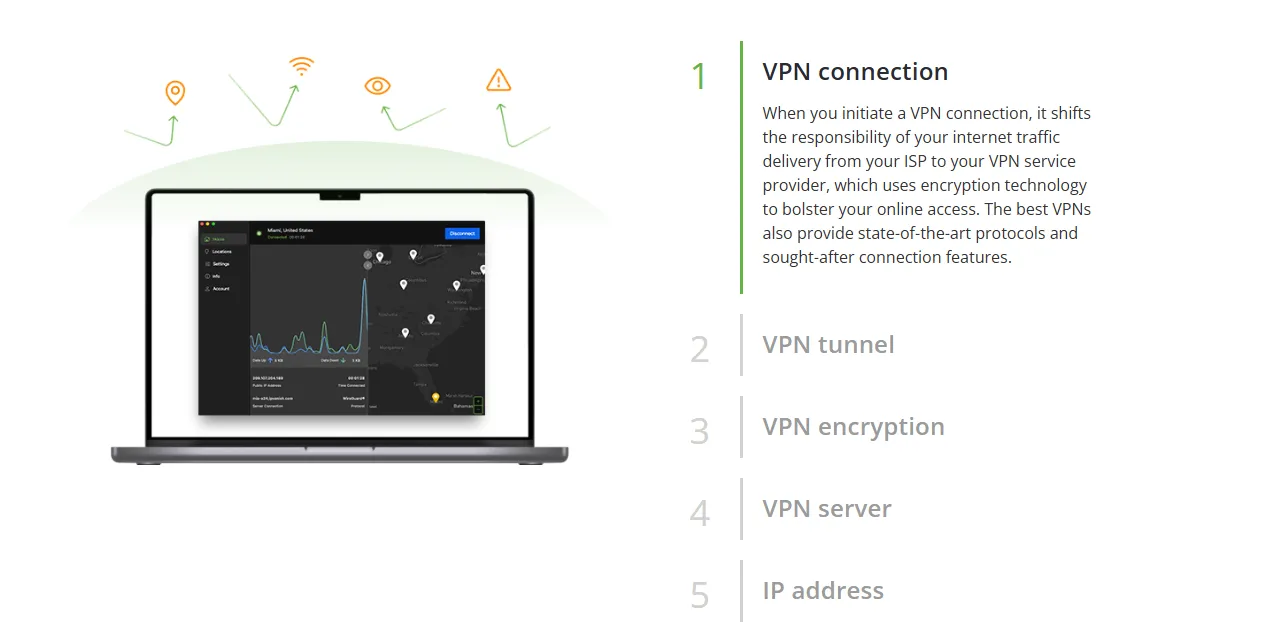
This method serves as an excellent middle ground between the simple, but limited, Direct App Method (III) and the complex Router Method (IV). It leverages the power of your existing computer to act as a temporary VPN-enabled Wi-Fi hotspot, providing a simple way to secure non-compatible Smart TVs without changing router firmware.
A. Concept: Turning Your Computer into a VPN Hotspot
A virtual router setup utilizes your computer's operating system (Windows or macOS) to create a secondary Wi-Fi network. The process is as follows:
-
The computer connects to the internet (via Wi-Fi or Ethernet).
-
The VPN application is run on the computer, securing its connection.
-
The computer's "Mobile Hotspot" or "Internet Sharing" feature is activated, allowing it to broadcast a new Wi-Fi signal.
-
Crucially, the computer is configured to share the VPN connection—not the original, unsecured internet connection—via this new Wi-Fi signal.
-
Your Smart TV then connects to this new, VPN-protected hotspot.
This setup is ideal for non-Android Smart TVs (Samsung Tizen, LG webOS) and streaming sticks (Roku) that lack native VPN support, as it requires no physical changes to your home network equipment.
B. Windows/PC Setup: Detailed Instructions
For users running Windows 10 or 11, the process involves setting up the Mobile Hotspot and then modifying the connection properties:
-
Establish VPN: Connect your Windows PC to the internet, then launch your VPN app and connect to your desired server location.
-
Enable Mobile Hotspot: Go to Settings > Network & Internet > Mobile Hotspot. Toggle it On. Note the network name and password.
-
Configure Sharing: Go to Settings > Network & Internet > Change adapter options (or Advanced Network Settings).
-
Identify VPN Adapter: Right-click on the VPN's connection adapter (it may be labeled with the VPN provider's name or a "TAP-Windows Adapter").
-
Enable Sharing: Select Properties > Sharing tab. Check the box that says "Allow other network users to connect through this computer's internet connection."
-
Select Hotspot: In the dropdown menu under the checkbox, select the name of the Mobile Hotspot you created in step 2. Click OK.
-
Connect TV: On your Smart TV, go to the Wi-Fi settings and connect to the new Mobile Hotspot network. The TV’s traffic is now encrypted.
C. Mac/macOS Setup: Instructions for Internet Sharing
For macOS users, the feature is called Internet Sharing and is generally more streamlined:
-
Establish VPN: Launch your VPN app on your Mac and connect to the necessary server location.
-
Access Sharing Settings: Go to System Settings (or System Preferences) > General > Sharing.
-
Activate Internet Sharing: Find Internet Sharing in the list.
-
Configure Source and Target:
-
"Share your connection from": Select the VPN interface (e.g., the tunnel connection created by your VPN app).
-
"To computers using": Check the Wi-Fi option.
-
Set Wi-Fi Options: Click Wi-Fi Options... and set a Network Name and Password for your new VPN hotspot.
-
Start Sharing: Enable the Internet Sharing service. You will be prompted to confirm the start.
-
Connect TV: Connect your Smart TV to the new Wi-Fi network created by your Mac.
D. Pros and Cons: No Router Firmware Changes Needed vs. The Computer Must Remain On
|
Feature |
Pros (Advantages) |
Cons (Disadvantages) |
|
Simplicity |
Requires no changes to your main router firmware and utilizes the easy-to-use native VPN app interface on the computer. |
The host computer (PC or Mac) must remain powered on and connected to the VPN for the entire duration of streaming. |
|
Control |
Server switching and connection settings are instantaneous, managed directly on the computer's VPN application. |
Relies on the host computer's Wi-Fi card; connecting via a wired Ethernet cable often provides a more stable connection, especially for 4K streaming. |
|
Compatibility |
Works with virtually all Smart TVs, including those with closed operating systems (Samsung, LG, Roku, gaming consoles). |
Creates a secondary Wi-Fi network, which may cause minor configuration headaches with other smart devices if they automatically connect to the old, unsecured network. |
Brand-Specific Deep Dive: Solving Samsung & LG VPN Issues
Since Samsung and LG TVs do not support native VPN apps, technical hiccups are common when using Smart DNS or Router methods. Use this matrix to solve the most frequent blocks:
|
Issue |
Samsung (Tizen) Fix |
LG (webOS) Fix |
|---|---|---|
|
Smart DNS not working |
Unplug & Cold Boot: Hold the power button for 10s until the logo appears to clear DNS cache. |
Turn off Quick Start+: This prevents the TV from fully flushing its network settings. Restart after disabling. |
|
Region still locked |
Change Service Location: Go to Setup > Smart Hub Terms & Conditions > Press |
Change LG Services Country: Go to Settings > General > Location > LG Service Country. A restart is required. |
|
"Proxy Detected" Error |
Disable IPv6: Go to Network Settings > Expert Settings > Turn off IPv6. Most VPNs only support IPv4. |
Set Manual DNS: Ensure your "IP Setting" is set to "Manual" so the DNS entry isn't overwritten by the router. |
|
App missing in store |
Use a US-based Samsung Account to access the full US Tizen App Store. |
Create a new LG Content Store account with a location set to the US or UK. |
FAQs on The Best VPNs for Smart TVs in 2026
Even with the best setup, streaming devices can present unique challenges when running a VPN. This section addresses the most common issues users face after deployment.
A. VPN Not Connecting: Common Issues
If your Smart TV is connected to a VPN source (router or virtual router) but cannot access the internet, or if your Android TV's native app won't connect, check these common conflicts:
-
Protocol Conflicts: Different VPN protocols (OpenVPN, WireGuard) interact with home network hardware differently. If one fails:
-
Action: Try switching the protocol within the VPN app on your router or host computer (PC/Mac). Often, switching from WireGuard (fast but sometimes temperamental) to OpenVPN (slower but more compatible) resolves connectivity issues.
-
Server Overload: If too many users are connected to a single server, it can fail to authenticate new users or drop connections.
-
Action: Disconnect and select a different server in the same country, ideally one with a lower reported load percentage.
-
Firewall/Antivirus Block (PC/Mac Hotspot): If you are using the Virtual Router method (Method 4), your computer's security software might be blocking the connection sharing.
-
Action: Temporarily disable the firewall or add an exception for your VPN client and the Mobile Hotspot service.
B. Slow Streaming Speed: Solutions
Slow speeds are the enemy of 4K streaming. If you experience buffering, try these solutions in order:
-
Change Server Location: The speed of your VPN is primarily determined by the distance to the server.
-
Action: If trying to watch US content, don't connect to a server on the opposite coast. Connect to a server physically closest to your location (e.g., if you are in Canada, connect to a server in Detroit or Buffalo rather than Los Angeles).
-
Switch Protocols: Encryption requires CPU power. OpenVPN's stronger encryption can be slower than WireGuard.
-
Action: If your current protocol is OpenVPN, switch to WireGuard or a proprietary equivalent (like NordLynx or Lightway). This often provides a significant speed boost without compromising security for streaming.
-
Check Router Position (Router Method): If using a VPN-configured router (Method 2), physical distance and obstacles impact your Wi-Fi signal, magnifying any speed loss from encryption.
-
Action: Ensure your Smart TV is as close as possible to the router, minimizing signal interference. Consider a wired Ethernet connection for the highest, most stable speeds.
C. Location Leakage: How to Verify the TV is Using the VPN IP
The worst-case scenario is thinking you are protected when your real location is leaking, allowing streaming services to block you anyway. This typically happens due to DNS leakage.
-
Verification Test (Mobile): Since you cannot run a web browser directly on most Smart TVs, you need to verify the VPN is working using a secondary, connected device (like a phone or laptop).
-
Action: Connect your phone/laptop to the same VPN network (router or hotspot). Then, go to a trusted "What is my IP" website (e.g., ipchicken, DNSLeakTest) and verify that the reported location matches your VPN server location, not your real city.
-
The Fix (DNS Settings): If the IP address is correct but the streaming service still blocks you, it suggests a DNS conflict.
-
Action: Re-verify that your router or virtual router setup is configured to force all devices to use the VPN provider's DNS servers, not the default ones provided by your ISP. For Smart DNS (Method 3), double-check that the addresses were entered correctly on the TV.
Conclusion
We've explored four distinct ways to run a VPN on your Smart TV in the modern streaming landscape: the easy Native App method for Android TV, the universal Router Method, the speed-optimized Smart DNS approach, and the flexible Virtual Router setup.
While the methods offer varying degrees of convenience and speed, the Router Method (Method 2) stands out as the most robust and future-proof solution for 2026. By securing your connection at the network level, it overcomes the proprietary limitations of platforms like Samsung Tizen and LG webOS, providing an "always-on" VPN shield for every device in your home without relying on external software or keeping a computer running.
Empowering the user to take control of their streaming experience and privacy
The core purpose of deploying a VPN on your Smart TV is not just to access more shows; it is about reclaiming control. In a world increasingly defined by digital borders, ISP surveillance, and hardware tracking, a VPN empowers you to:
-
Determine Your Own Content: Bypass geo-restrictions and stream content on your terms.
-
Secure Your Data: Stop your ISP from monitoring and throttling your high-bandwidth activities.
-
Future-Proof Your Setup: Ensure platform updates and new geo-blocking tactics don't interrupt your entertainment.
Whether you choose the simplicity of a native app or the comprehensive security of a dedicated VPN router, implementing one of these solutions is a crucial step toward a truly private, limitless, and unthrottled streaming experience.
PS: All images in this article are sourced from the merchant's official website and are copyrighted by the merchant.