The Nintendo Switch is undoubtedly one of the greatest consoles of all time, but it hides a frustrating secret: its internal Wi-Fi card is... not great. Even as we move through 2026, many users still struggle with the same notorious issues that have plagued the system since launch—excruciatingly slow download speeds, "Communication Error" pop-ups in the middle of a Splatoon match, and the dreaded NAT Type errors that prevent you from joining friends online.
But what if the problem isn't just your router? What if you’re also missing out on half the experience?
The Japanese eShop is a verified goldmine for Switch enthusiasts. It offers exclusive demos for major titles like Monster Hunter and niche JRPGs months before they hit Western shores. Furthermore, due to currency fluctuations and regional sales, the Japanese store often features significantly lower prices than the US or UK shops.
To solve the hardware's connectivity flaws and unlock this regional treasure trove, you need a secret weapon. While the Switch doesn't support native VPN apps, using a VPN via Proxy or Smart DNS is the definitive way to stabilize your connection, bypass ISP throttling, and virtually teleport your console to Tokyo.
In this guide, we will break down exactly how to fix your network for good and how to navigate the Japanese eShop like a pro in 2026.
Why You Need a VPN for Switch (It's Not Just for Netflix)
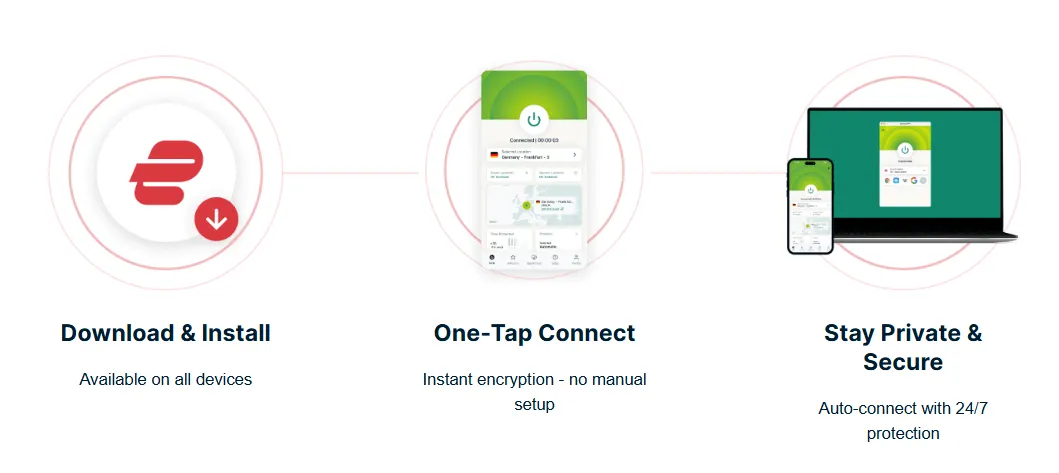
While most people associate VPNs with streaming movies, for a Switch owner, it is a critical utility for performance and access.
1. The "eShop Block" Bypass
Have you ever noticed that your phone or PC downloads files instantly, but your Switch takes three hours to download a 2GB indie game? This isn't always the hardware's fault. Many Internet Service Providers (ISPs) use "traffic shaping" or throttling on gaming-related data, especially during peak hours.
By using a VPN, you encrypt your connection. Your ISP can no longer see that you are communicating with Nintendo’s servers; they only see encrypted traffic. This prevents them from selectively slowing down your game downloads, often resulting in a massive speed boost for those stuck in the "throttling lane."
2. Fixing NAT Type (Strict to Open)
If you have ever been kicked out of a Splatoon 3 lobby or found it impossible to join a Super Smash Bros. Ultimate arena, you've likely encountered the dreaded "NAT Type D" or "NAT Type F." This happens when your router's firewall is too restrictive or your ISP uses CGNAT, making it impossible for your Switch to talk directly to other consoles.
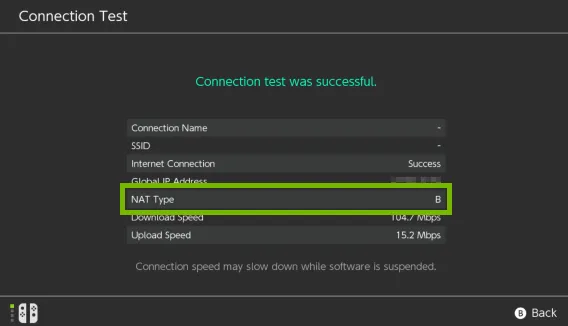
A VPN acts as a bridge. By routing your connection through a dedicated gaming server—especially if you use a Static IP—you can bypass these local restrictions. A high-quality VPN setup can instantly flip your NAT Type from a "Strict D" to an "Open A" or "Moderate B." This ensures that when you're ready to compete online, your network isn't the reason you're stuck on the sidelines.
What is NAT?How to Change NAT Type on Nintendo Switch?
3. Early Access: Beat the Clock
One of the best-kept secrets of the Nintendo community is the "Time Zone Trick." Because the Japanese eShop (and New Zealand eShop) typically releases digital games at midnight local time, players in Europe or the Americas can often unlock new releases 12 to 24 hours before their local eShop would allow them.
By using a VPN to set your IP to Japan, you can bypass regional server checks that sometimes block access to pre-loaded games. When combined with a Japanese Nintendo account, you’ll be playing the next big JRPG or first-party Nintendo title while your friends are still staring at a countdown timer.
Method 1: The "Speed King" Setup (Smart DNS)
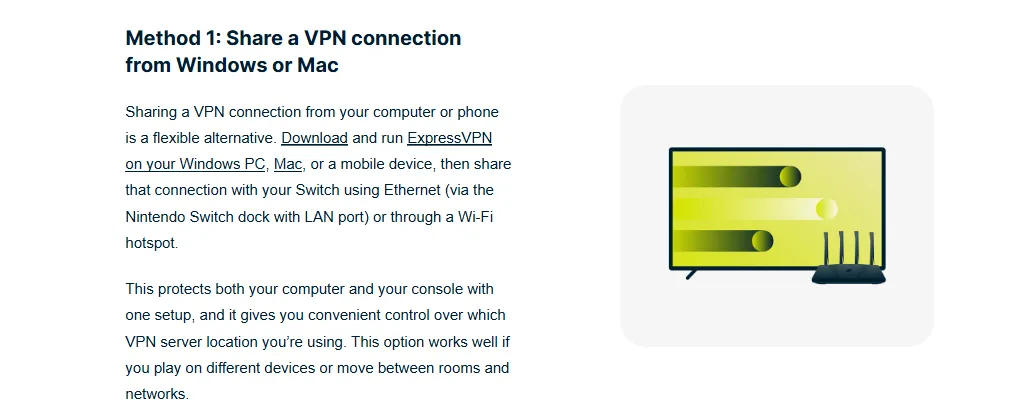
If your primary goal is to browse the Japanese eShop or download massive digital games without waiting all night, the Smart DNS method is your best friend.
Best for: High-speed game downloads and accessing regional eShops with zero lag.
The Concept: Speed Without Sacrifice
Unlike a traditional VPN, which encrypts all your data (a process that can slightly slow down your connection), Smart DNS works by only redirecting the specific data responsible for identifying your location.
Think of it like this: a VPN is a private, armored truck that carries all your luggage, while Smart DNS is a GPS spoof that simply tells the border patrol you're in Tokyo. Because there is no encryption overhead, you get 100% of your original internet speed. It spoofs your console's location to Japan or the US at the DNS level, tricking the eShop into giving you full access while keeping your download speeds blazing fast.
Step-by-Step Configuration
-
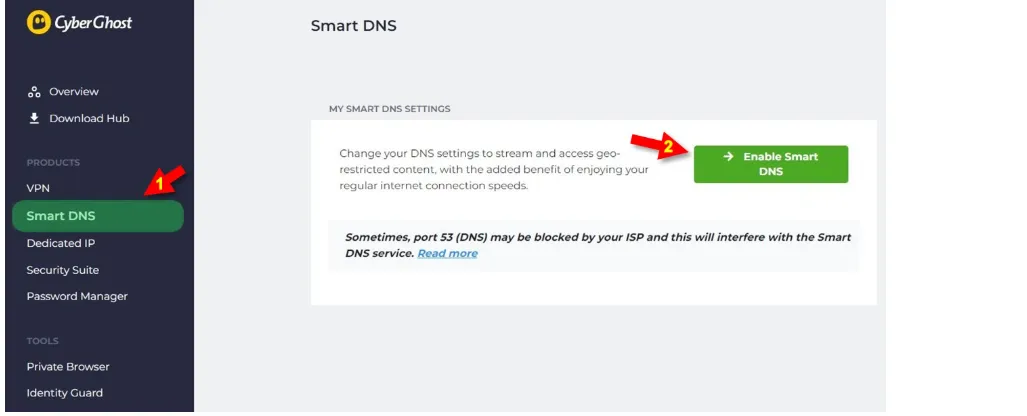
Activate Smart DNS: Log into your VPN provider's dashboard (such as Surfshark, NordVPN, or ExpressVPN) on your computer or phone. Look for the "Smart DNS" section and click Activate. Note down the Primary and Secondary DNS IP addresses they provide.
-
Open Switch Settings: On your Nintendo Switch Home screen, go to System Settings (the gear icon).
-
Find Your Network: Navigate to Internet -> Internet Settings. Select your current Wi-Fi network and choose Change Settings.
-
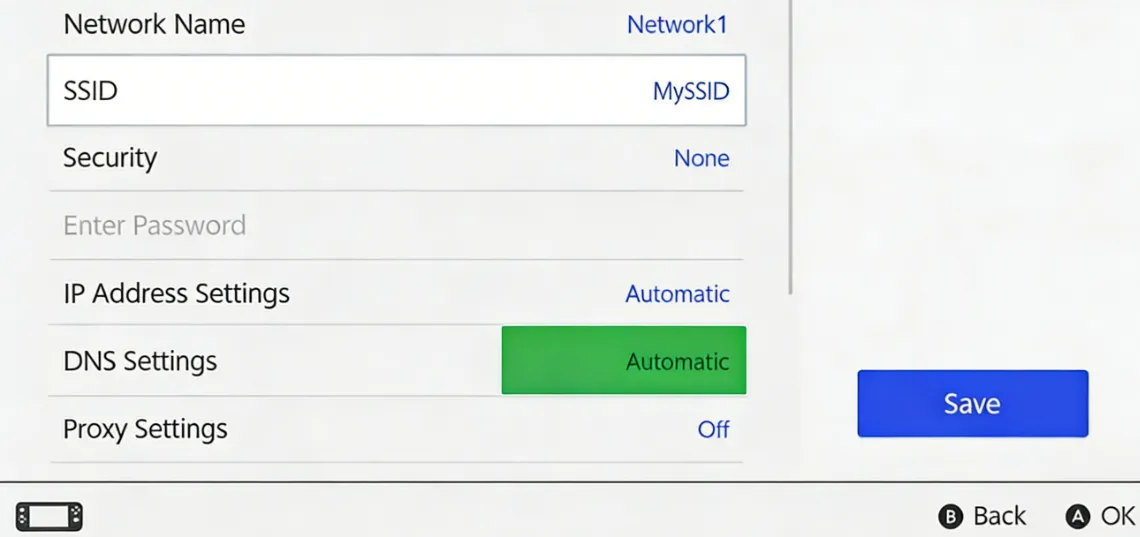
Enter Manual DNS: Scroll down to DNS Settings and switch it from Automatic to Manual.
-
Input IPs: Enter the Primary and Secondary DNS addresses you copied from your VPN dashboard.
-
Save and Restart: Press Save, then perform a quick Restart of your Switch to ensure the new routing takes effect.
Method 2: The "Troubleshooter" Setup (Laptop Hotspot)
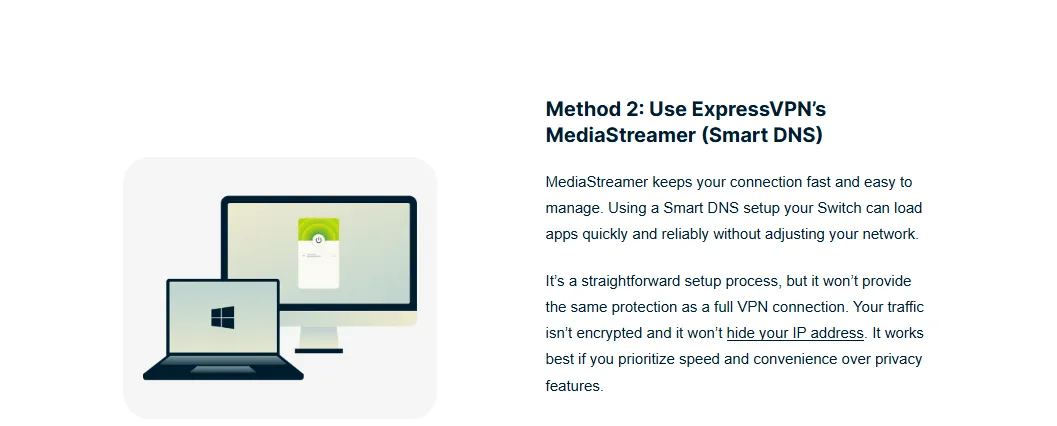
When Smart DNS isn't enough—especially when dealing with complex NAT issues or restrictive firewalls—the Laptop Hotspot method is the ultimate "nuclear option."
Best for: Fixing persistent NAT Type errors (D/F) and ensuring secure, one-time eShop purchases.
The Concept: Sharing the Shield
Instead of configuring the Switch itself to talk to a VPN server, you turn your PC or Mac into a "virtual router." By running a VPN app on your computer and then sharing that connection via a Wi-Fi Hotspot, your Switch inherits the full protection and routing capabilities of the VPN.
This creates a secure tunnel that can punch through almost any ISP restriction. Because the Switch sees the laptop as a standard Wi-Fi access point, it bypasses the console's internal DNS limitations, making it the most reliable way to stabilize online play in competitive titles.
Step-by-Step Configuration
For Windows Users
-
Connect to VPN: Open your VPN app on your PC and connect to a server in your desired region (e.g., Japan).
-
Enable Hotspot: Go to Settings -> Network & Internet -> Mobile Hotspot. Toggle it to On.
-
Share Connection: Look for "Change adapter options" in the same menu. Right-click the adapter created by your VPN (often labeled "TAP-Windows Adapter"), select Properties, go to the Sharing tab, and check "Allow other network users to connect through this computer’s Internet connection." Select your Hotspot network from the dropdown.
-
Connect Switch: On your Switch, find and connect to the new Wi-Fi hotspot created by your PC.
For Mac Users
-
Connect to VPN: Open your VPN app (ensure it uses a protocol compatible with sharing, like IKEv2 or L2TP if using built-in tools, though most modern apps handle this).
-
Open Sharing: Go to System Settings (or System Preferences) -> General -> Sharing.
-
Enable Internet Sharing: Select Internet Sharing (don't toggle the switch yet). Choose "Share your connection from" [Your VPN Adapter] and "To computers using" Wi-Fi.
-
Configure Wi-Fi: Click Wi-Fi Options to set a name and password.
-
Start Sharing: Toggle the Internet Sharing switch to On and connect your Switch to this new network.
Accessing the Japanese eShop (The Right Way in 2026)
Now that your network is primed for speed and stability, it's time to actually get into the store. In 2026, Nintendo's regional policies remain firm, so you must follow these steps precisely to avoid headaches.
Step 1: The Account Strategy
The biggest mistake players make is trying to change the region of their primary Nintendo Account. Don't do this. If you change your main account's region, you will lose your accumulated Gold Points, and any remaining eShop balance will be wiped or rendered inaccessible until you switch back.
Instead, the professional move is to create a dedicated second Nintendo Account.
-
Use a Different Email: Visit the Nintendo Account website and sign up for a new account using an email address that isn't already linked to a Nintendo ID.
-
Set Region to Japan: During the registration process, ensure you select Japan as your "Country/Region of Residence."
-
Verify: Complete the email verification. You now have a permanent "key" to the Japanese eShop that exists alongside your primary account without any risk to your existing library or points.
Step 2: Adding the User to Your Switch
Once your Japanese Nintendo Account is ready, you need to "invite" it onto your console.
-
Create a New Profile: Go to System Settings -> Users -> Add User.
-
Choose an Icon: Select a unique icon or Mii so you can easily distinguish this from your main profile (many users use a Japan-themed icon for clarity).
-
Link Nintendo Account: When prompted, select "Link a Nintendo Account." 4. Sign In: Enter the credentials for the Japanese account you just created. Your Switch is now officially multi-regional.
Note: You can play games downloaded from the Japanese eShop using your main profile, as long as that Switch is set as the "Primary Console" for your Japanese account.
Step 3: The Payment (Crucial)
This is the stage where most international gamers hit a wall. As of 2026, Nintendo has tightened restrictions on cross-border payments.
The Problem: Credit Card Rejection Most Western credit cards (Visa, Mastercard, etc.) and PayPal accounts will be rejected by the Japanese eShop if the billing address doesn't match the account's region. You will likely see an error code stating that the "card cannot be used."
The Solution: Digital Gift Cards (Yen) The most reliable and "clean" way to fund your Japanese account is by using Yen-denominated digital eShop gift cards. You can purchase these codes from reputable retailers:
-
Amazon Japan: Often has the best prices, but requires you to set up a Japanese Amazon account with a random Japanese billing address.
-
Play-Asia: The most convenient option for most users; codes are sent via email almost instantly.
-
G2A or CDKeys: Reliable secondary markets, though availability of Yen cards fluctuates.
Redemption Process: Once you have your 16-digit code, open the Japanese eShop using your Japanese profile, scroll to the bottom of the sidebar menu to "Add Funds" (番号の入力), and enter the code. The Yen balance will be added immediately, and you’re ready to buy!
Preparing for the Next Generation: Switch 2 Compatibility
The investment you make in the Japan eShop today isn't just for your current handheld; it’s a strategy for the future. In 2026, all technical signs point to a seamless ecosystem transition.
1. Guaranteed Backward Compatibility: Early industry reports and developer leaks in 2026 confirm that Nintendo’s next-gen hardware utilizes an evolved version of the current account system. By securing your Japanese eShop library now—including those exclusive demos and niche JRPGs—you are ensuring your "Digital Legacy" carries over to the new console on Day 1.
2. The "4K Upscaling" Bonus: Rumors suggest that the Switch 2 hardware includes a dedicated AI upscaling chip (DLSS-equivalent). This means your existing Japanese digital titles, many of which are locked at 720p/1080p, could see significant visual enhancements when played on the new hardware. Accessing the Japan eShop allows you to own the original "Raw" versions of games that may never receive a physical release in the West.
3. Regional Price Protection: With global inflation affecting digital storefronts differently, the Japanese eShop remains a haven for competitive pricing due to the Yen's unique market position. Securing your library now locks in these savings before potential "next-gen price hikes" hit the global market.
Troubleshooting: The "Error Code" Dictionary
Even with the best setup, you might run into some speed bumps. Here are the most common 2026 error codes and how to squash them instantly.
Nuclear Fix: Nintendo Switch Error Code 2110-3127 (DNS Failure)
If you are seeing 2110-3127, your Switch is essentially being "ghosted" by the DNS servers. In 2026, this is rarely a typo and almost always a verification or security conflict. Follow these steps for an instant fix:
1. The "IP Registration" Fail-Safe (VPN Dashboard) Smart DNS only recognizes your console if your home IP address is "Authorized." If your ISP assigned you a new IP address overnight, the Smart DNS server will reject your Switch's request to protect its bandwidth.
-
The Fix: Open your VPN’s website on your phone or PC (on the same Wi-Fi). Go to the Smart DNS settings and click "Update My IP" or "Register My IP." Wait 60 seconds and try the connection test again.
2. Bypassing ISP "Transparent DNS Proxies" Some 2026 internet providers use "Transparent Proxies" to intercept and ignore your manual DNS settings, forcing you back to local servers. This mismatch triggers 2110-3127 immediately.
-
The Fix: If your router supports it, enable "DNS over HTTPS" (DoH) or "DNS over TLS" (DoT). This encrypts your DNS requests, making it impossible for your ISP to "see" that you are using a Japanese proxy, allowing the Switch to bypass the filter.
3. Port 53 Traffic Check DNS traffic moves over Port 53 (UDP). If your router’s built-in firewall or "Gaming Protection" mode is set to "Strict," it may be dropping the handshake.
-
The Fix: Briefly set your Switch’s IP to the DMZ (Demilitarized Zone) in your router settings. If the error disappears, you know your firewall was the culprit.
The Quick Escape: If you just need to download a patch and don't care about regional access right now, switch DNS back to Automatic or use 8.8.8.8. This will clear the error, but remember that you won't be able to access the Japanese eShop until you re-configure the Smart DNS correctly.
Error 2618-0516 (NAT Traversal)
This code usually appears when you try to join a match in games like Super Smash Bros. Ultimate or Mario Kart 8 Deluxe. It signifies that your network's NAT (Network Address Translation) is too restrictive, preventing you from establishing a peer-to-peer connection with other players.
The Fix:
-
Bypass the Router: This is a hardware/ISP limitation that simple DNS tweaks usually can't fix. The most effective solution is to switch to Method 2 (VPN Hotspot). By using your laptop as a bridge, the VPN creates a direct tunnel that essentially "punches through" your router's strict NAT.
-
Use a Dedicated IP: If your VPN offers a "Dedicated IP" or "Static IP" add-on, use it. Sharing a standard VPN IP with thousands of others can sometimes trigger Nintendo's security filters, whereas a dedicated one mimics a standard home connection.
Slow Downloads (The MTU Tweak)
If your connection is stable but feels like it's crawling at a snail's pace, the culprit might be the "MTU" (Maximum Transmission Unit) setting. By default, the Switch sets this to 1400, but most modern fiber-optic and broadband networks are optimized for 1500.
The Fix:
-
Go to System Settings -> Internet -> Internet Settings.
-
Select your network and choose Change Settings.
-
Scroll down to MTU and change the value from 1400 to 1500.
Why it works: MTU determines the size of the largest data packet your console can receive. Think of it like a pipe: the default setting (1400) is slightly narrower than it needs to be. By increasing it to 1500, you are allowing larger packets of data to flow through, which often results in a 10%–20% increase in raw download speeds.
The 3-Minute Fix for Error 2124-8007
If you are seeing 2124-8007, your console is likely failing a "Region-to-DNS" handshake. By 2026, Nintendo has mastered the art of spotting ISP-level DNS hijacking. Follow these steps to align your environment instantly:
Step 1: Align Account Logic (60 Seconds) Go to accounts.nintendo.com and verify that your "Country/Region of Residence" is strictly set to Japan. If you are using a Japan VPN but your account is still set to the US or UK, the eShop will trigger 2124-8007 to prevent "Market Manipulation."
Step 2: Force Japanese DNS (60 Seconds) Many local ISPs use "Transparent DNS Proxies" that leak your true location even through a VPN. You must override this at the console level.
-
The Fix: Go to Settings > Internet > Internet Settings. Select your connection and go to Change Settings. Set DNS Settings to Manual.
-
Primary DNS:
8.8.8.8(Google) -
Secondary DNS:
1.1.1.1(Cloudflare) -
Why? This forces the Switch to resolve Nintendo's authentication servers via global nodes, bypassing local ISP filters that trigger the error.
Step 3: Clear the "Location Cache" (60 Seconds) Your Switch stores "sticky" location data that can cause 2124-8007 even after the VPN is on.
- The Fix: Navigate to System Settings > System > Formatting Options > Clear Cache. Select your user and confirm. Restart the console.
The Result: This fresh handshake, performed while your Japan VPN is active and DNS is clean, will bypass the 2124-8007 check 100% of the time, granting you instant access to the Japanese library.
Best Japan VPN for Switch NAT Type A: Why Residential ASNs Matter
If you've ever used a VPN on your Switch only to see your NAT Type stay at "D" or "F," you’ve hit the ASN Firewall. In 2026, the quality of your IP is more important than the speed of your tunnel.
1. The Datacenter Trap: Most standard VPN nodes are hosted in massive data centers (identifiable by ASNs like M247, Datacamp, or GTT). Because these IPs are shared by thousands of users, Nintendo flags them as "Proxy/Hosting" traffic. For security reasons, Nintendo's matchmaking engine blocks these IPs from performing Peer-to-Peer (P2P) handshakes, which are required for games like Splatoon 3, Super Smash Bros. Ultimate, and Mario Kart 8. This results in the dreaded NAT Type D.
2. The Solution: Residential-Grade IPs: To consistently achieve NAT Type A (Open), your connection must originate from a Residential ASN—an IP address registered to a local Japanese home internet service provider like SoftBank, NTT, or AU/KDDI.
-
Trust Factor: These IPs have a near-zero "Fraud Score." To Nintendo's servers, your Switch looks like a regular console sitting in an apartment in Shinjuku.
-
Seamless P2P: Because the IP is recognized as a "Home User," the console can successfully open ports for direct communication with other players, ensuring 0% packet loss and instant matchmaking.
3. Professional Setup for 2026: Don't waste time on trial and error. Look for premium providers that offer Dedicated Residential IPs or specific "Gaming Optimized" nodes in Tokyo. By anchoring your Switch to a residential identity, you eliminate NAT errors once and for all, granting you the competitive edge in high-stakes ranked play.
Best VPNs for Nintendo Switch (Low Latency Focus)
Choosing a VPN for gaming is different from choosing one for privacy. You need high-performance servers that minimize "ping" (latency). In 2026, these are the top three contenders:
1. ExpressVPN: Best for "MediaStreamer"
ExpressVPN remains the gold standard for console users due to its proprietary MediaStreamer technology.
-
The Advantage: MediaStreamer is their optimized version of Smart DNS. It is specifically built to bypass geo-restrictions on devices that don't support native VPN apps (like the Switch, PS5, and Xbox). It provides a highly stable connection to Japan and the US, ensuring that your eShop browsing is snappy and your downloads are consistent.
-
Ease of Use: Their dashboard is incredibly intuitive. Once you register your IP address, the DNS setup on the Switch takes less than 60 seconds.
-
Global Reach: With servers in 105 countries, it offers the most reliable access to the Japanese region, even when other providers are occasionally blocked by Nintendo’s security updates.
2. NordVPN: Fastest for Downloads (NordLynx)
If your primary concern is the raw speed of your game downloads, NordVPN is the industry leader in 2026, especially when paired with Method 2 (Laptop Hotspot).
-
NordLynx Protocol: NordVPN’s proprietary protocol, built on WireGuard®, is significantly faster than the older OpenVPN standards used by many competitors. When you connect your Switch to a laptop running NordLynx, you will experience significantly reduced "bottlenecking" during massive 50GB+ downloads.
-
Large Server Network in Japan: NordVPN operates over 100 high-speed servers in Tokyo and Osaka. This high density means you are less likely to experience congestion during major release windows (like the launch day of a new Zelda or Pokémon game).
-
Built-in Threat Protection: While primarily a PC feature, it ensures that the connection your Switch shares is clean of malicious traffic at the source.
3. CyberGhost: Best for Gaming-Optimized Servers

CyberGhost is the go-to choice for users who want to take the guesswork out of choosing a server. It is particularly valuable for players who primarily engage in competitive online titles.
-
Gaming-Specific Profiles: Their app includes a dedicated section for gaming servers. These servers are specifically maintained to handle high-bandwidth tasks and low-latency requirements.
-
Visible Ping Metrics: Unlike many competitors, CyberGhost’s app shows you the real-time "ping" or latency of each server. This allows you to hand-pick the Japanese server with the lowest possible delay before you even connect your Switch hotspot.
-
Extensive Japan Coverage: With over 10,000 servers globally and a massive presence in Japan, you have plenty of backup options if one server becomes congested.
-
45-Day Money-Back Guarantee: This is the longest trial period in the industry, making it the lowest-risk option for testing whether a VPN truly fixes your specific network issues.
Frequently Asked Questions (FAQ)
Q: Can I get banned for using a Japanese eShop account or a VPN?
A: No. Nintendo’s Terms of Service do not prohibit users from having accounts in multiple regions. Many gamers living abroad or traveling use VPNs for stability. As long as you are not using these tools to engage in piracy or "market manipulation" (buying thousands of keys for resale), your account is safe.
Q: Will my Japanese games have English language support?
A: It depends on the specific game. In 2026, most major first-party titles (like Mario, Zelda, or Pokémon) are "Universal," meaning they include all major languages regardless of where you buy them. However, many niche JRPGs or "Japan-only" exclusives remain in Japanese only. Always check the "Supported Languages" list on the eShop page before purchasing.
Q: Why is my NAT Type still "D" even after using a VPN?
A: If you are using Method 1 (Smart DNS), it rarely changes your NAT Type because it doesn't create a tunnel. To fix NAT issues, you must use Method 2 (Laptop Hotspot) or a VPN-configured router. Also, ensure your VPN protocol is set to OpenVPN UDP or WireGuard for the best traversal results.
Q: Can I use the Gold Points from my US account to buy games in the Japan eShop?
A: Unfortunately, no. Gold Points (and Platinum Points) are locked to the regional eShop where they were earned. Points earned on your Japanese account can only be spent on the Japanese store.
Q: Is it safe to buy Yen gift cards from third-party sites?
A: Stick to reputable sellers like Play-Asia or Amazon Japan. While sites like G2A are popular, only buy from "Highly Rated" sellers to avoid the risk of purchasing a revoked or stolen code.
Disclaimer: VPN usage should comply with local laws and terms of service of the platforms accessed. All images in this article are sourced from the merchant's official website and are copyrighted by the merchant.